中文版
- 管理订单页
订单待办事项
- 进入「管理订单」菜单后,顶部会展示各个状态的订单,便于商家留意。
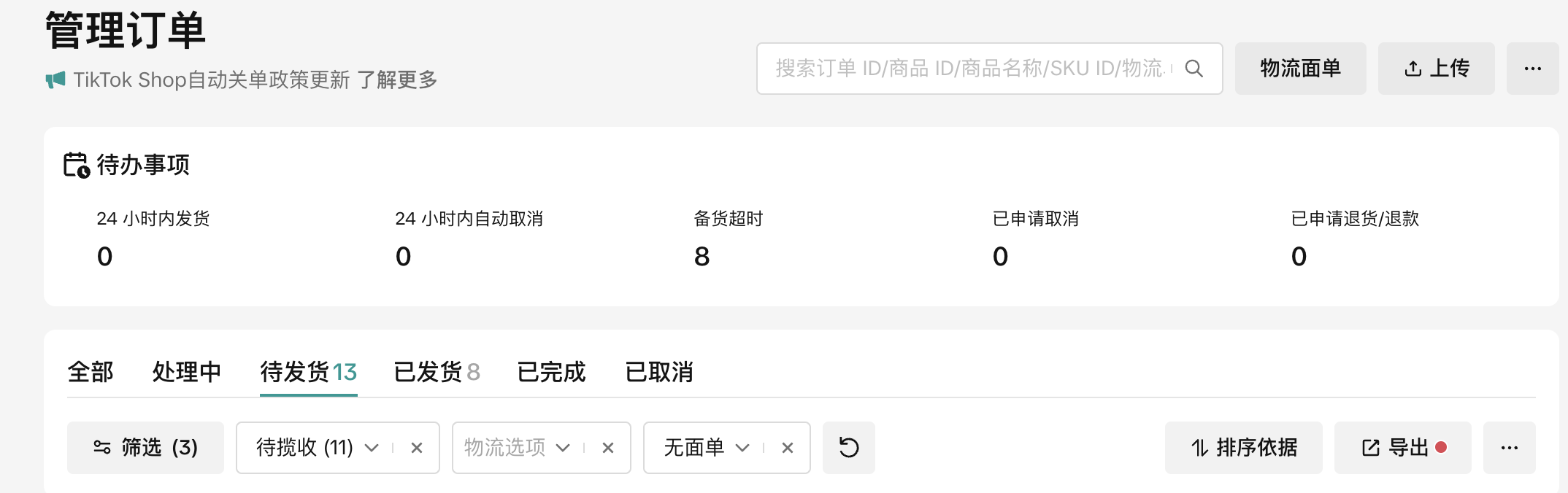
24小时内发货:商家需要在24小时将订单发货,否则会被判为延迟发货
24小时内自动取消:订单即将在未来24小时内被自动取消
备货超时:订单已被判为延迟发货
已申请取消:被用户申请取消的订单,商家需要及时审核
已申请退货/退款:需要及时审核用户申请退货或退款的订单
- 查看不同状态的订单
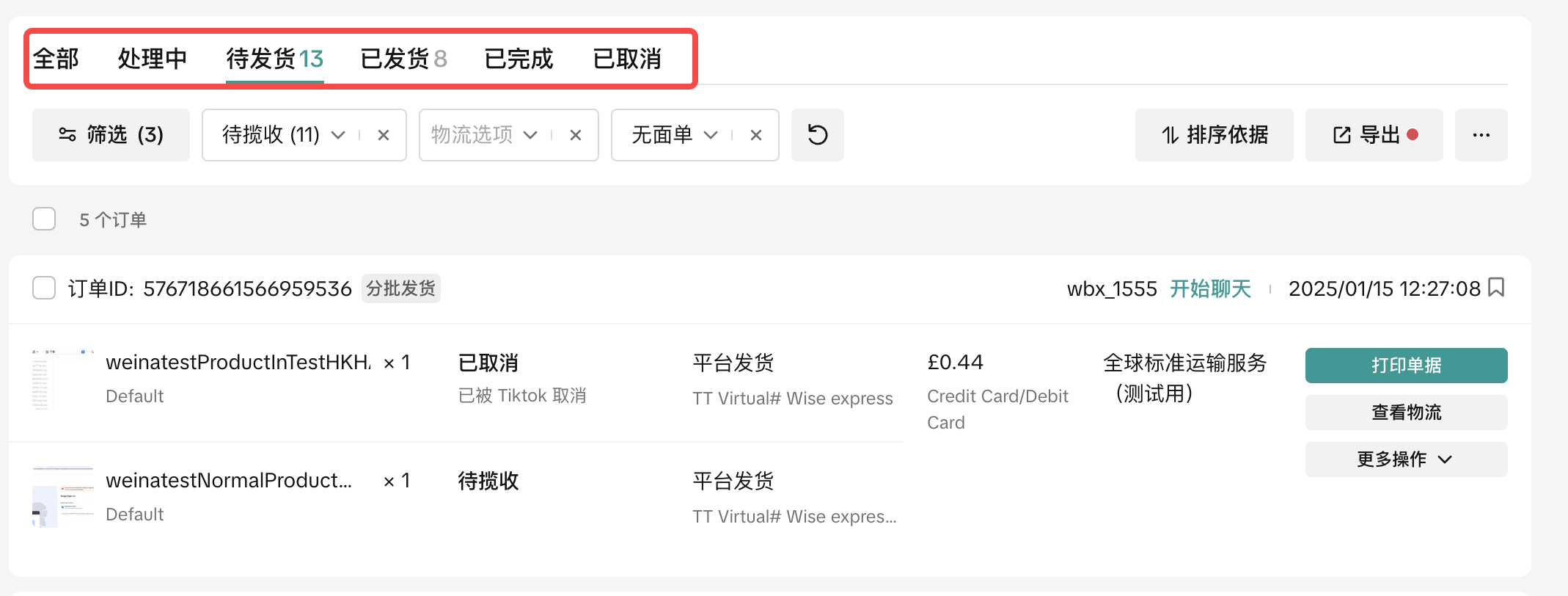
处理中:买家支付成功一小时后,可灵活取消的订单。超过一小时后订单状态会更新为「待发货」
待发货:买家已支付成功,商家准备发货的订单
已发货:已添加物流信息的订单
已完成:成功送达的订单。超过14天则无法再对其进行操作
已取消:商家取消过的订单
- 点击订单号,进入订单详情页
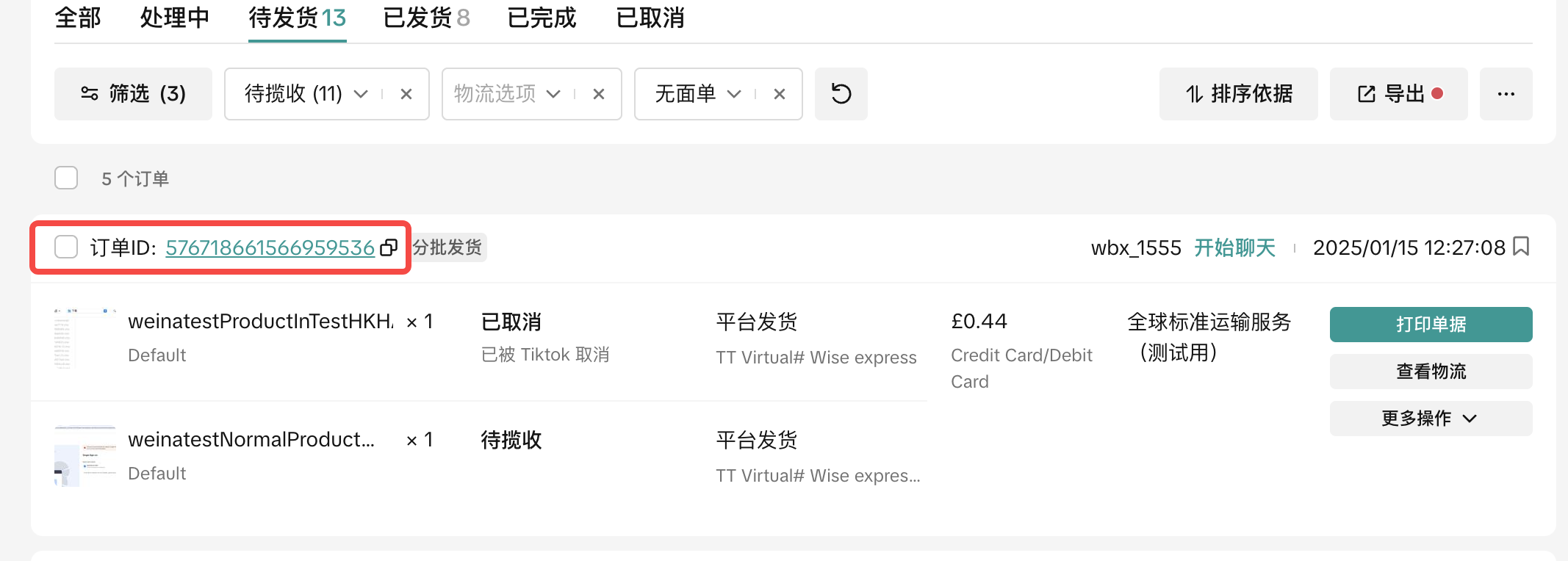
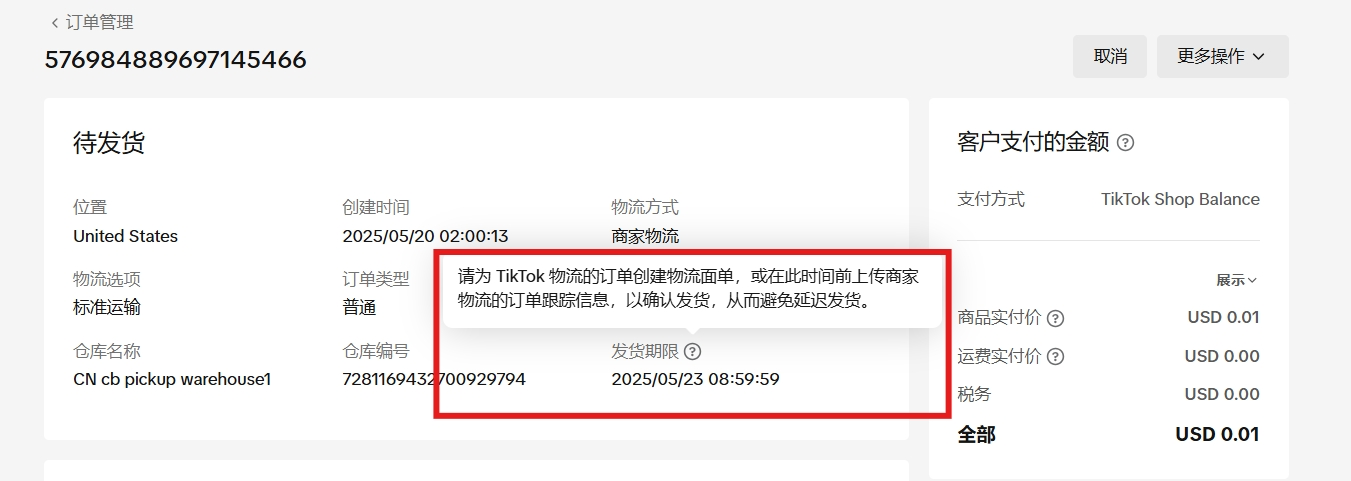
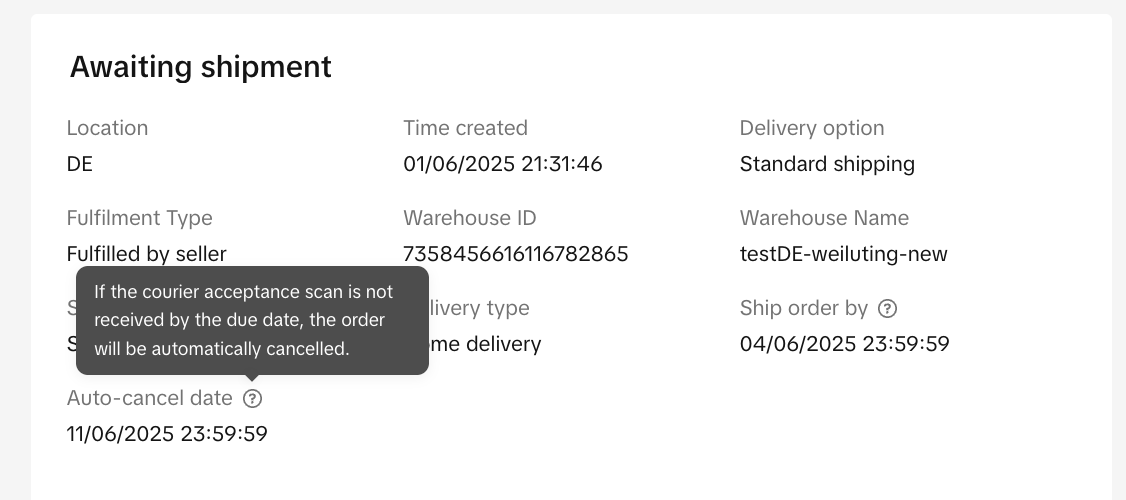
- 发货期限是指需在该日期内确认发货。使用TikTok物流模式,需在发货期限内创建物流面单并标记发货;使用商家物流发货模式,需在发货期限内上传物流追踪号并标记发货
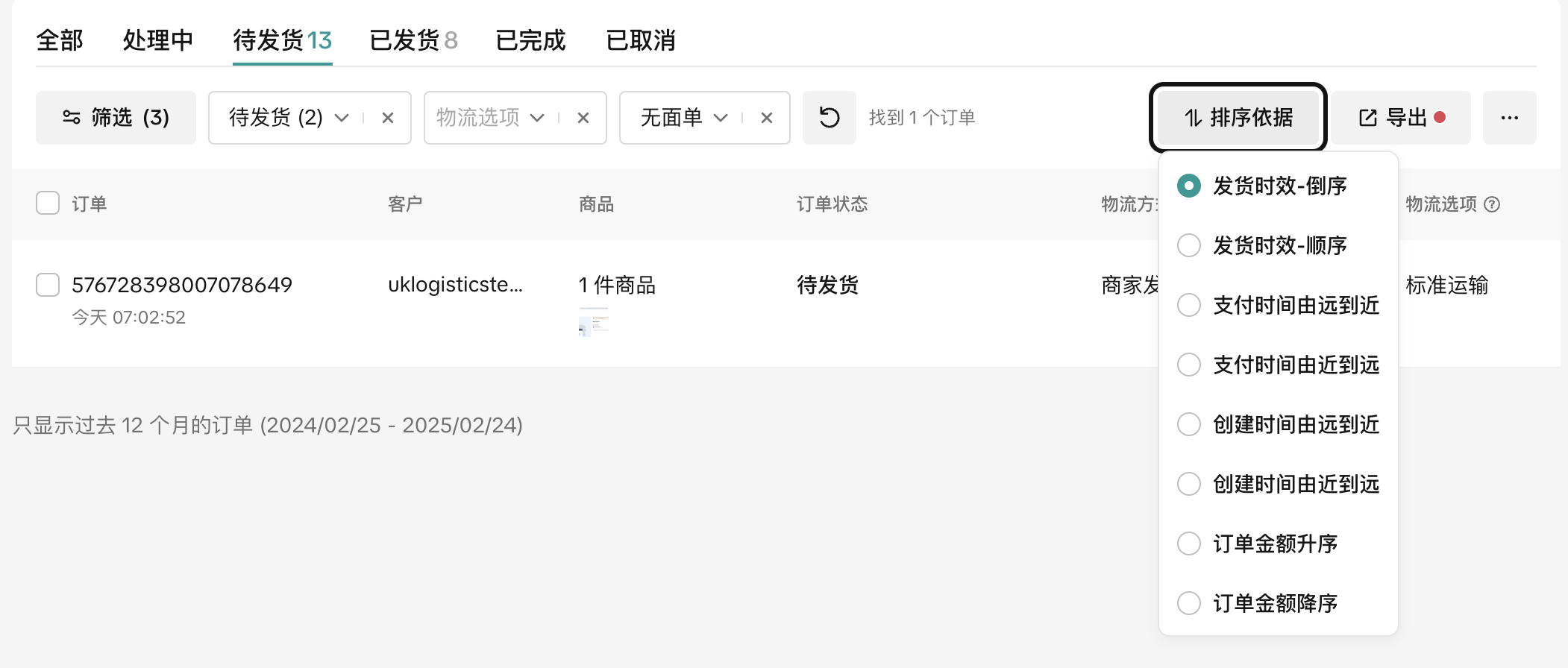
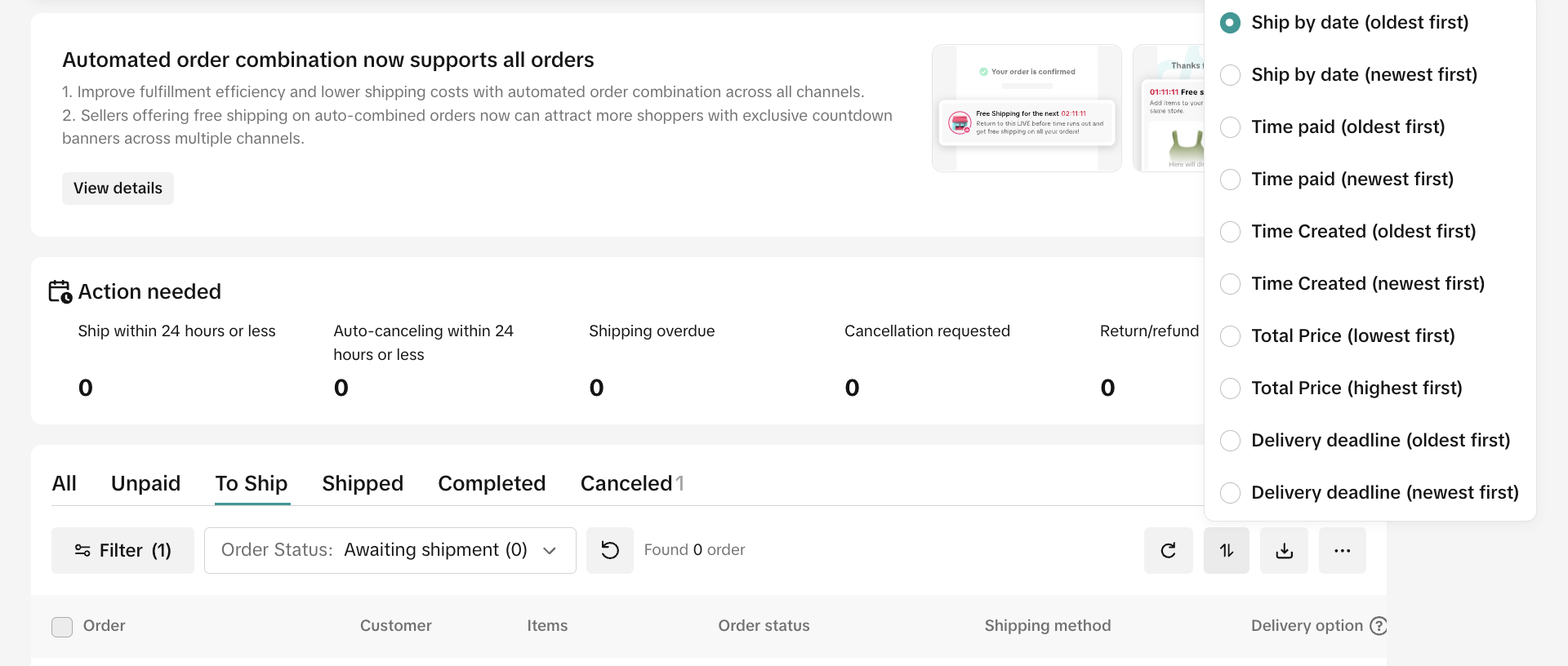
根据状态排序
点击「排序依据」按钮,商家可以自行选择订单排序方式
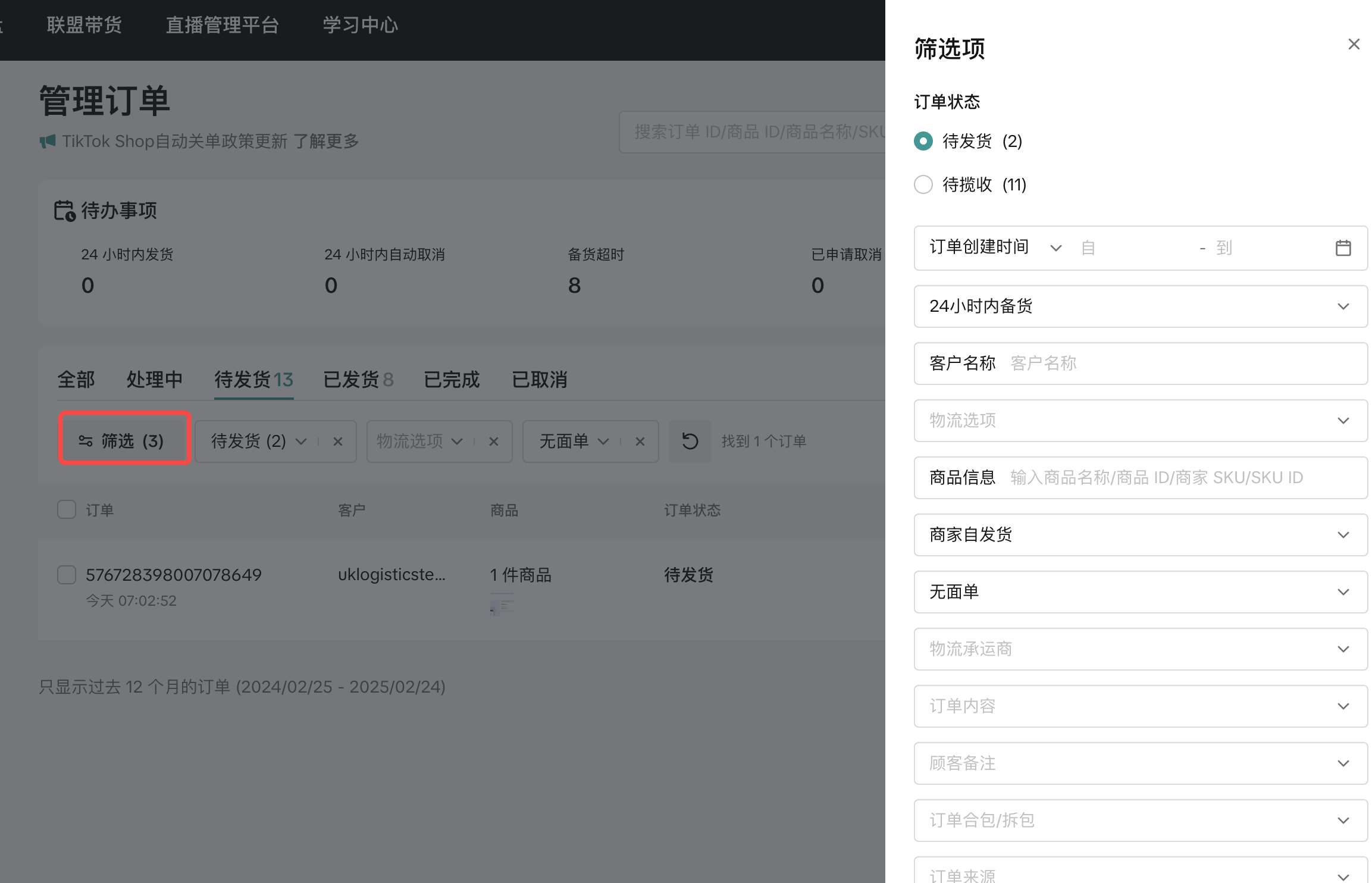
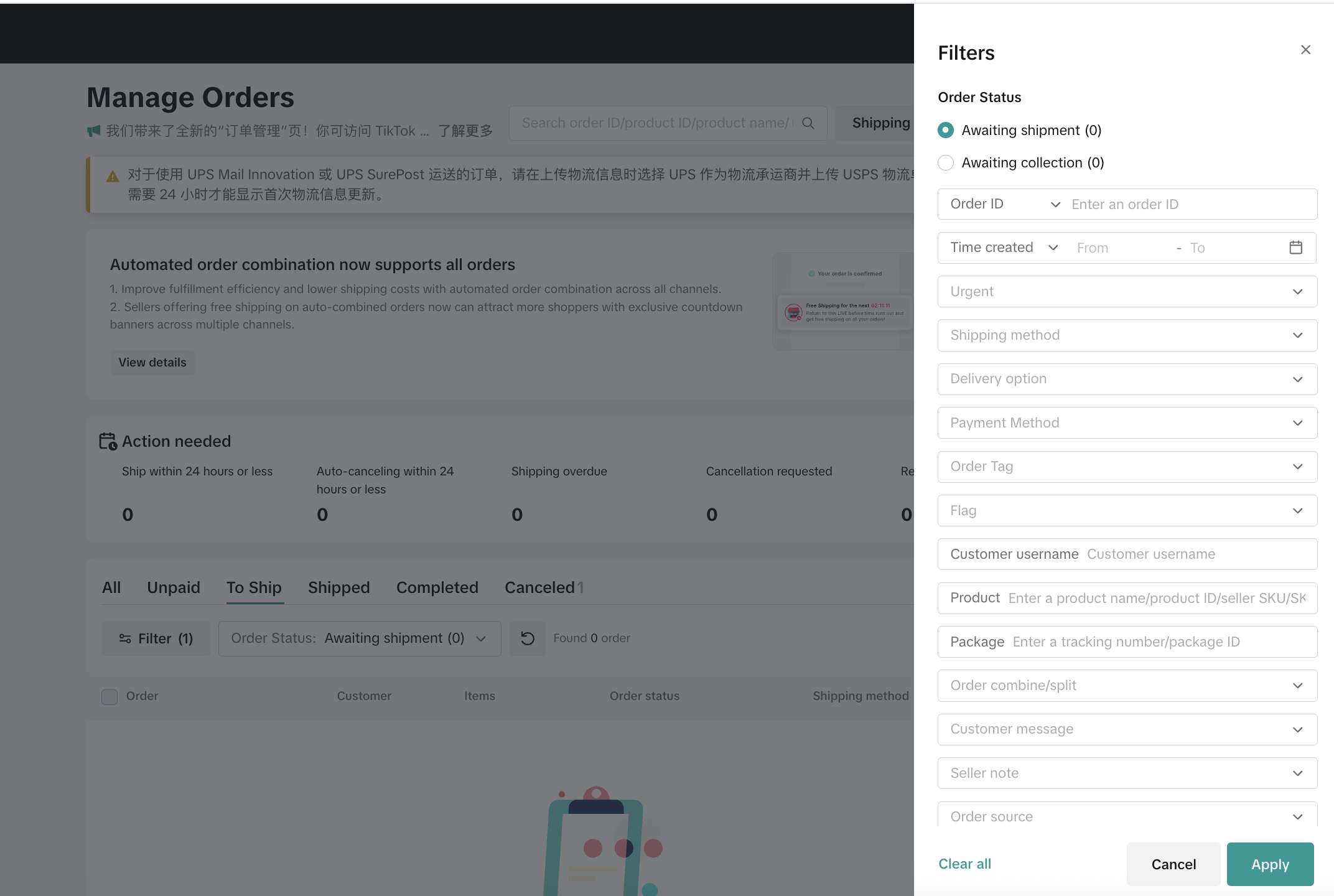
自行筛选订单
点击「筛选」按钮,可以筛选「待发货」和「待揽收」状态的不同订单
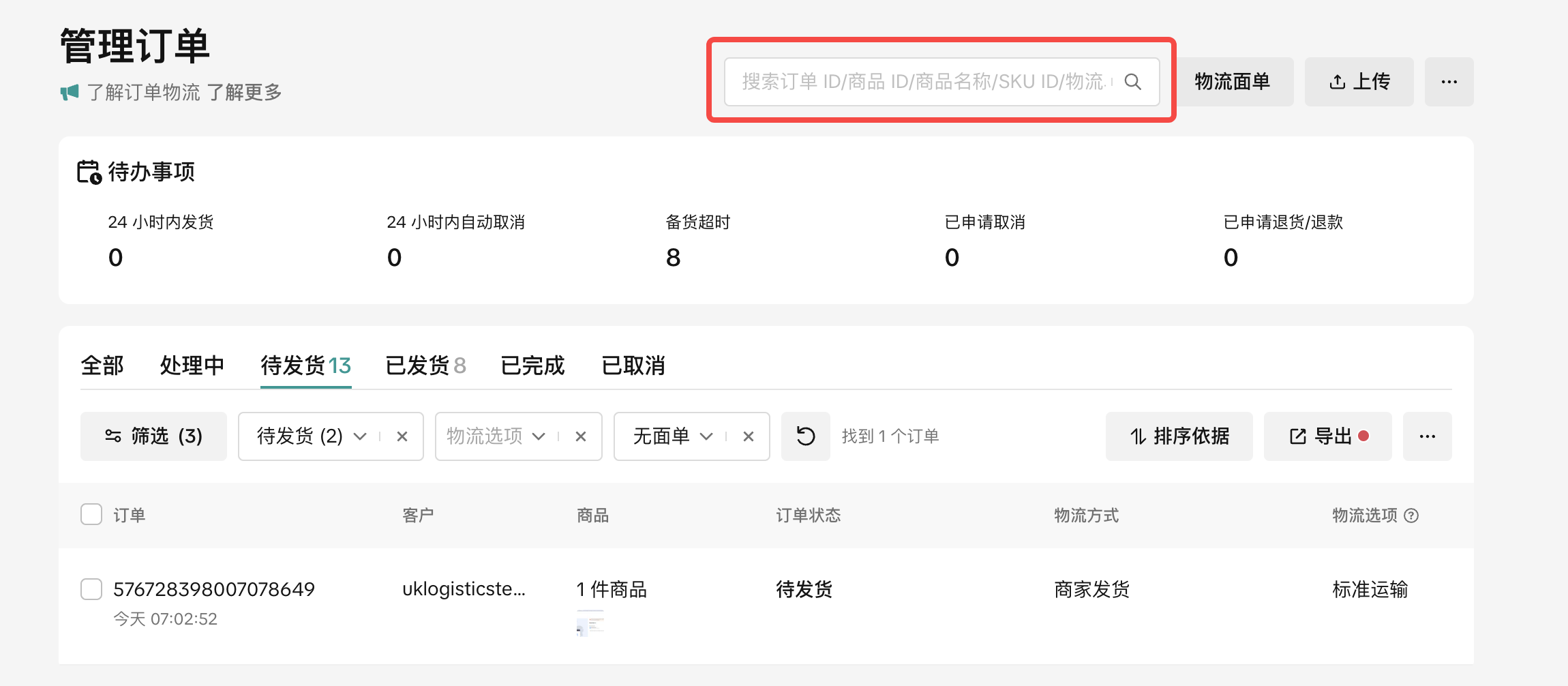
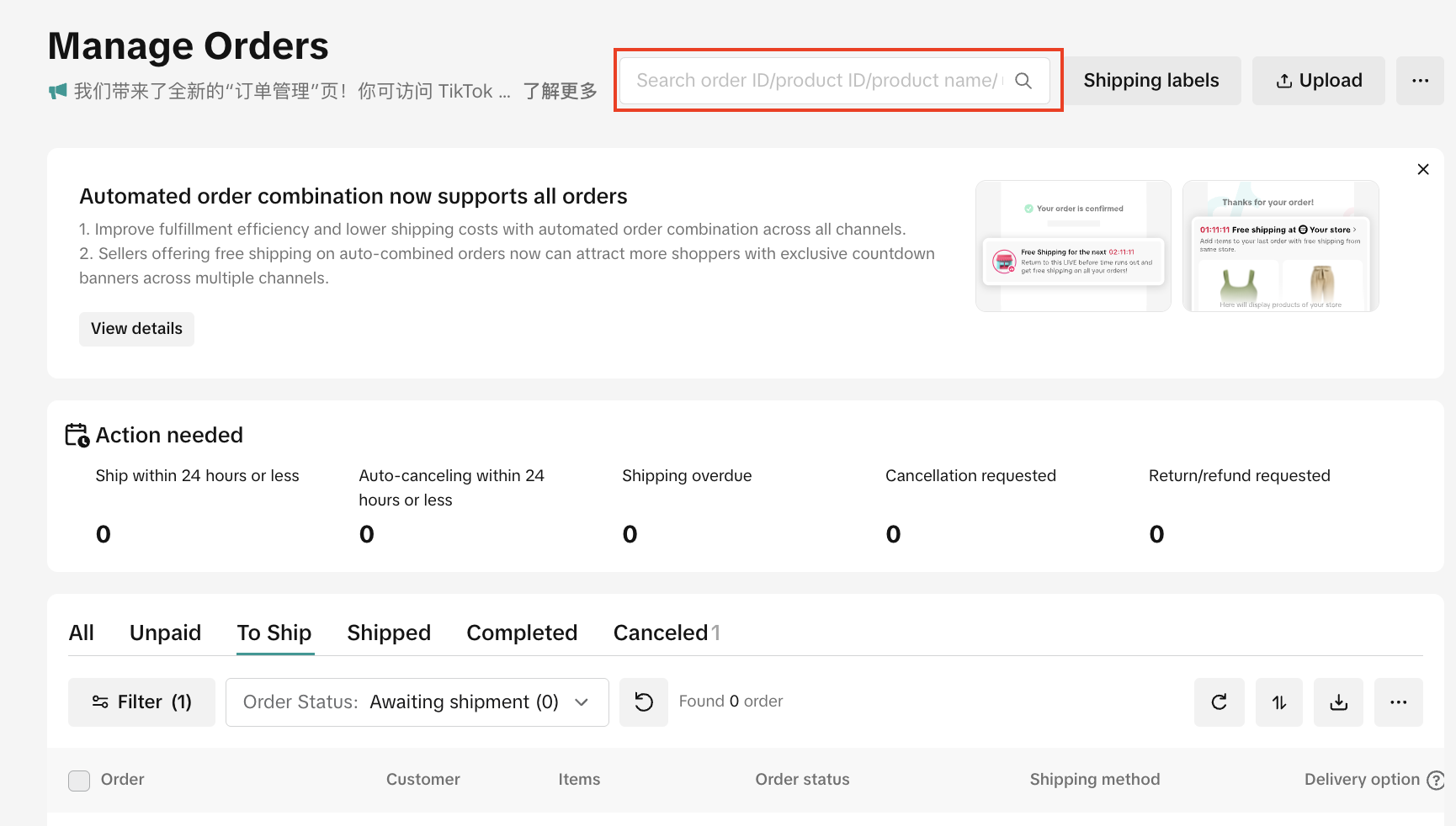
搜索订单
在顶部搜索框,支持搜索订单ID、商品ID、物流单号及SKU信息等。 可以用逗号(,)隔开来批量搜索
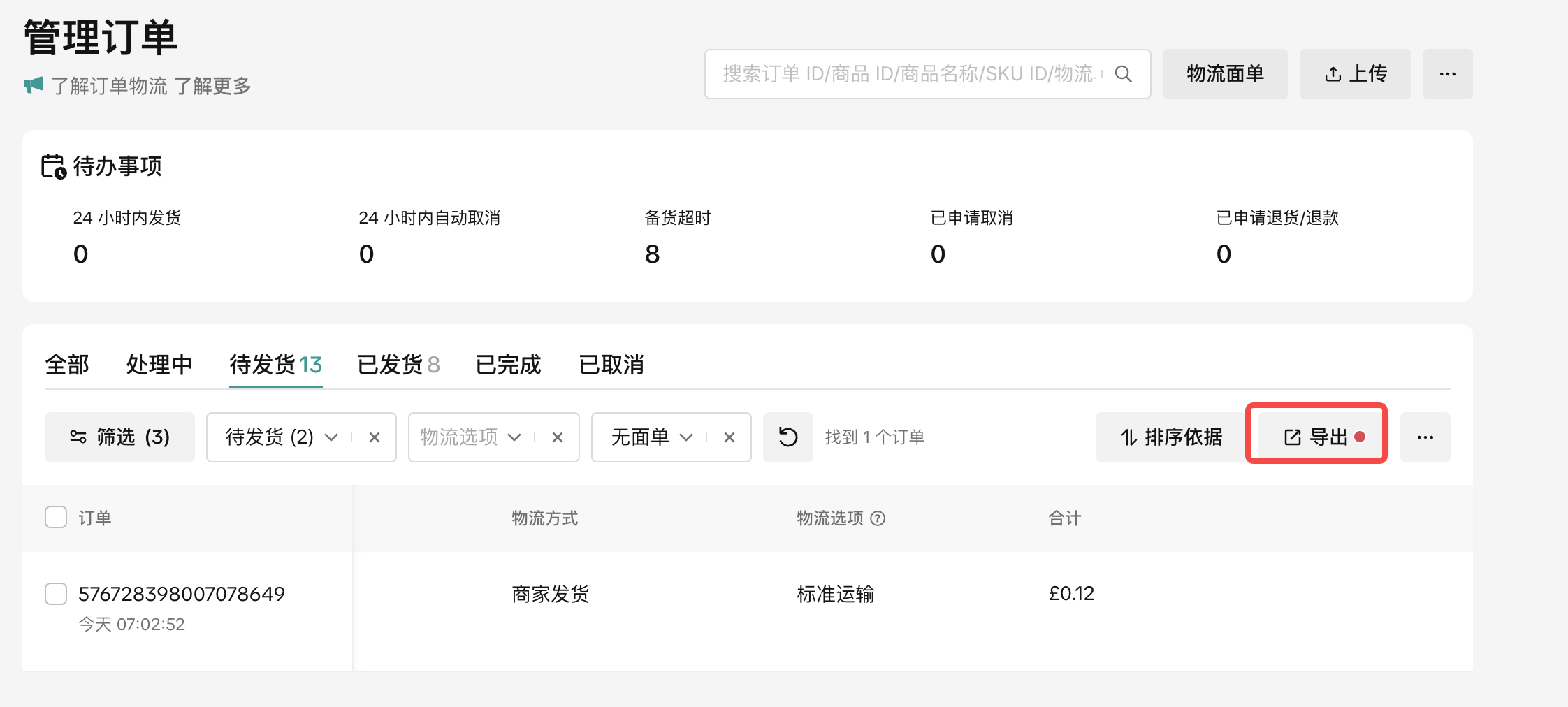
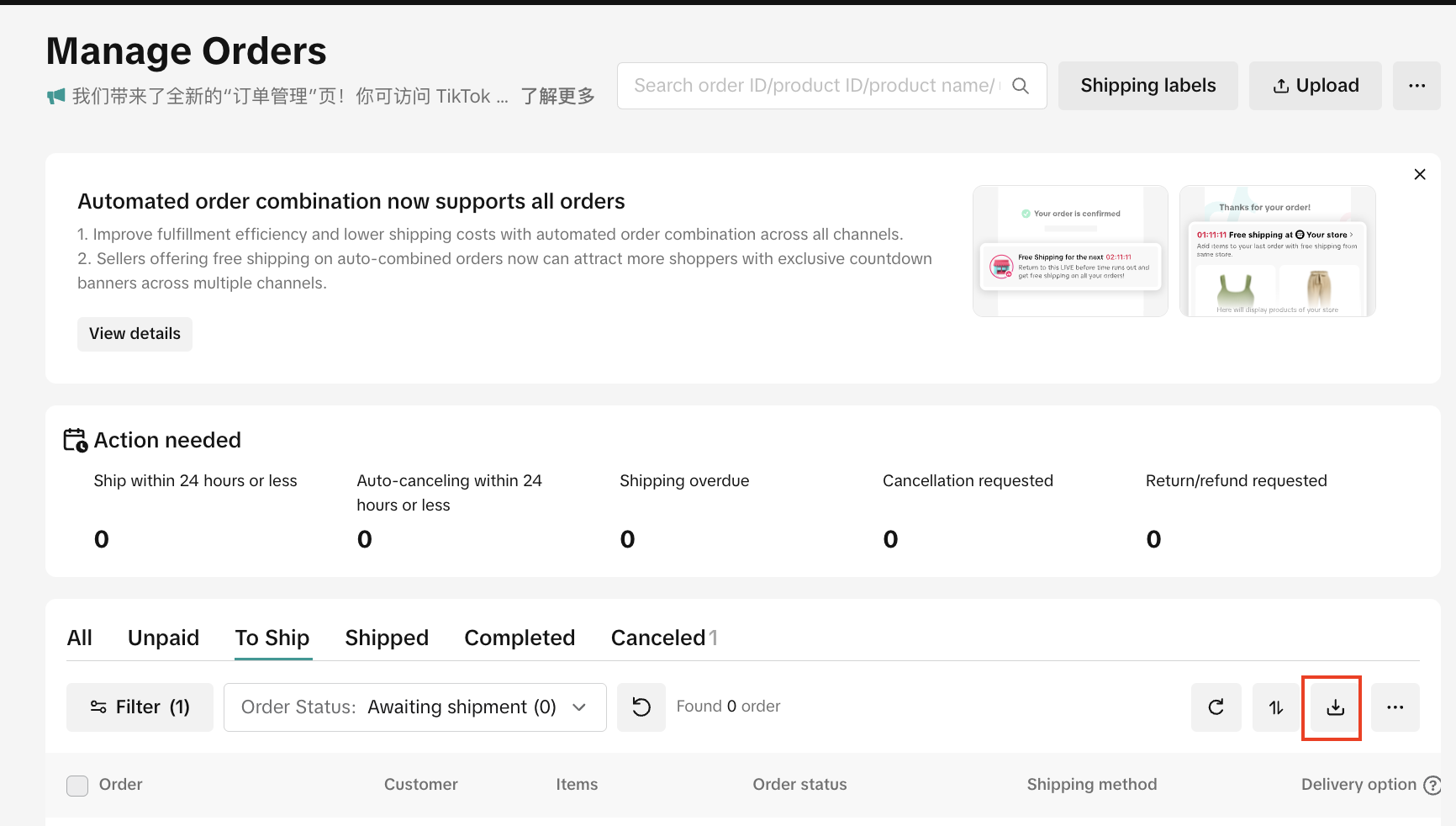
订单导出
- 建议商家先筛选出需要的目标状态订单,再进行导出(一次性最多支持导出20万条订单)
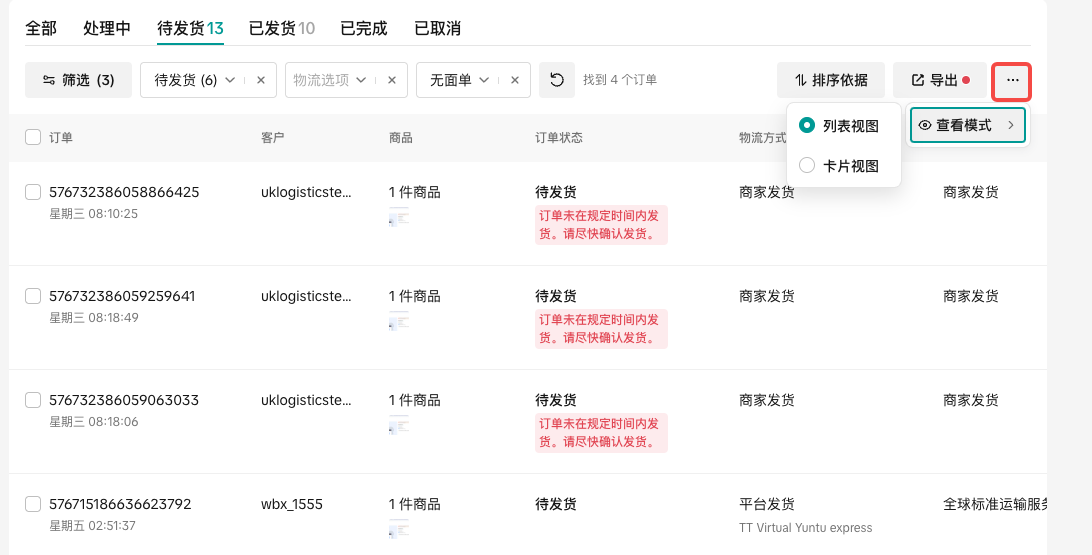
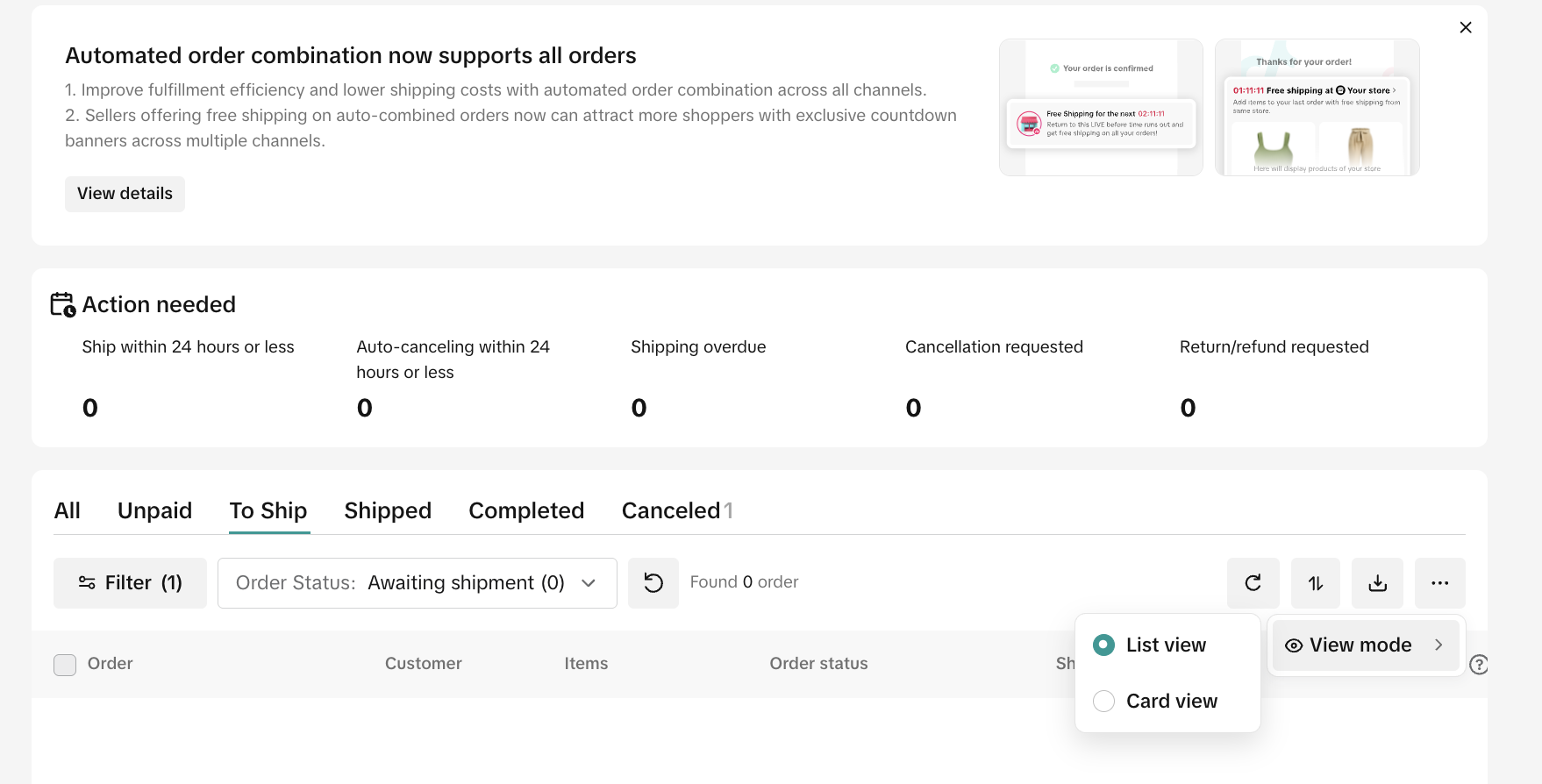
查看订单的模式切换
- 商家可以根据自己的查看偏好,来选择列表或卡片视图
- 发货——添加物流信息
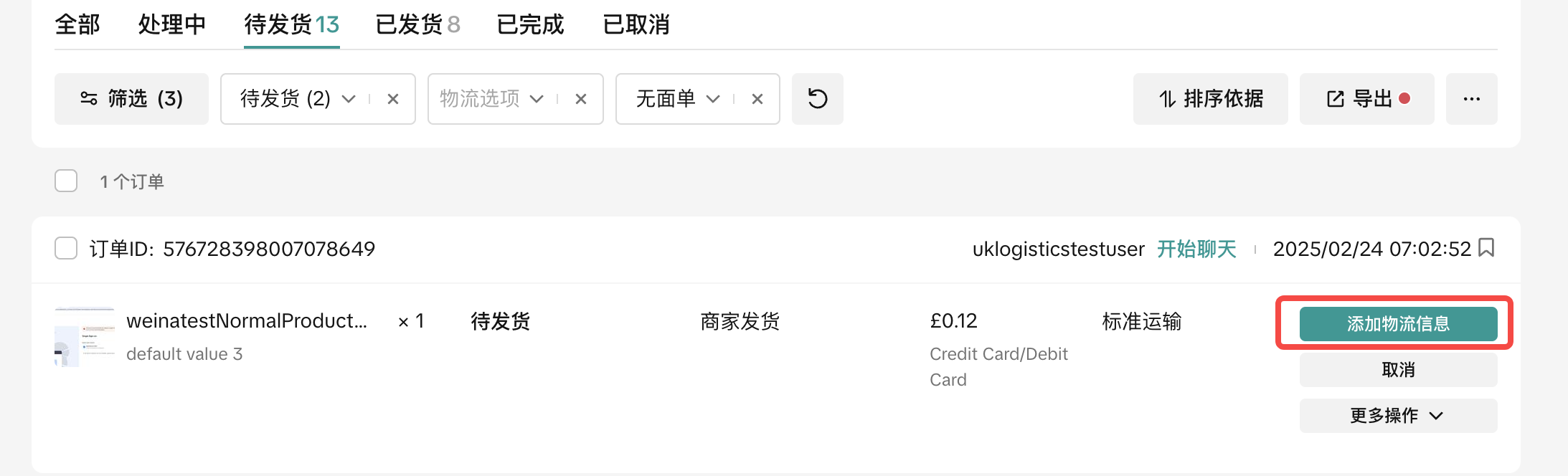
商家自发货物流模式
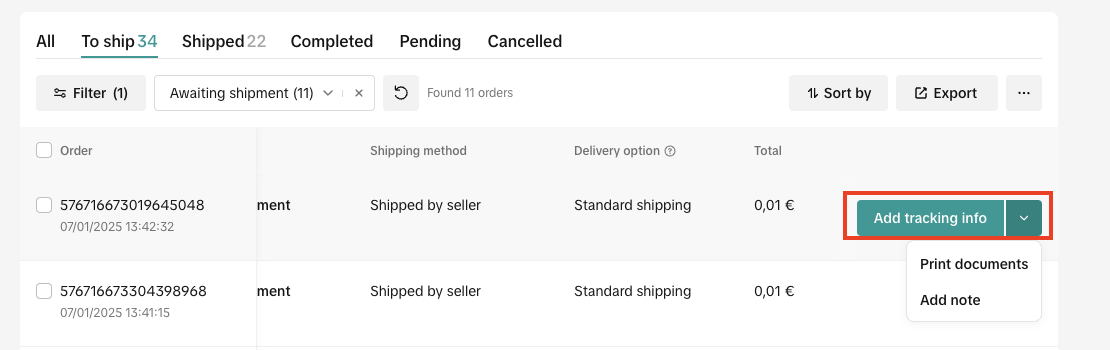
- 单笔或选择多笔订单发货,选择「添加物流信息」后填写物流单号及物流承运商
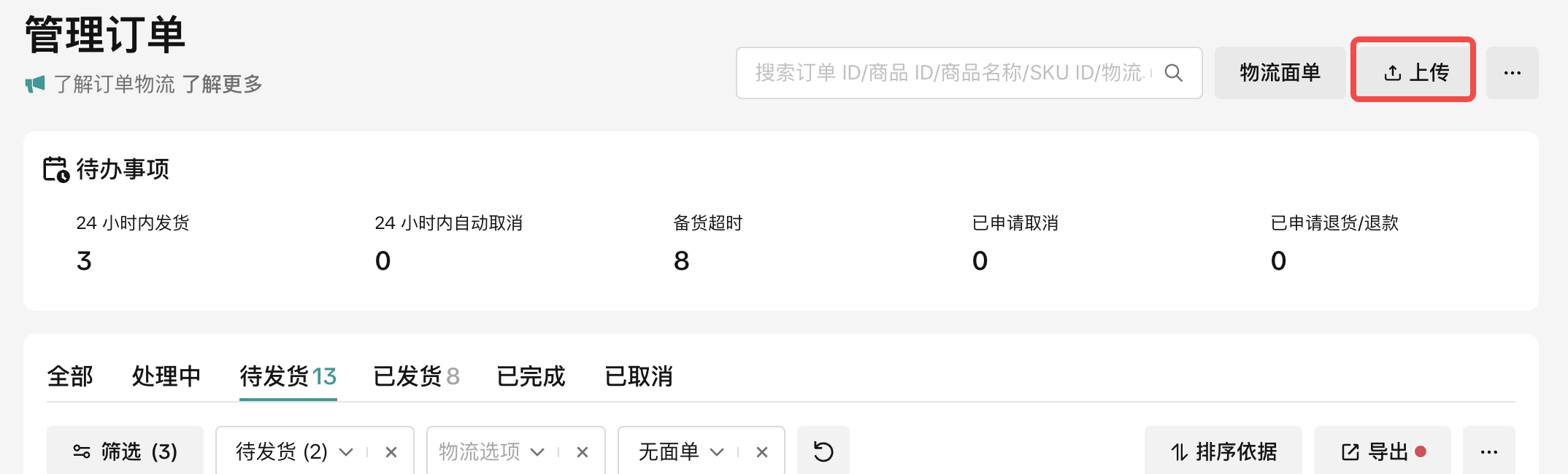
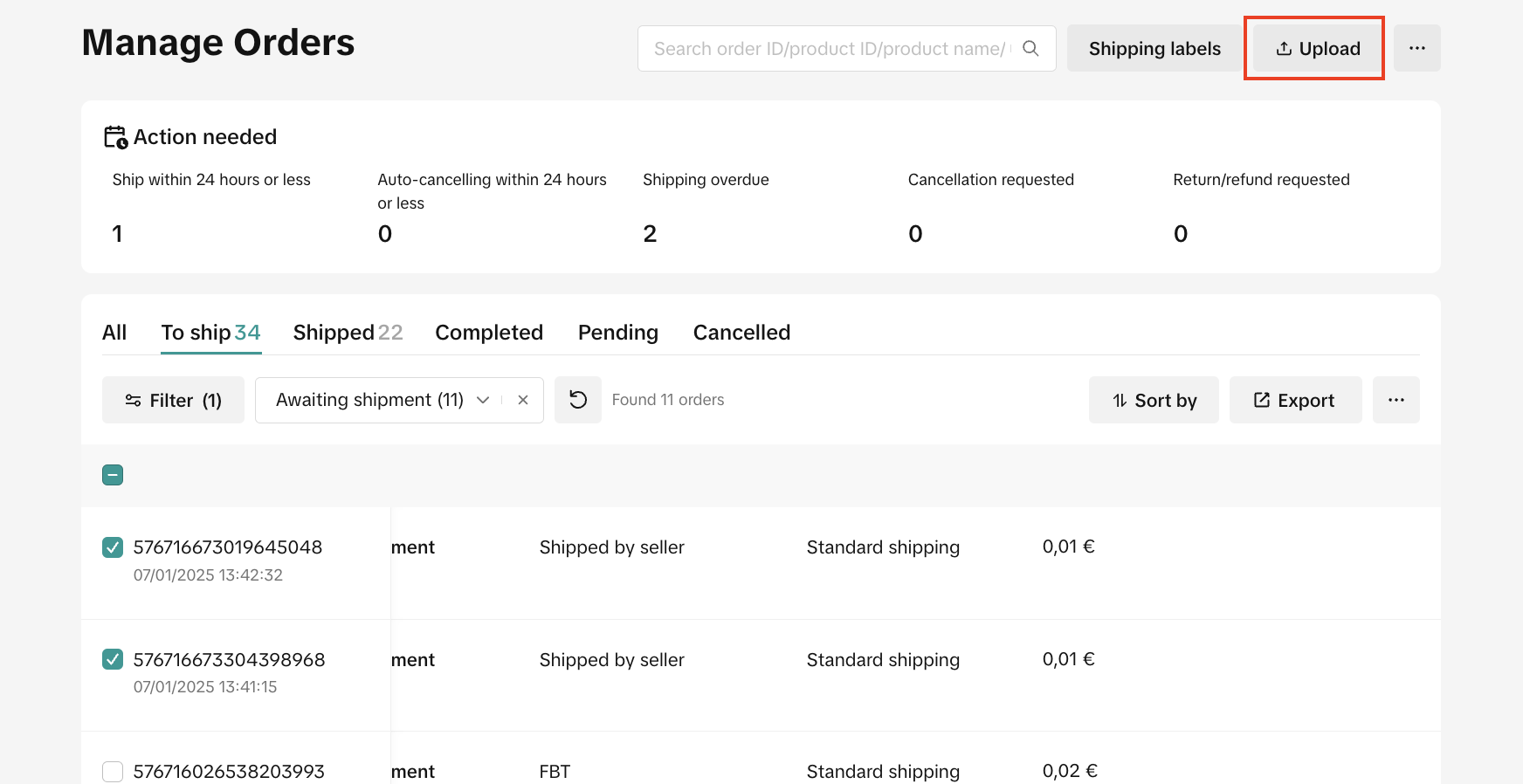
- 或选择顶部的「上传」按钮来批量上传订单的物流信息
TikTok物流模式
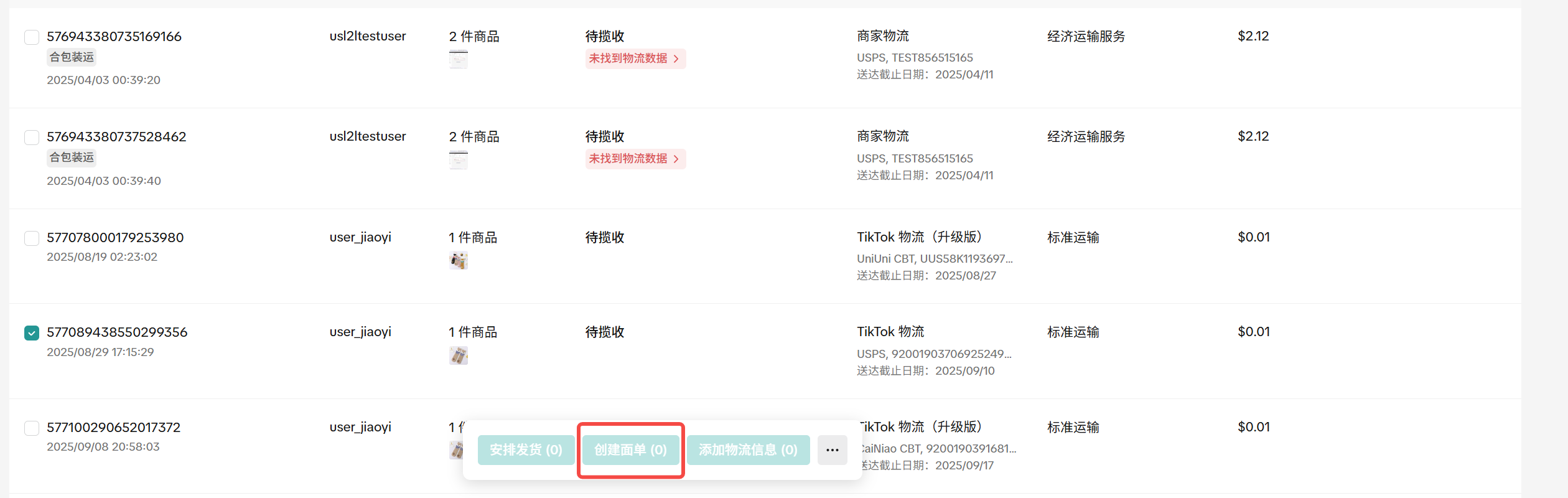
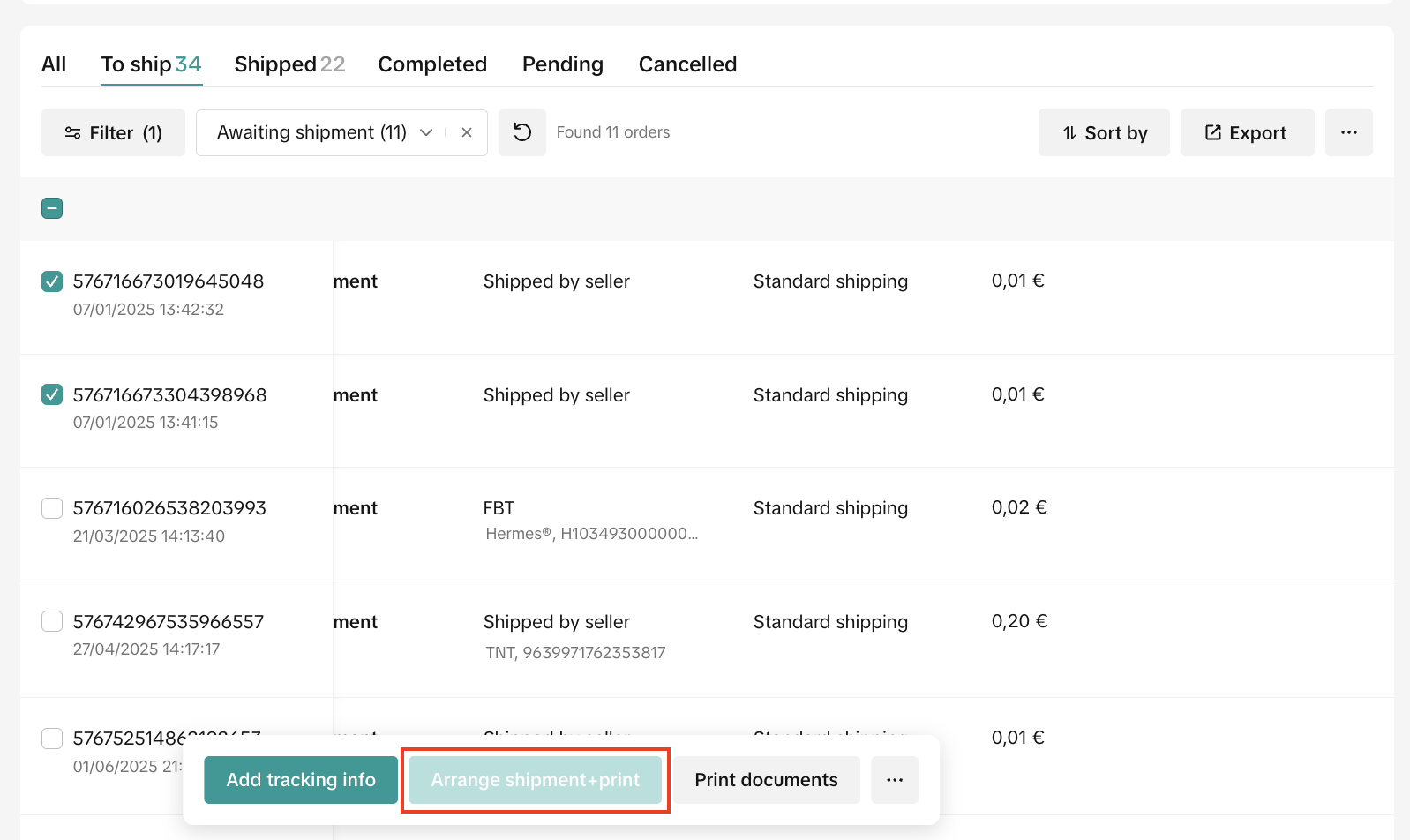
- 在订单管理页勾选单笔或多笔订单,选择「安排发货并创建物流面单」进行发货
升级版TikTok物流模式
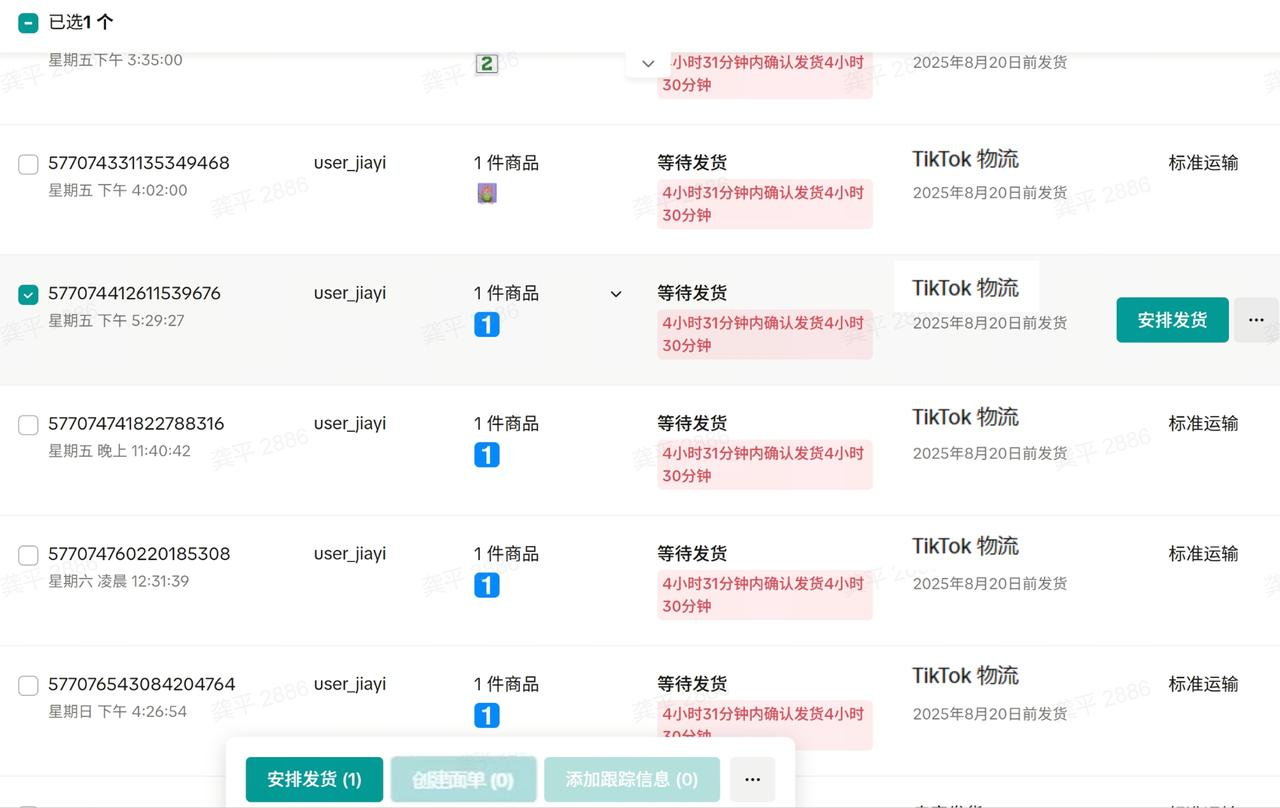
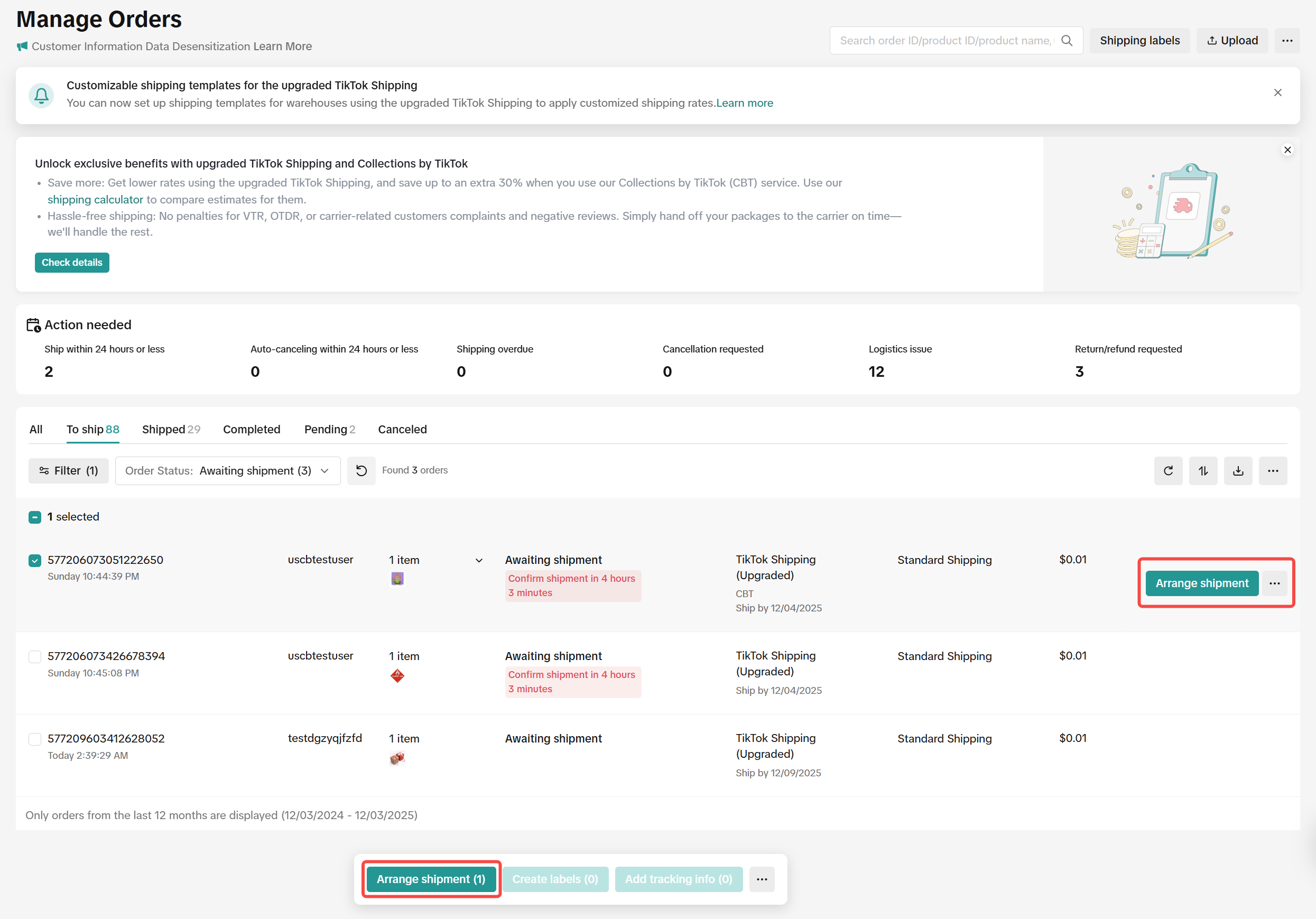
在订单管理页勾选单笔或多笔订单,选择「安排发货」进行发货
排查上传失败面单
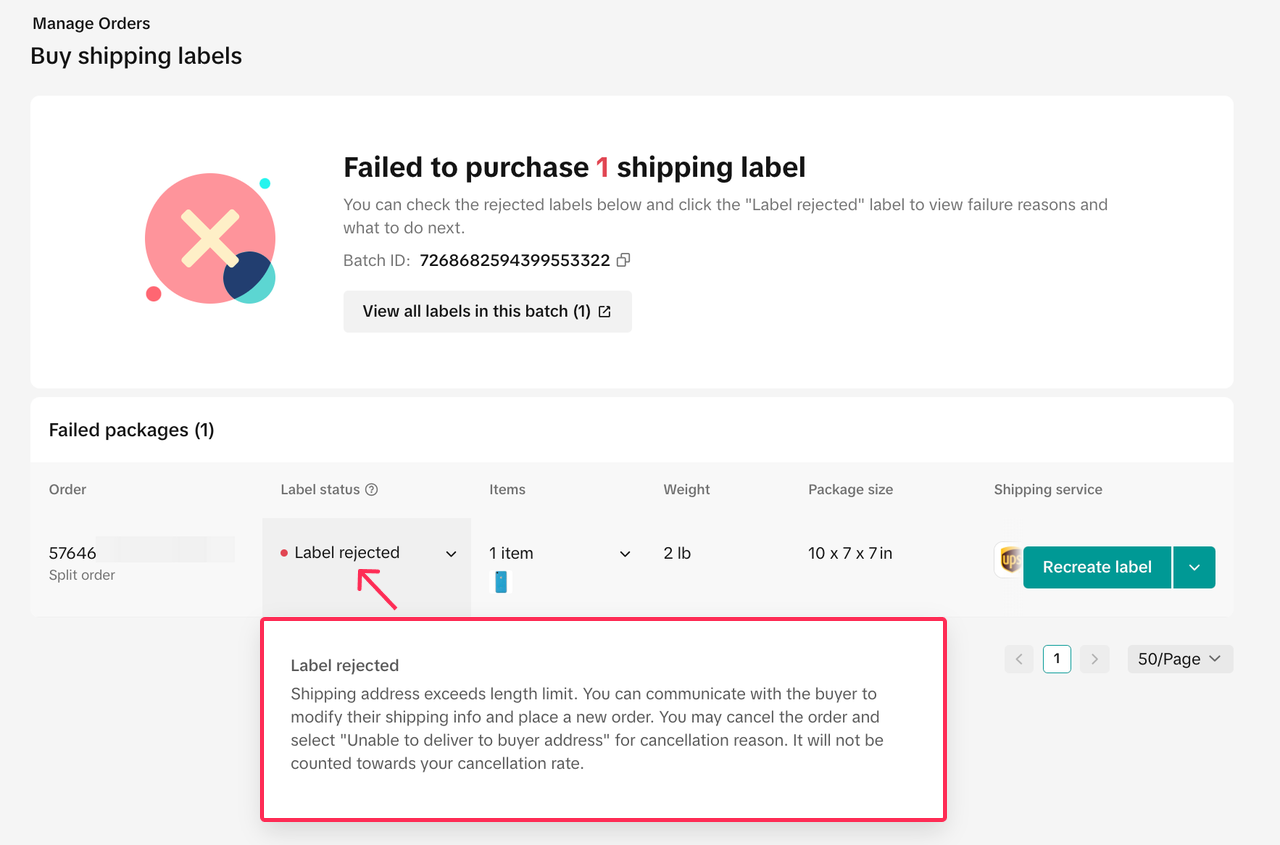
生成物流面单时,TikTok Shop须向物流商验证物流信息。如果平台收到物流商的错误代码,物流面单或被拒绝。
需进行以下操作:
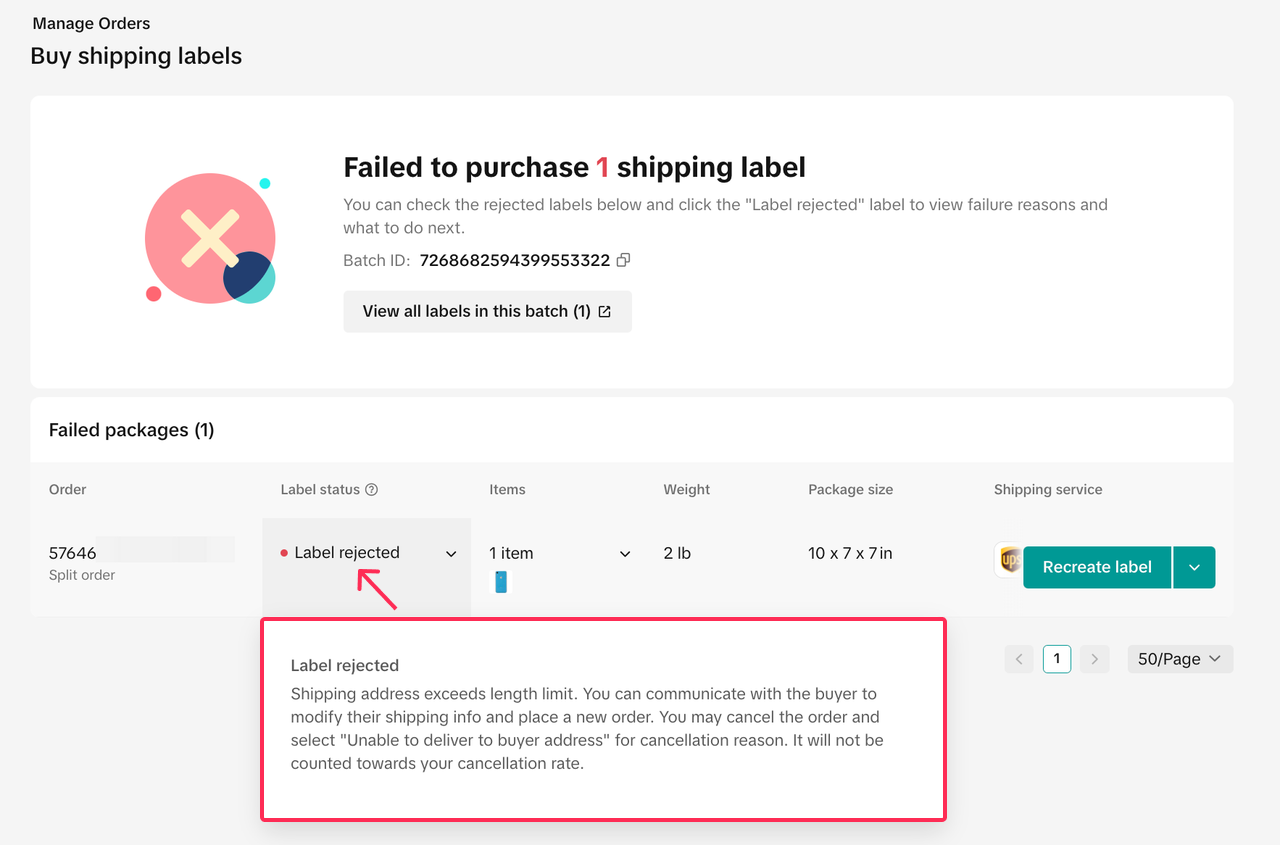
- 将鼠标悬停在“被拒面单”状态上,查看面单被拒原因。平台会提供错误原因和解决问题的下一步操作建议。
错误类型
买家地址问题
商品尺寸过大
物流商订单错误
根据被拒原因,许多问题只需几步就能解决。如遇复杂问题,可随时联系TikTok Shop支持团队需求更多帮助。
问题解决后:
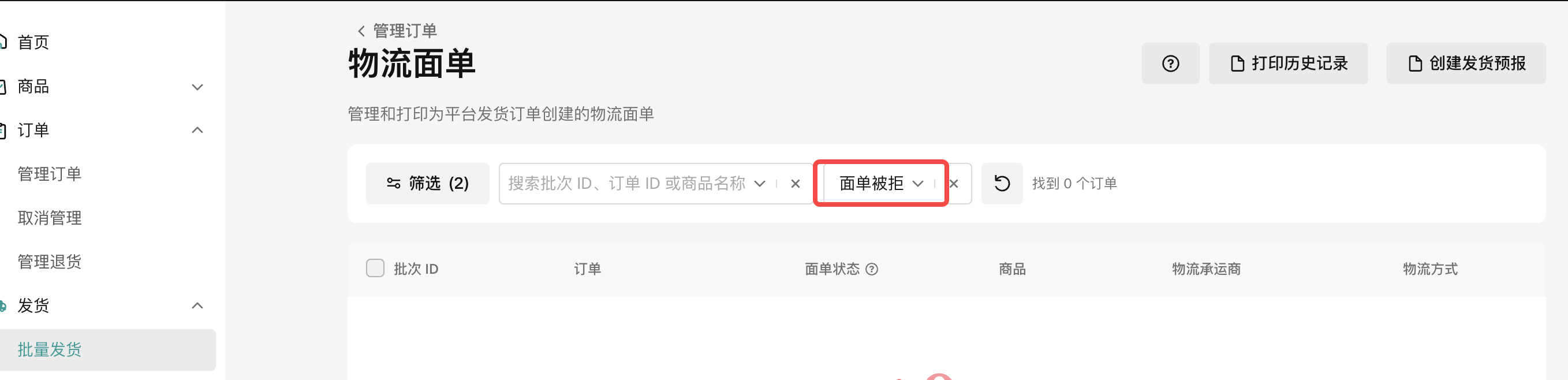
可以点击“重新创建面单”再次获取物流面单;
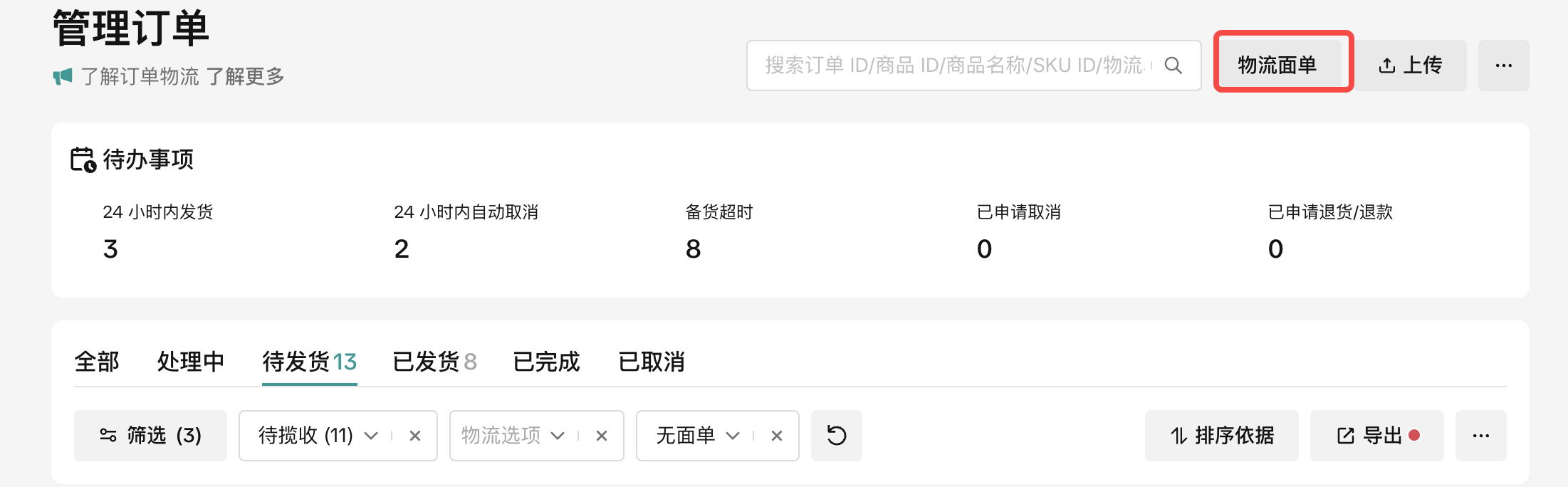
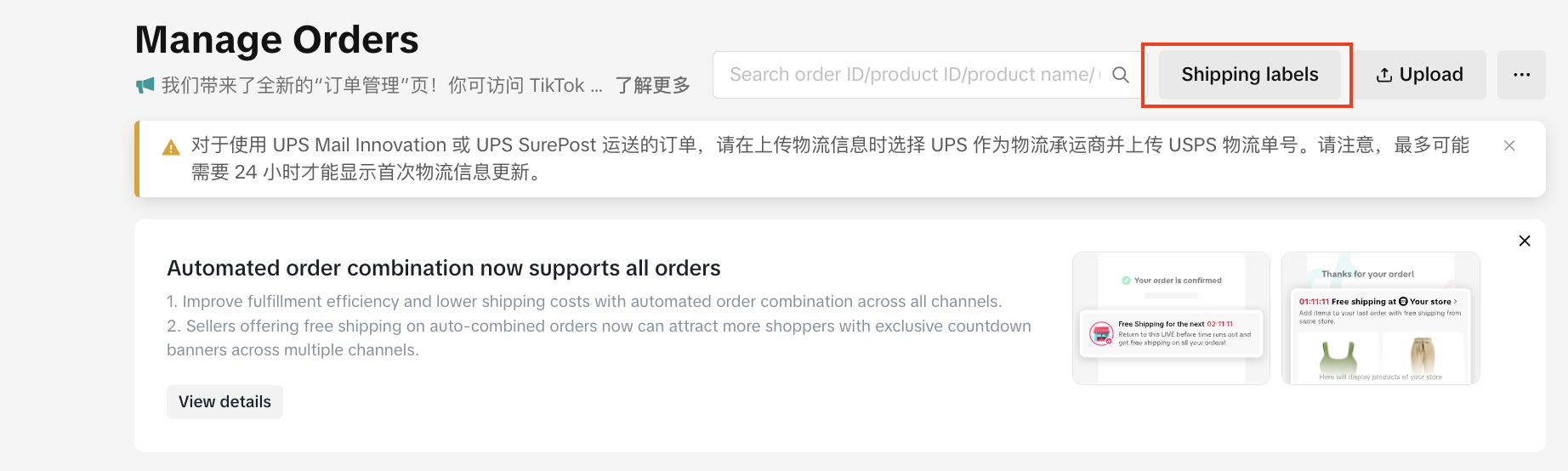
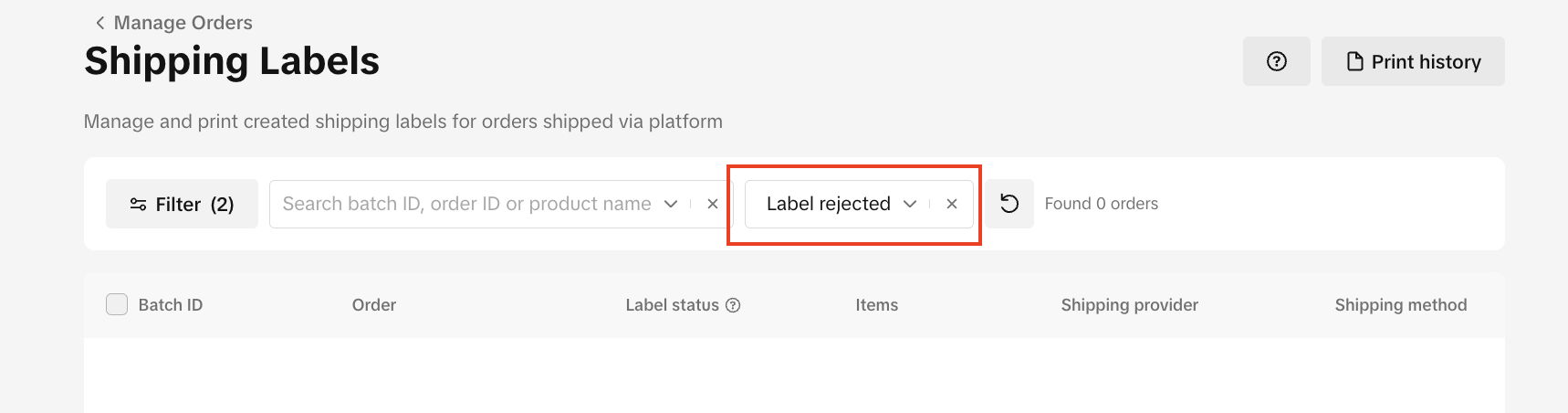
也可以进入「管理订单」的订单列表页,进入「物流面单」页面处理,筛选创建面单失败的订单,重新获取面单
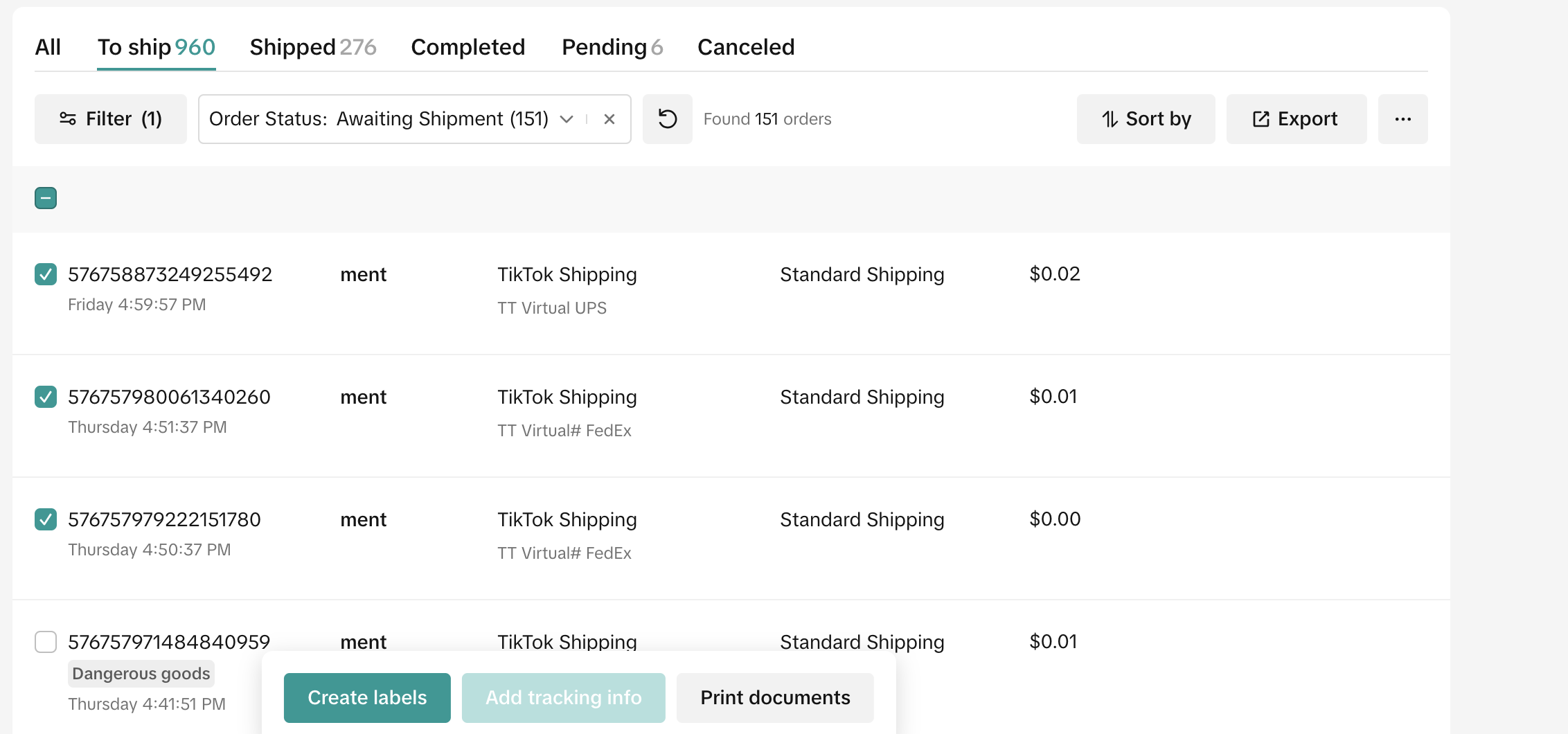
- 批量创建面单:一次只能同一种物流类型,无法本地仓/直邮混选
English Version
- Order Management Page
Order To-Do List
- After entering the “Manage Orders” menu, the top will display the orders of each status for sellers to keep an eye on.
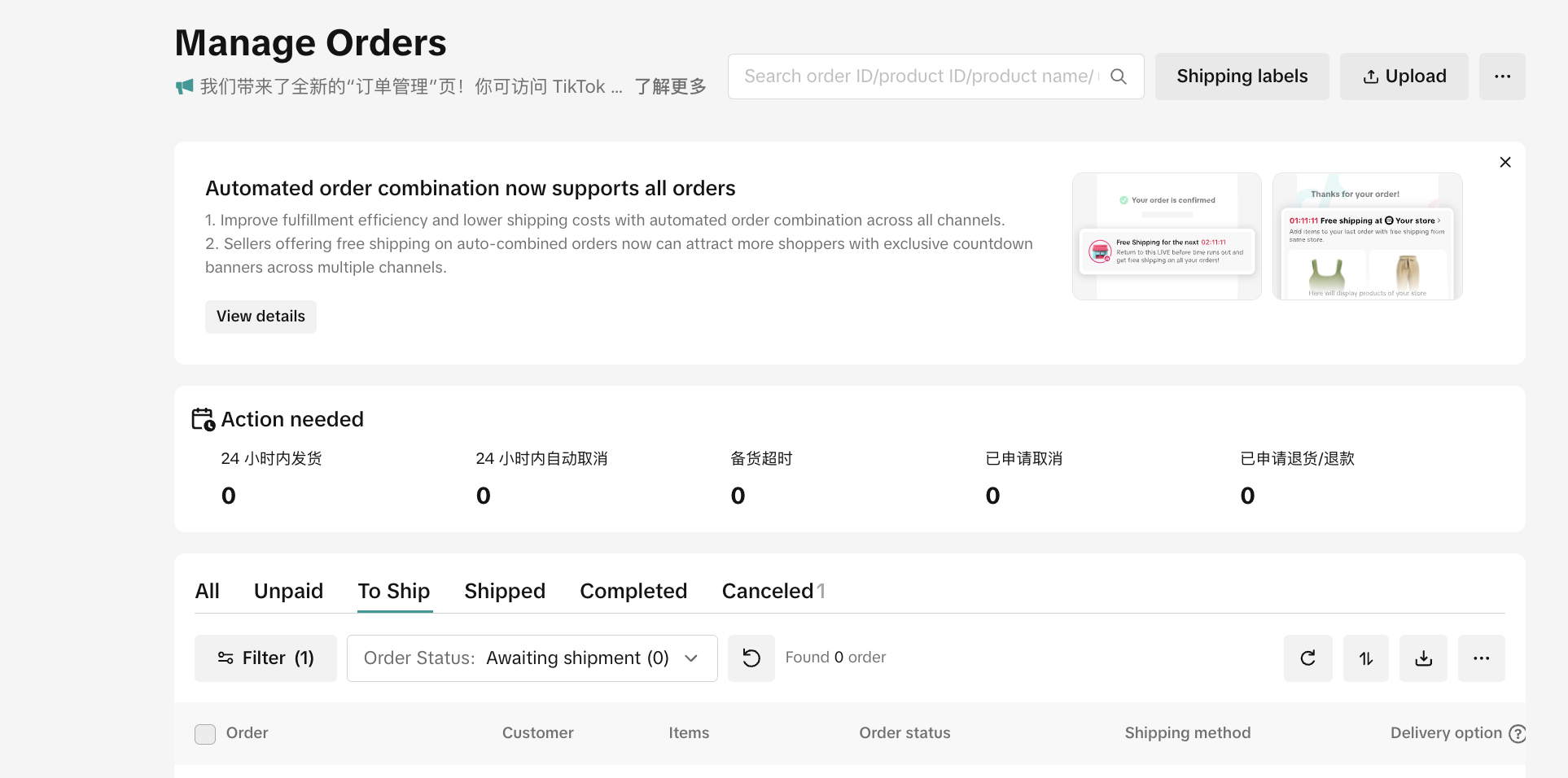
Shipping within 24 hours: Sellers need to ship the order within 24 hours, otherwise it will be considered as a delayed shipping.
Automatic cancellation within 24 hours: Orders will be automatically canceled within the next 24 hours.
Stocking timeout: Orders have been considered to delayed shipping.
Requested cancellation: Orders canceled by users need to be reviewed by sellers in a timely manner.
Return/refund requested: Orders for which users request returns or refunds need to be reviewed in a timely manner.
View Orders with Different Status

Processing: Orders that can be flexibly canceled one hour after the buyers’ payment. Order status will be updated to “Pending Shipping” after one hour.
Pending shipping: Orders that have been paid for by buyers and are ready to be shipped by sellers.
Shipped: Orders with shipment information added.
Completed: Orders that were successfully delivered. No further operations can be performed on them beyond 14 days.
Canceled: Orders that have been canceled by sellers.
- Click the order number to go to the order details page
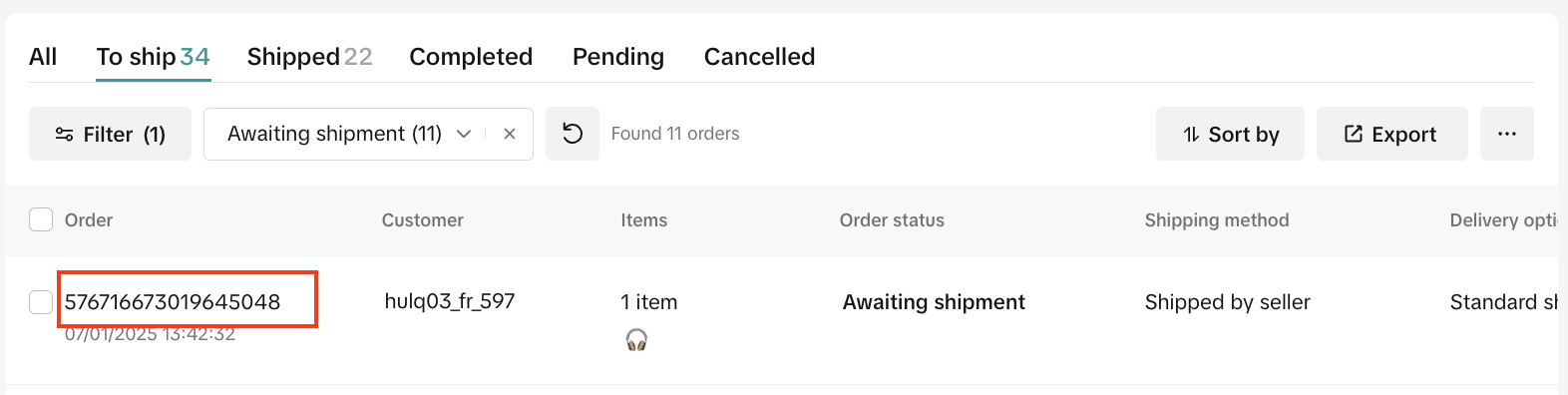
- The shipping deadline is the date within which the shipping needs to be confirmed. When using TikTok shipping mode, you must create a shipping label and mark the order as shipped within the specified shipping timeframe; When using seller shipping mode, you must upload a valid tracking number and mark the order as shipped within the specified shipping timeframe
Sort by status
By clicking the “Sort By” button, sellers can select their own order sorting style
Self-filter orders
You can filter different orders with “Pending Shipping” and “Pending Collection” status
Search orders
In the top search box, it supports searching order ID, product ID, tracking number and SKU information, etc. You can batch search by separating them with a comma (,)
Export orders
- It is recommended that sellers first filter orders by target status before exporting (a maximum of 200,000 orders can be exported at once)
Mode switching for viewing orders
- Sellers can choose between a list or card view depending on their viewing preference
Shipping–Add Shipment Information
Seller Shipping logistics model
- For single or multiple orders, select “Add Shipment Information” and fill in the tracking number and logistics carrier
- Or select the “Upload” button at the top to batch upload the order shipment information
TikTok Shipping logistics model
- Check single or multiple orders on the order management page and select “Arrange for shipping and create a shipping label” for shipping
Upgraded TikTok Shipping logistics mode
- Check single or multiple orders on the order management page and select “Arrange Shipment “.
Troubleshoot failed shipping label uploads
TikTok Shop is required to verify the shipment information with the carriers when generating the shipping labels. If the platform receives an error code from the carriers, the shipping labels may be rejected.
The following operations are required:
- Hover over the “Rejected Shipping Labels” status to view the rejection reasons. The platform will provide the error reason and suggest next steps to resolve the issue.
Error type
Buyer address issue
Products are oversized
Carrier order error
Many issues can be resolved in just a few steps depending on the reason for rejection. Feel free to contact the TikTok Shop support team for further assistance in case of any complications.
After resolving the issue:
Click “Re-create Shipping Labels” to get the labels again;
Alternatively, you can also go to the Order List page under “Manage Orders”, access the “Shipping Labels” page, filter orders with failed label creation, and re-create the labels
- Batch shipping label creation: Only one logistics type can be selected per batch. Local warehouse and direct shipping options cannot be mixed