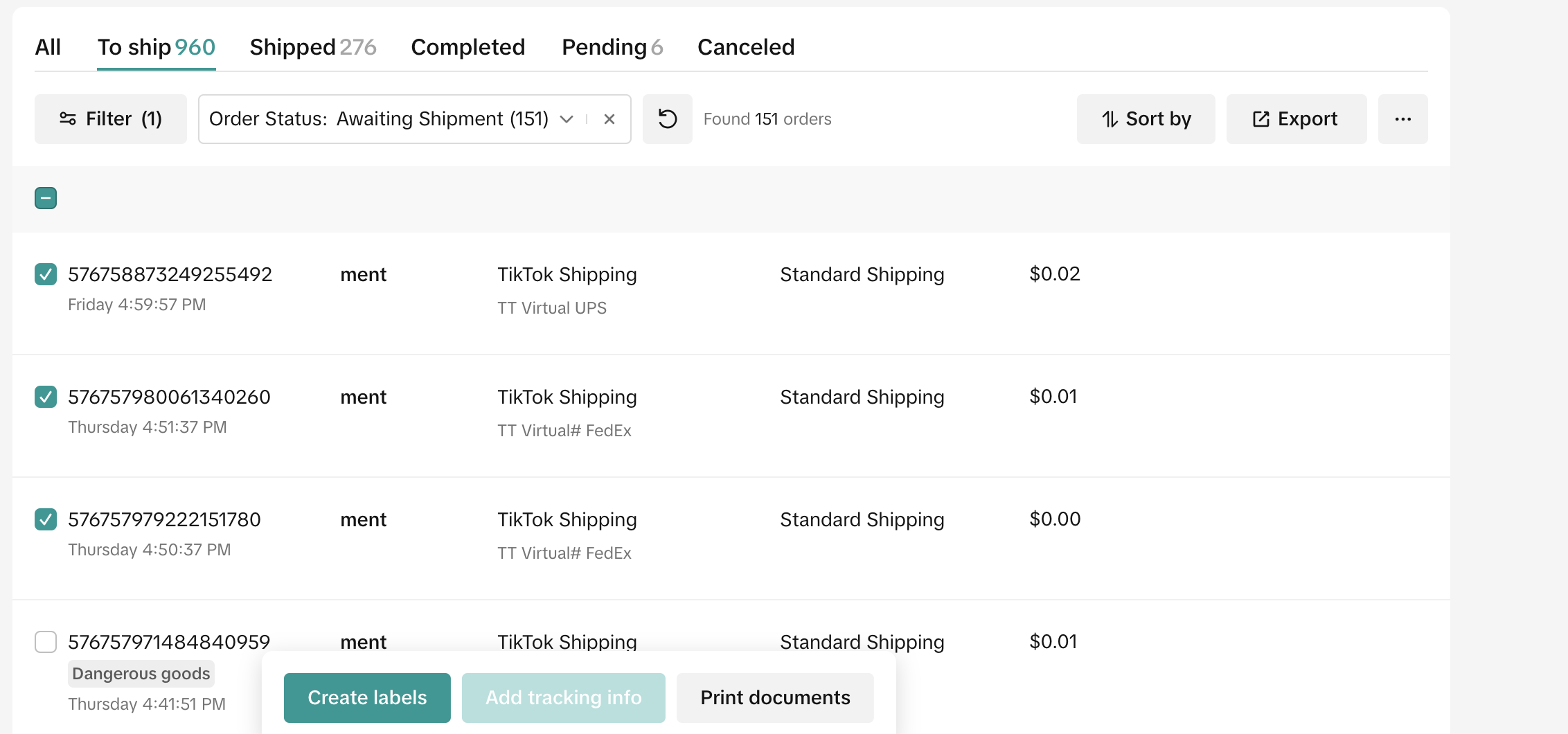
Order Management Page
Order To-Do List
- After entering the “Manage Orders” menu, the top will display the orders of each status for sellers to keep an eye on.
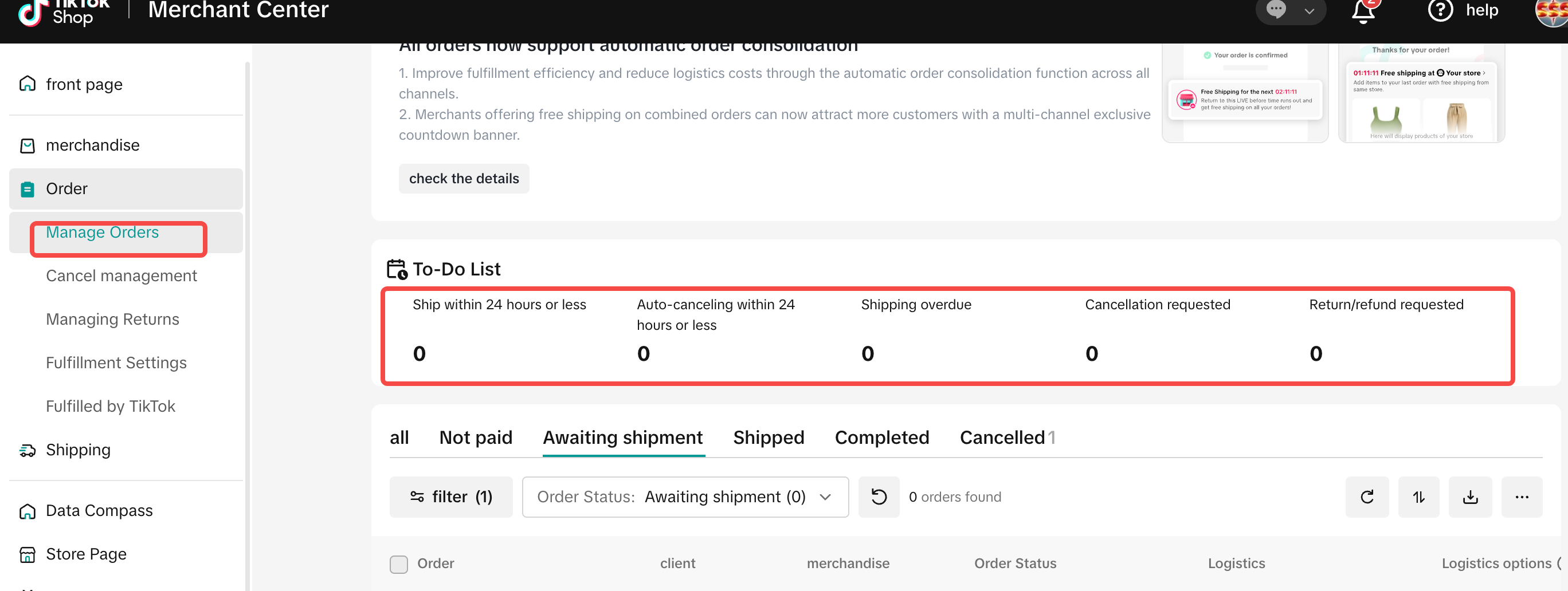
Shipping within 24 hours: Sellers need to ship the order within 24 hours, otherwise it will be considered as a delayed shipping.
Automatic cancellation within 24 hours: Orders will be automatically canceled within the next 24 hours.
Stocking timeout: Orders have been considered to delayed shipping.
Requested cancellation: Orders canceled by users need to be reviewed by sellers in a timely manner.
Return/refund requested: Orders for which users request returns or refunds need to be reviewed in a timely manner.
View Orders with Different Status
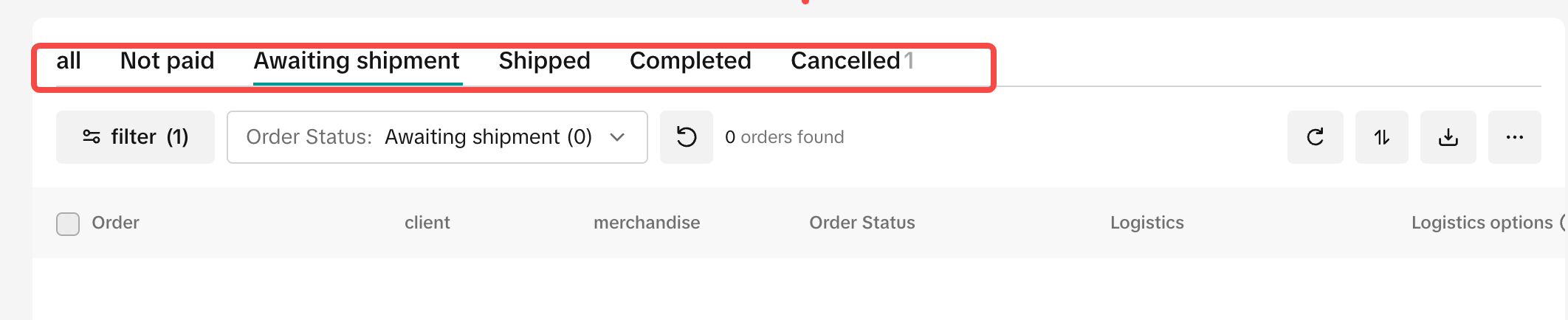
Processing: Orders that can be flexibly canceled one hour after the buyers’ payment. Order status will be updated to “Pending Shipping” after one hour.
Pending shipping: Orders that have been paid for by buyers and are ready to be shipped by sellers.
Shipped: Orders with shipment information added.
Completed: Orders that were successfully delivered. No further operations can be performed on them beyond 14 days.
Canceled: Orders that have been canceled by sellers.
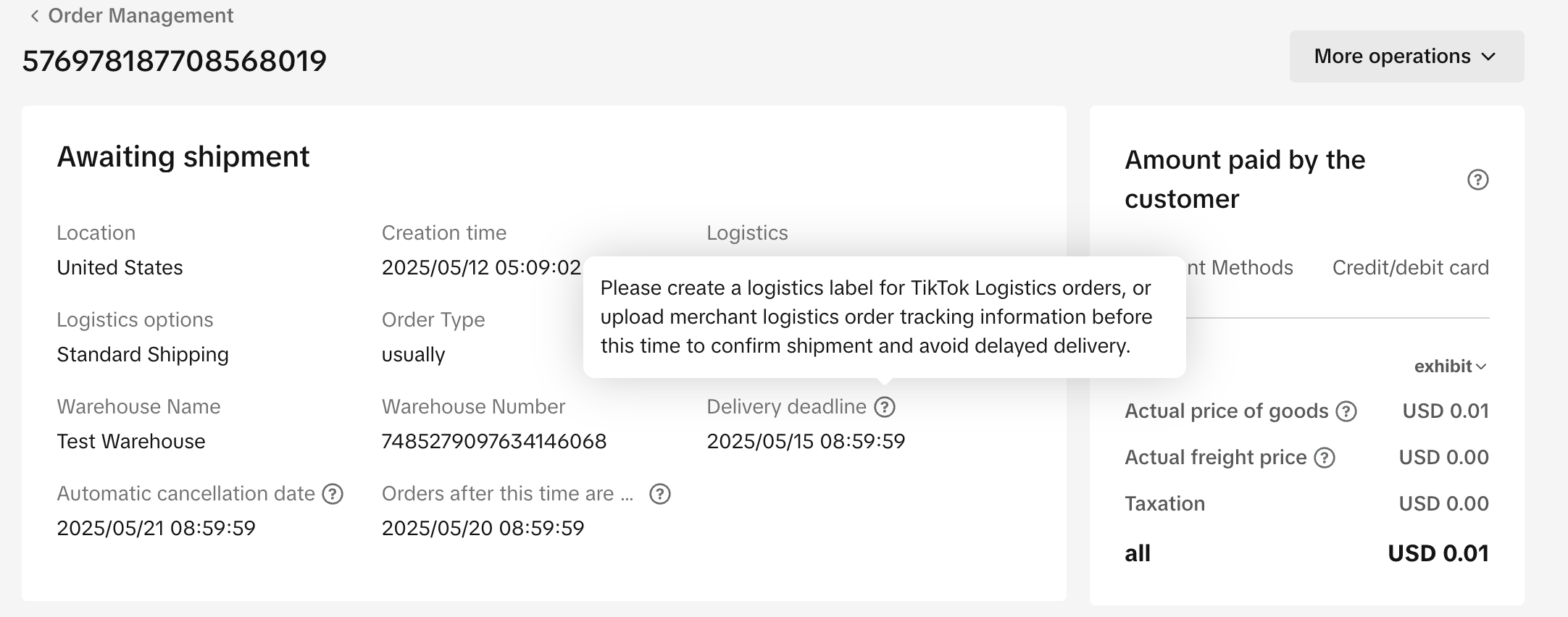
- Click the order number to go to the order details page
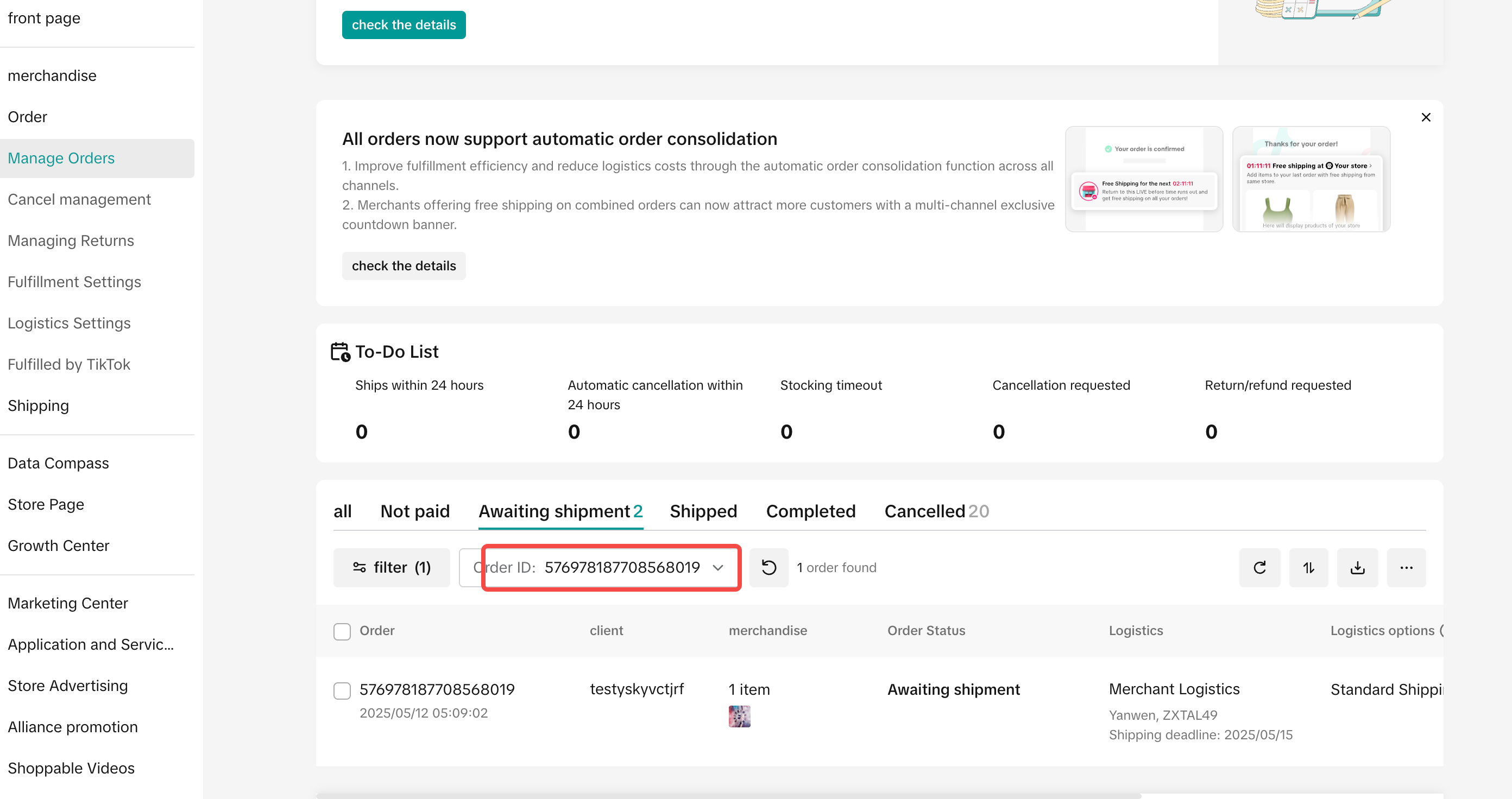
- The shipping deadline is the date within which the shipping needs to be confirmed. When using TikTok shipping mode, you must create a shipping label and mark the order as shipped within the specified shipping timeframe; When using seller shipping mode, you must upload a valid tracking number and mark the order as shipped within the specified shipping timeframe
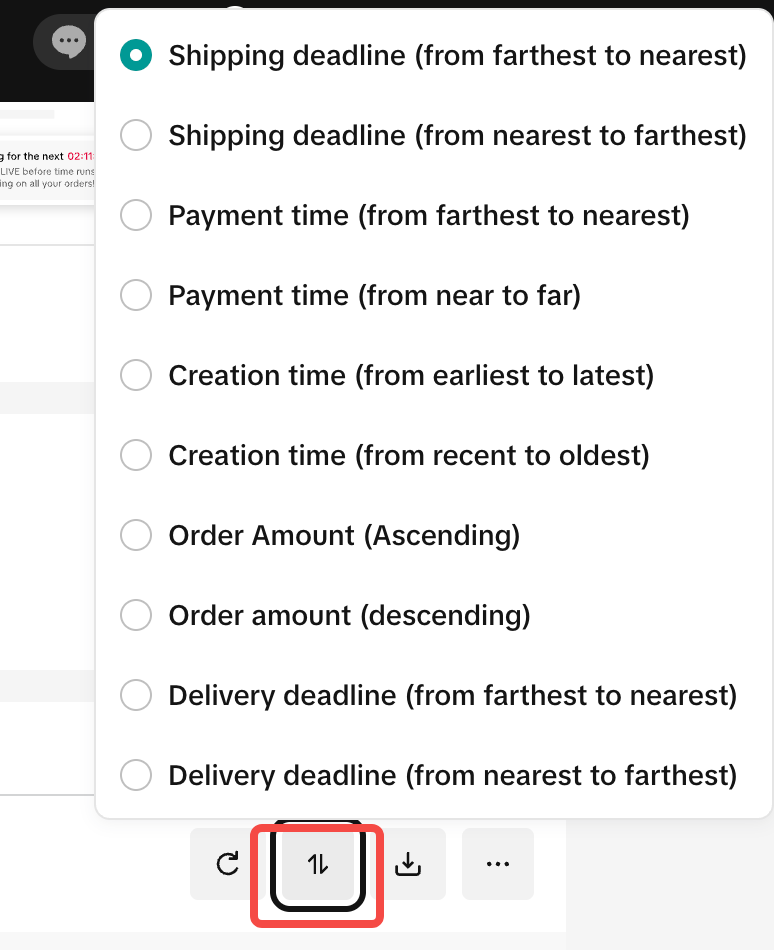
Sort by status
By clicking the “Sort By” button, sellers can select their own order sorting style
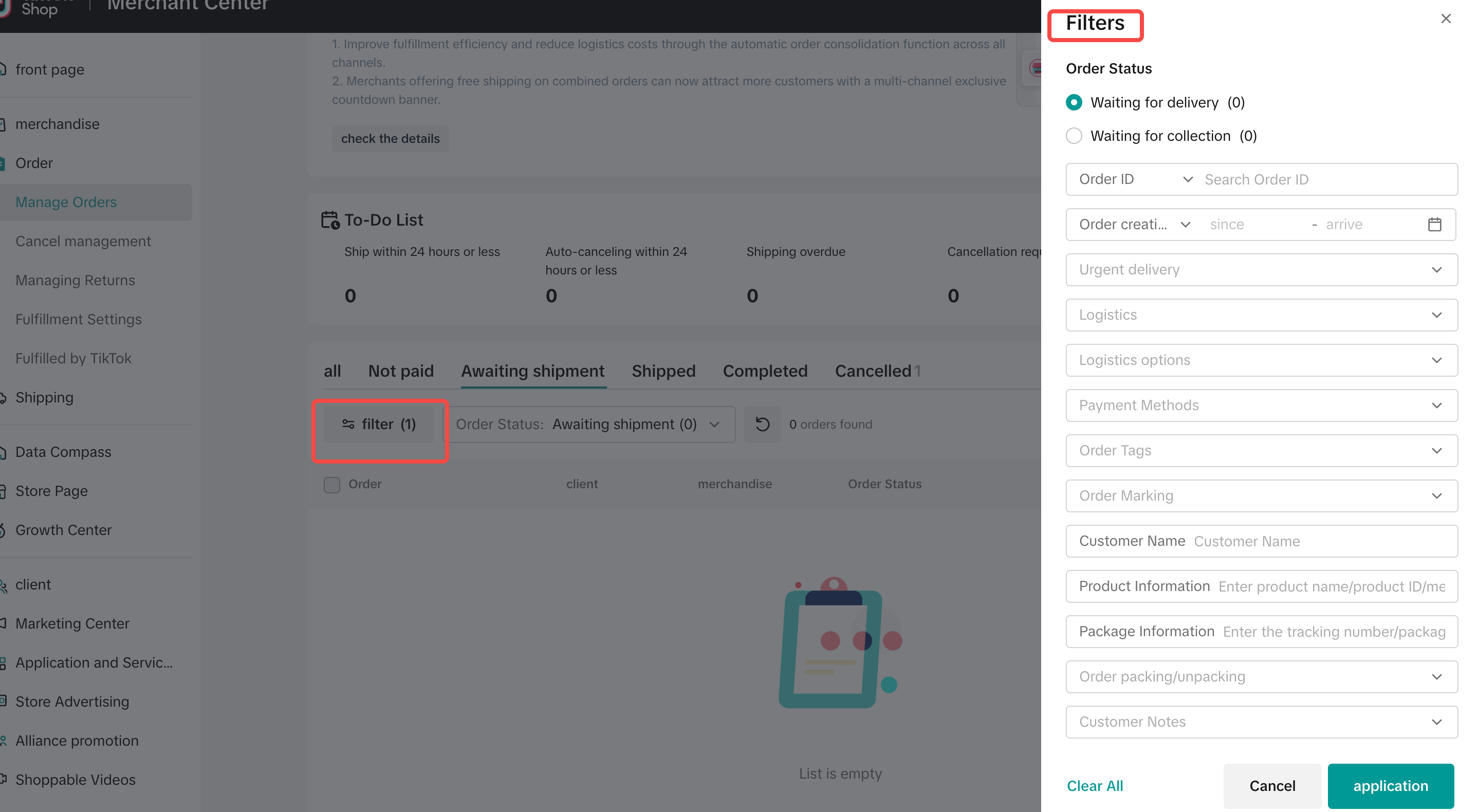
Self-filter orders
Click the “Filter” button to filter different orders with “Pending Shipping” and “Pending Collection” status
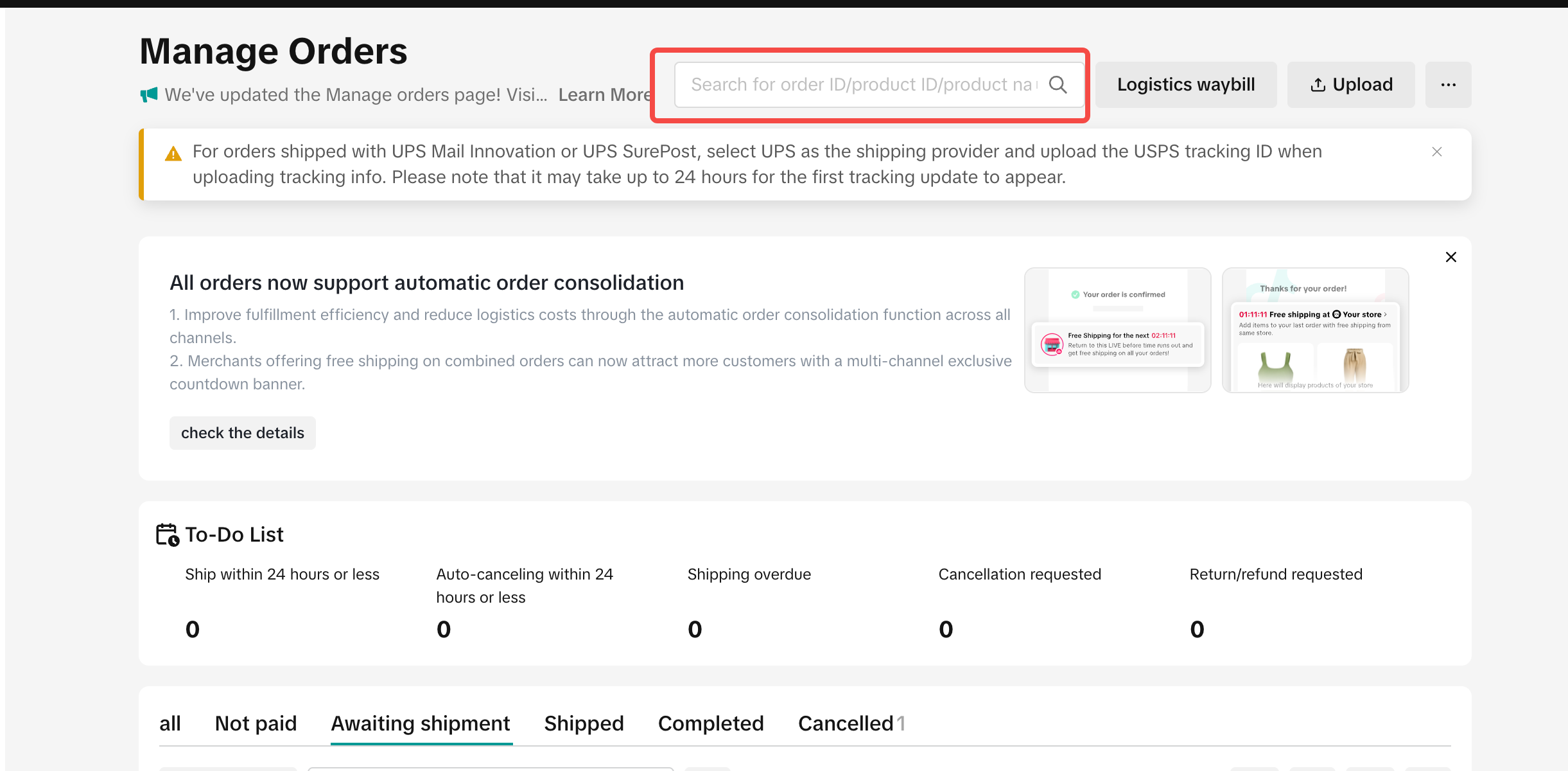
Search orders
In the top search box, it supports searching order ID, product ID, tracking number and SKU information, etc. You can batch search by separating them with a comma (,)
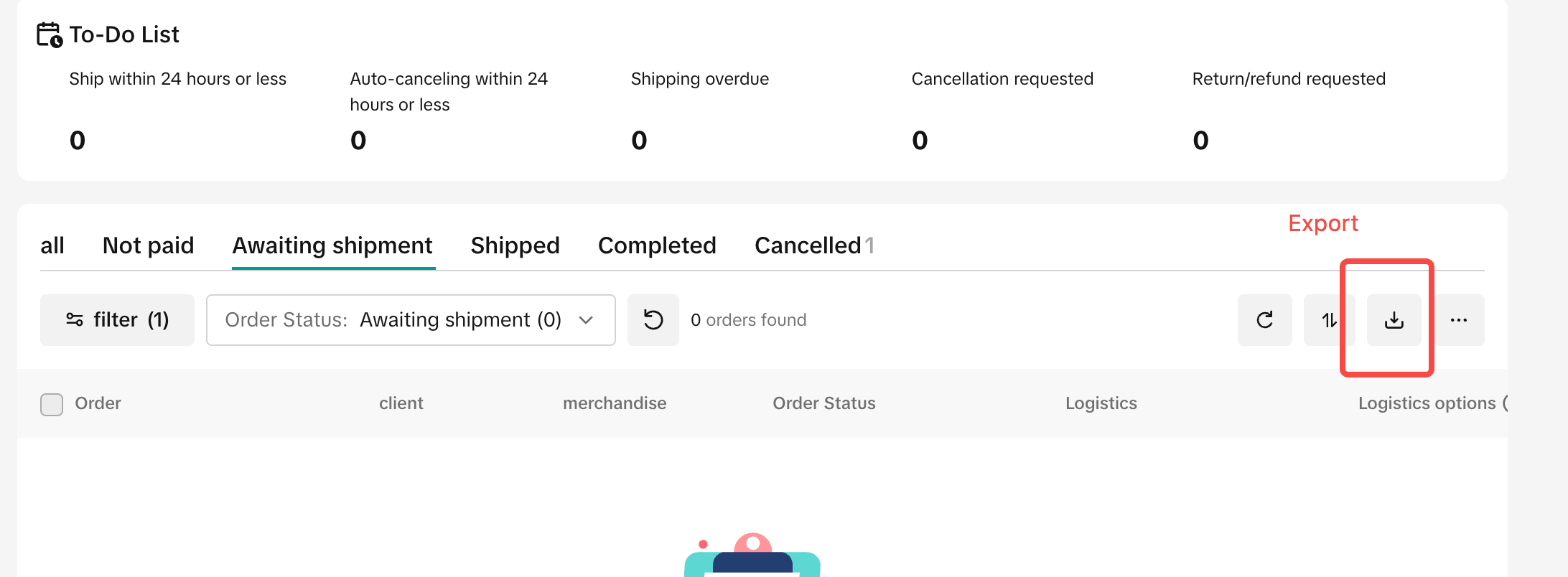
Export orders
- It is recommended that sellers first filter orders by target status before exporting (a maximum of 200,000 orders can be exported at once)
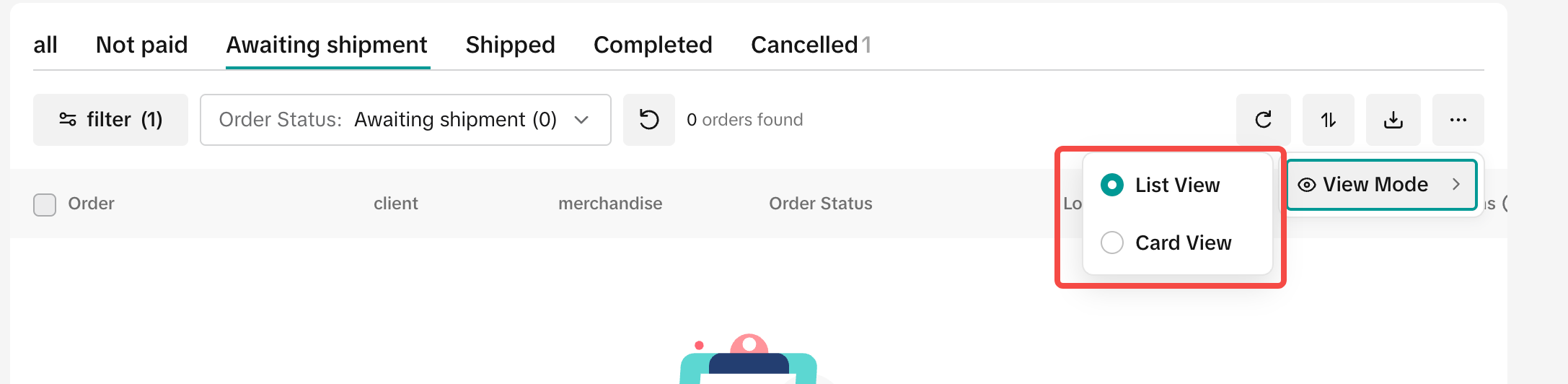
Mode switching for viewing orders
- Sellers can choose between a list or card view depending on their viewing preference
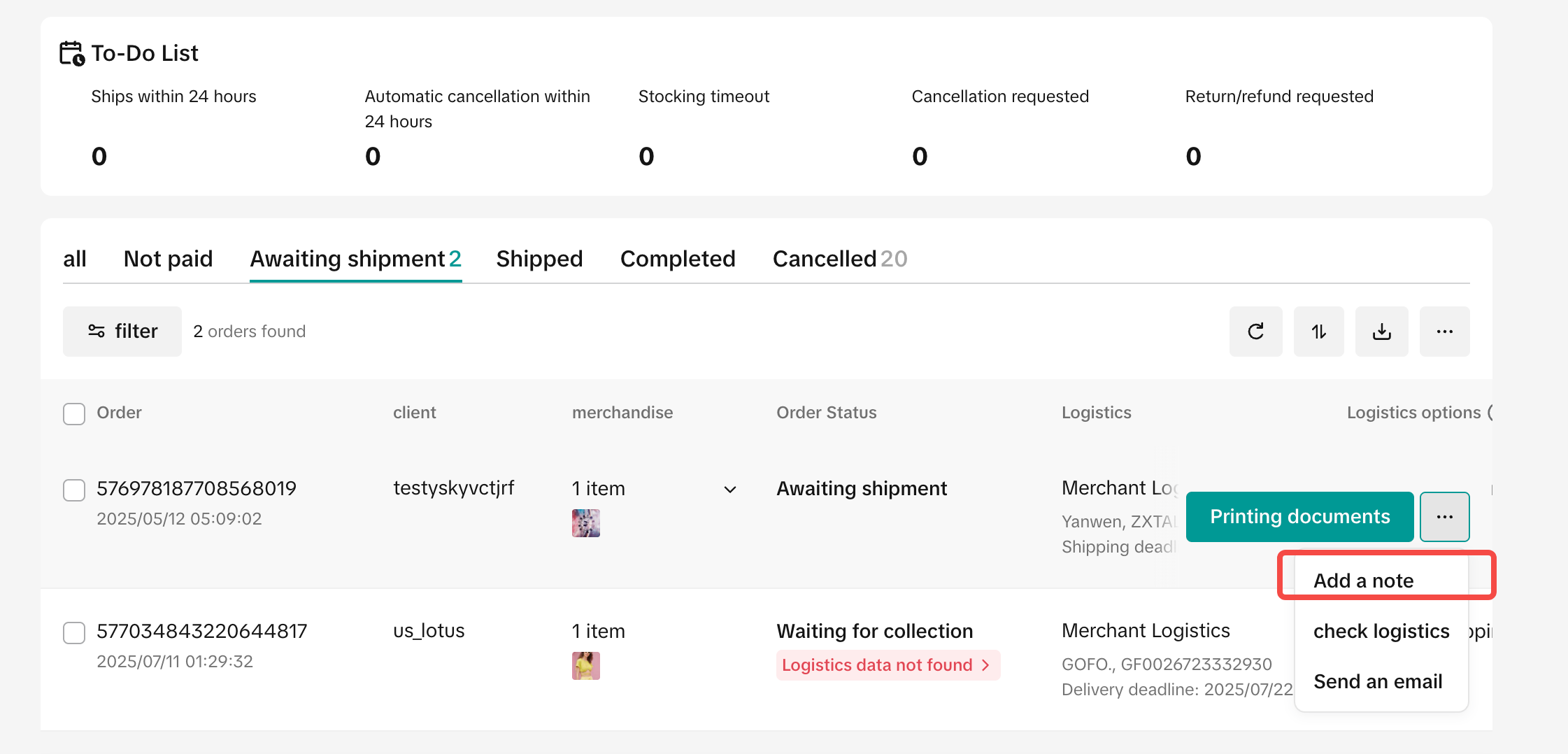
Shipping–Add Shipment Information
3PL logistics model
单笔或选择多笔订单发货,选择「添加物流信息」后填写物流单号及物流承运商
For single or multiple orders, select “Add Shipment Information” and fill in the tracking number and logistics carrier
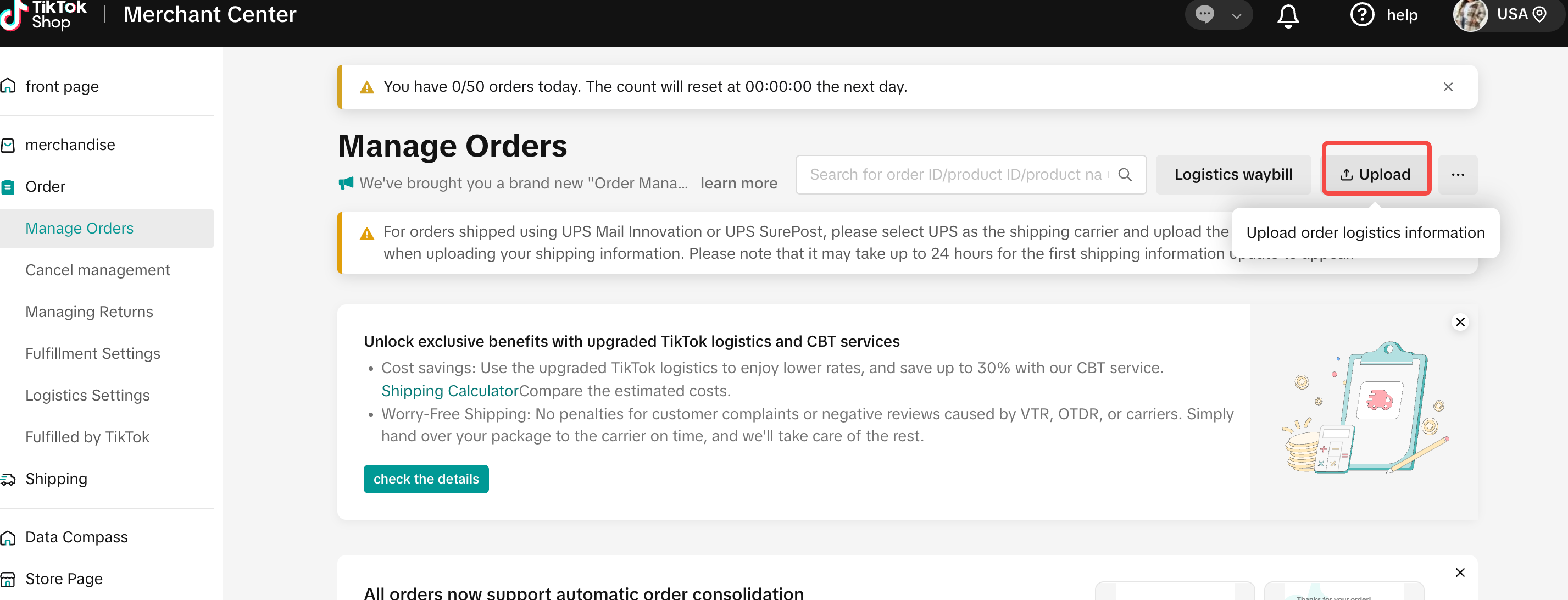
- Or select the “Upload” button at the top to batch upload the order shipment information.
4PL logistics model
- Check single or multiple orders on the order management page and select “Arrange for shipping and create a shipping label” for shipping

- You can switch the shipping model: create shipping label + print shipping label together; or create/print shipping label separately.
Troubleshoot failed shipping label uploads
TikTok Shop is required to verify the shipment information with the carriers when generating the shipping labels. If the platform receives an error code from the carriers, the shipping labels may be rejected.
The following operations are required:
- Hover over the “Rejected Shipping Labels” status to view the rejection reasons. The platform will provide the error reason and suggest next steps to resolve the issue.
Error type
Buyer address issue
Products are oversized
Carrier order error
Many issues can be resolved in just a few steps depending on the reason for rejection. Feel free to contact the TikTok Shop support team for further assistance in case of any complications.
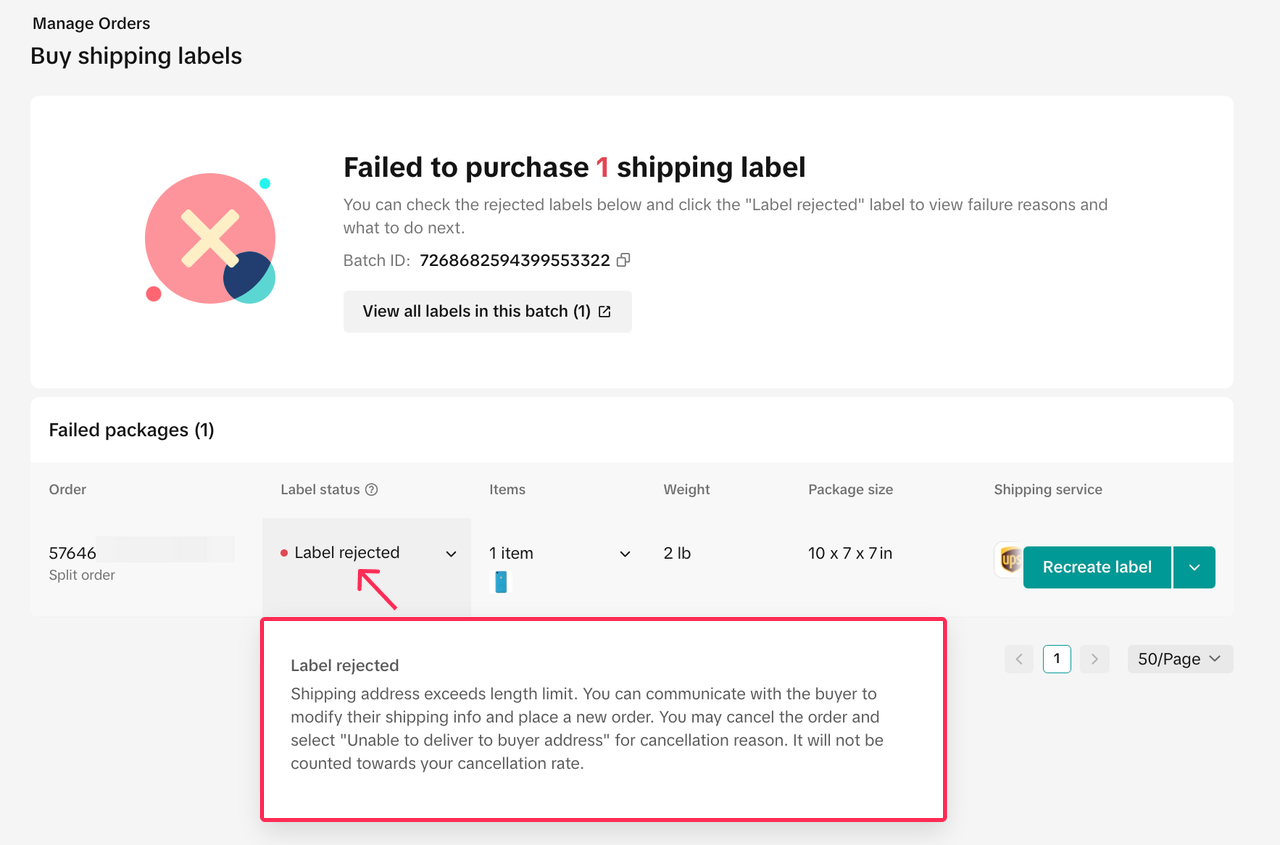
After resolving the issue:
Click “Re-create Shipping Labels” to get the labels again;
Alternatively, you can also go to the Order List page under “Manage Orders”, access the “Shipping Labels” page, filter orders with failed label creation, and re-create the labels
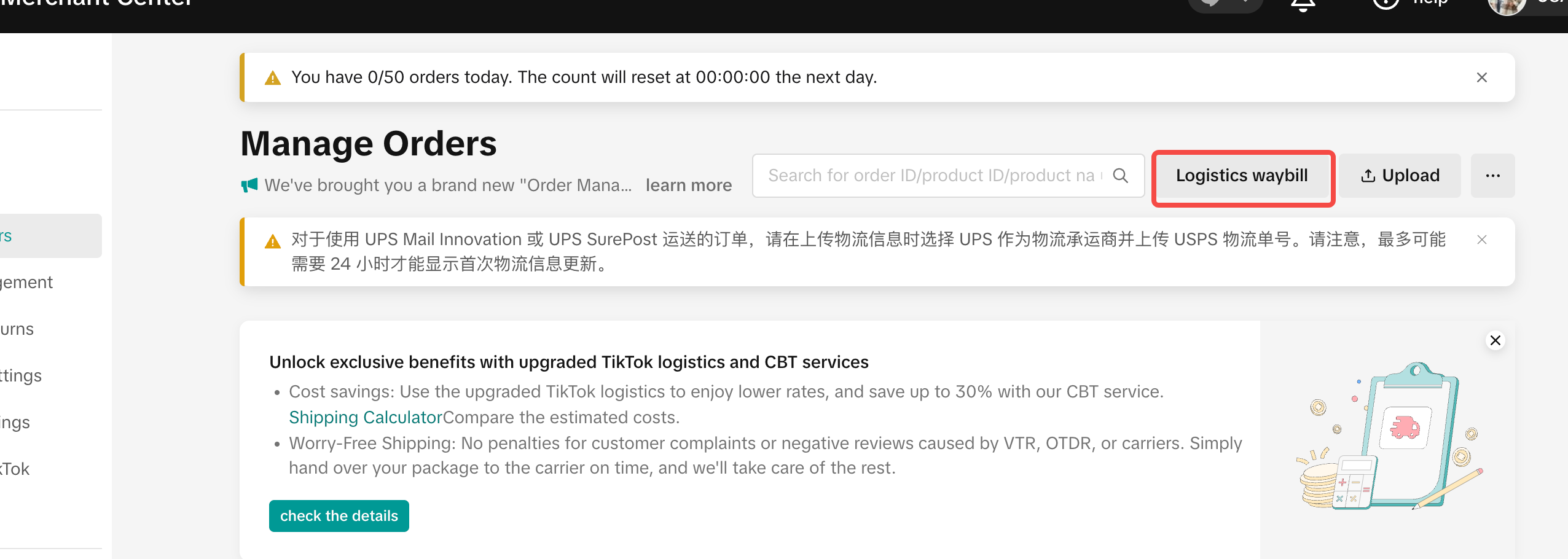
- Batch shipping label creation: Only one logistics type can be selected per batch. Local warehouse and direct shipping options cannot be mixed