


Track Cancellations Faster with Quick Filter & Alerts
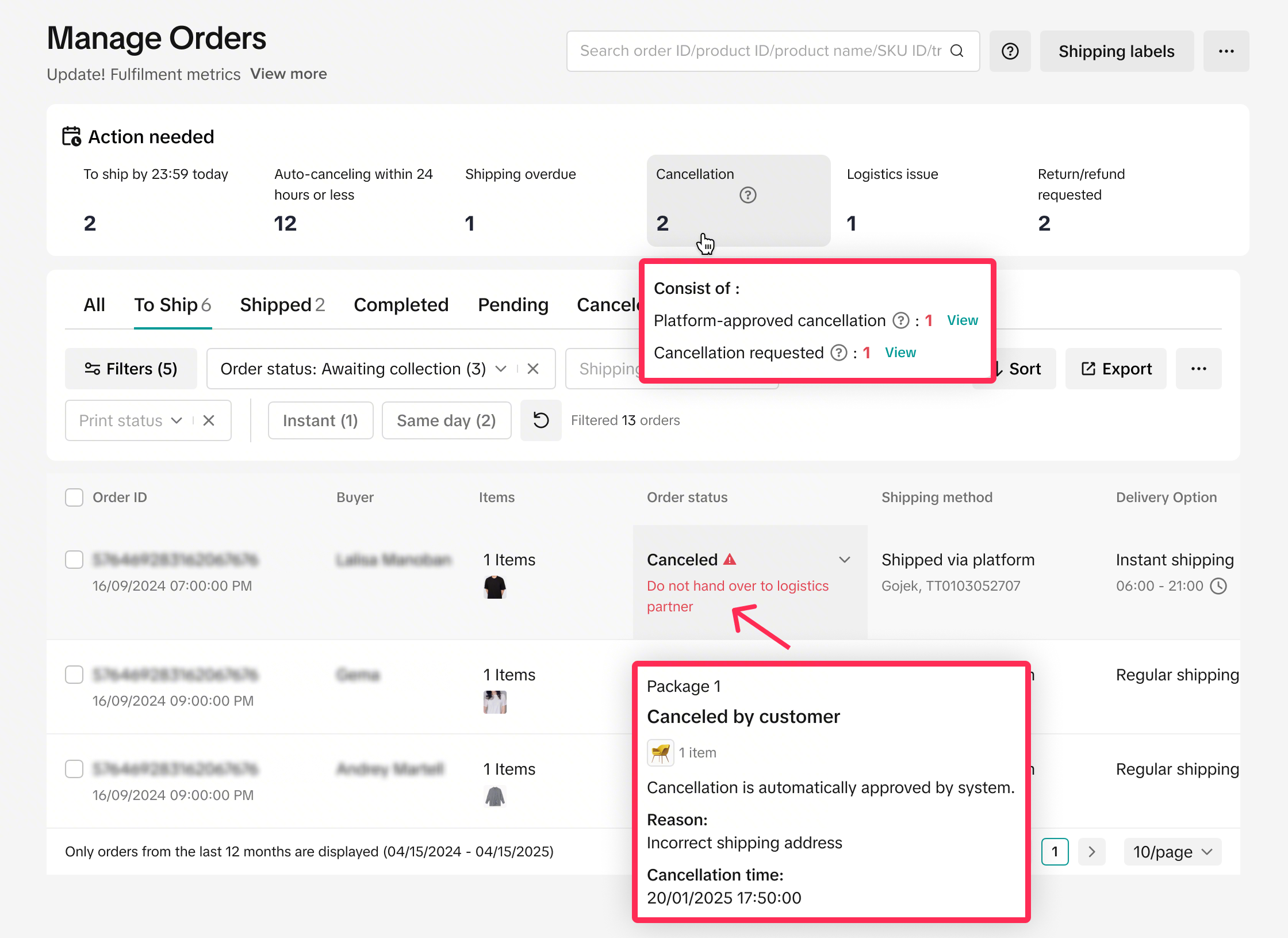
Now you can manage cancellations faster than ever. Use the new Cancellation quick filter on the Manage Orders page to instantly see platform-approved and pending cancellation requests. We’ve also added clear alerts like ‘Do not hand over to logistics partner’ on the order card to help you process orders more easily.
[Learn More]
How to View Cancellation Requests
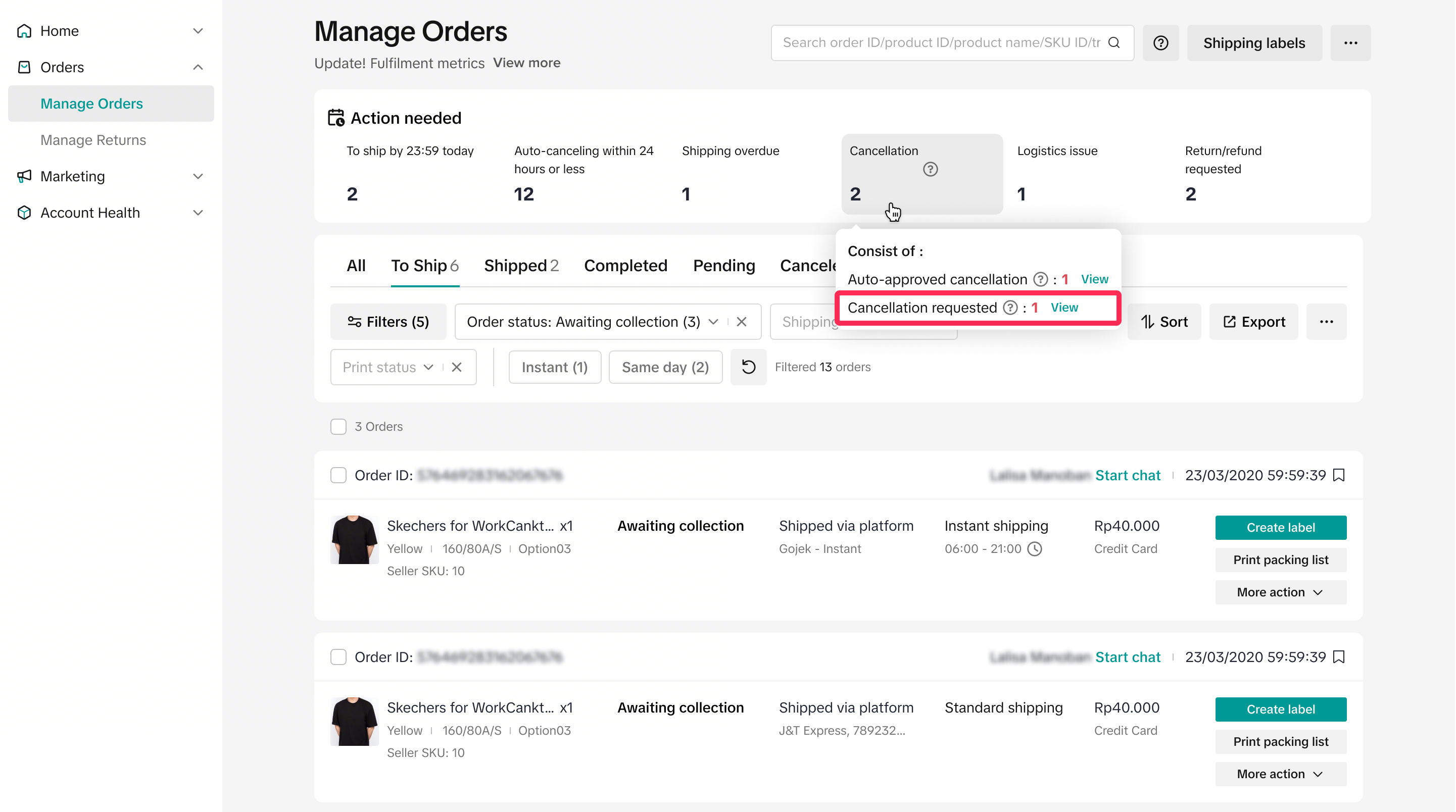
- On the Manage Orders page, you’ll find the ‘Action Needed’ tab. This gives you a quick overview of the number of cancellations you’ve received. Clicking on the ‘Cancellation’ filter will redirect you to the ‘All’ tab, where you can see all auto-approved cancellations and cancellation requests you’ve received.
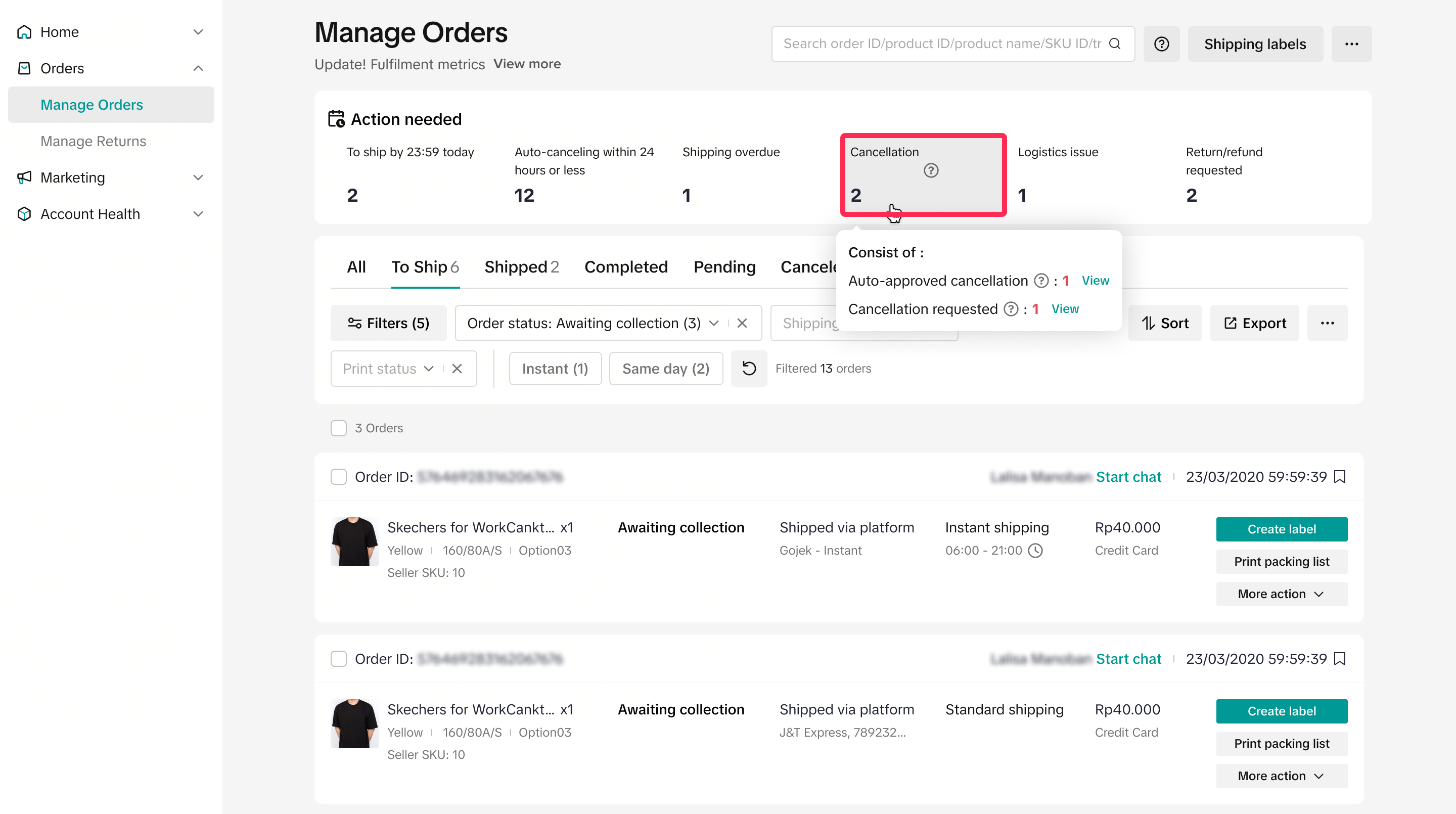
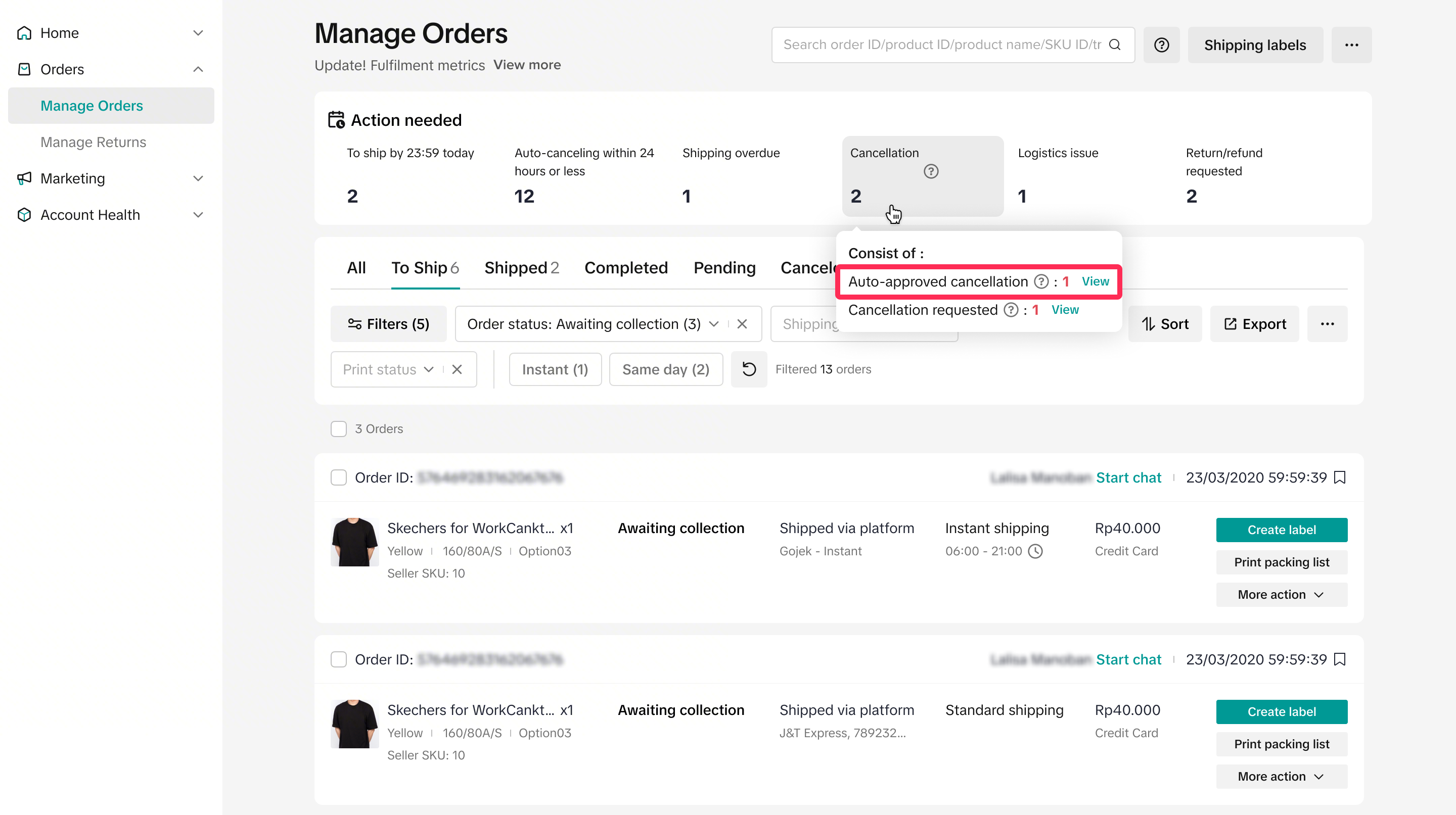
If you hover your cursor over ‘Cancellation,’ you’ll see more details, including:
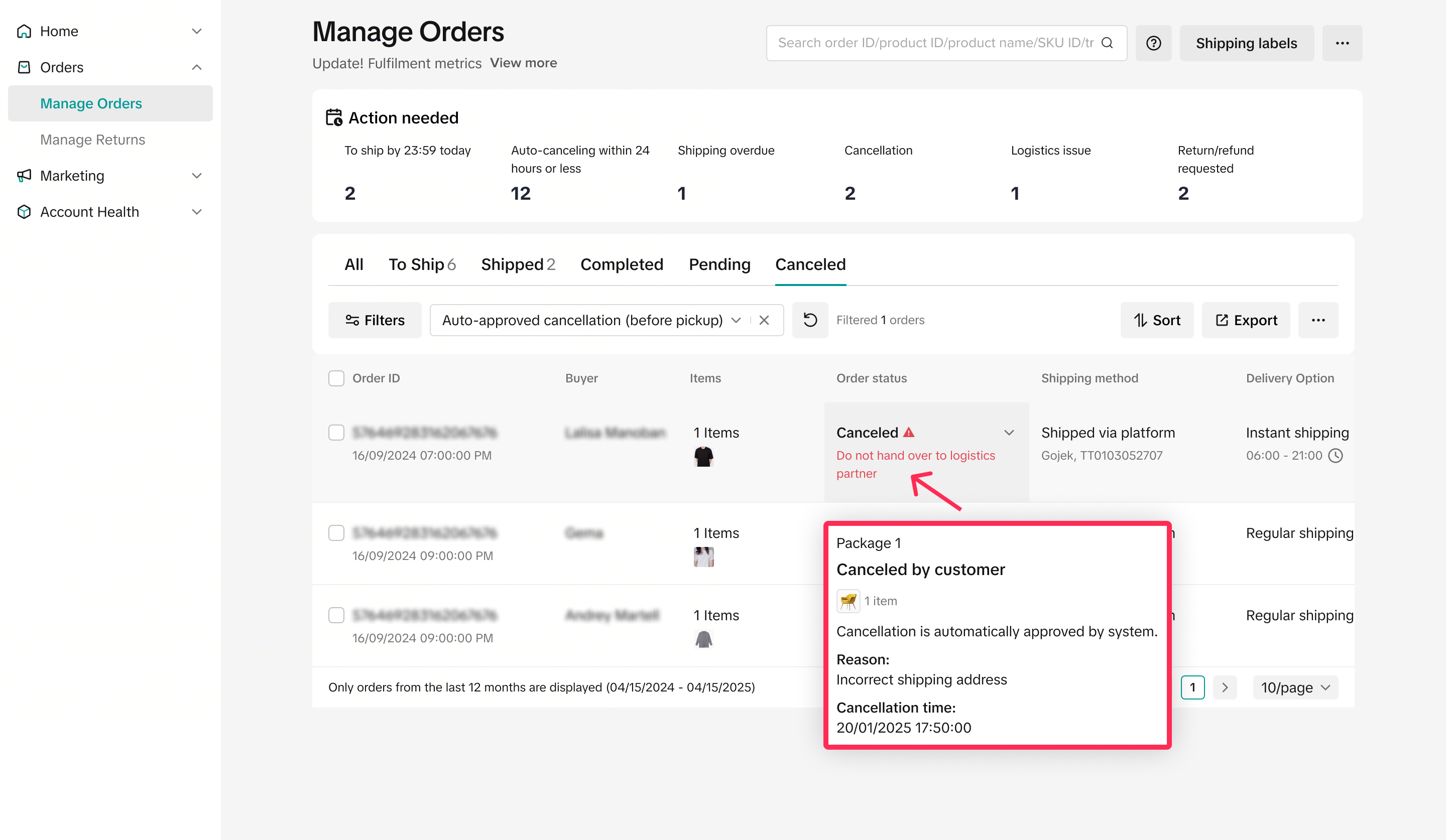
- Auto-approved cancellation: These are any cancellation requests that the platform has automatically approved. Click ‘View’ to go to the ‘Cancelled’ tab. Here, you’ll see a warning that you don’t need to hand over this order to logistics, and you can hover over the order status for more details, such as the reason for cancellation.
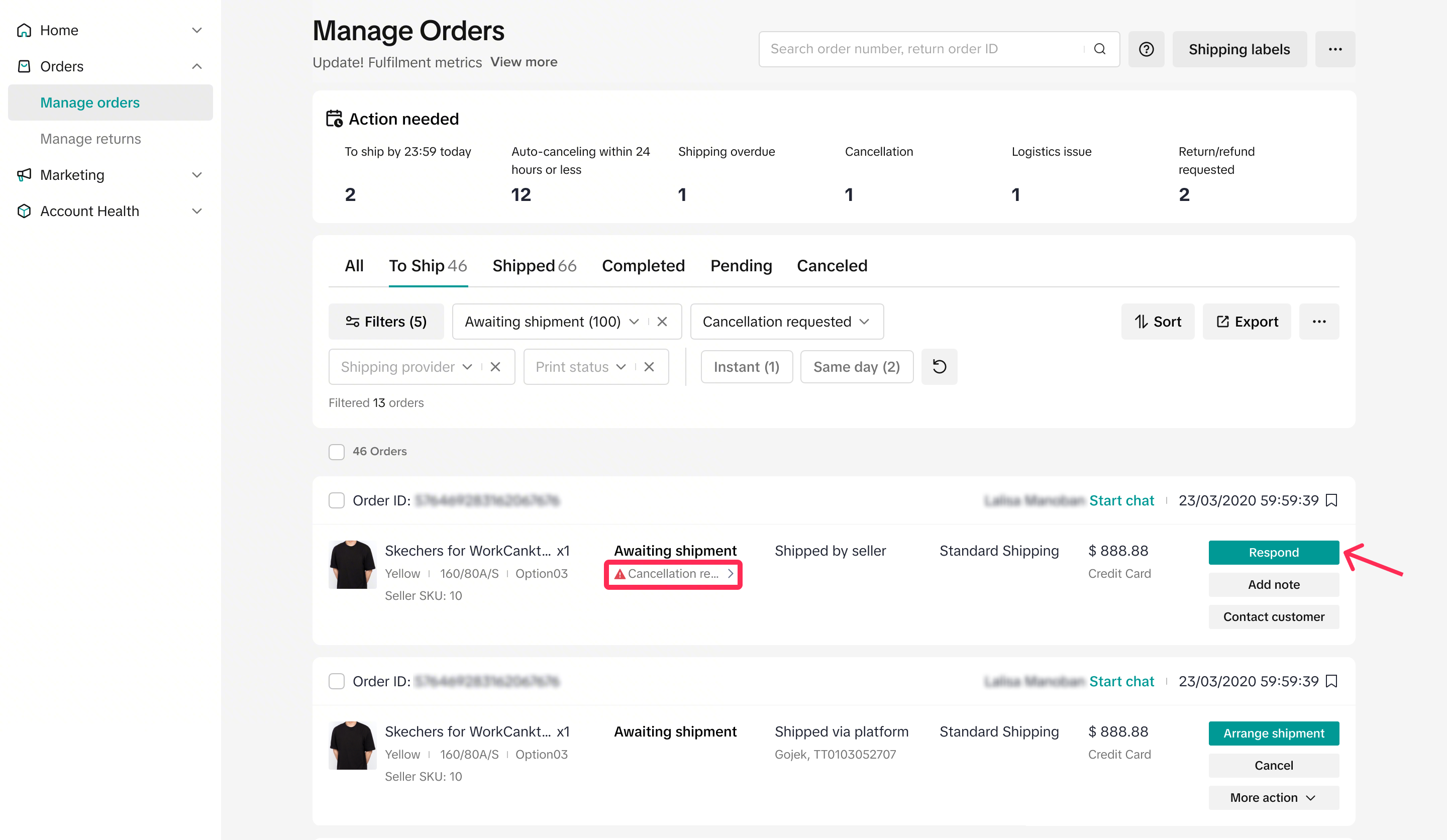
- Cancellation requested: These are cancellation requests that you need to review and respond to. Click ‘View’ to find the orders. You have 2 calendar days to respond to these requests.
How to Cancel Your Order
As a seller, if you’re unable to fulfil an order and want to cancel a buyer’s order, you can do so before changing the status to ‘Shipped.’
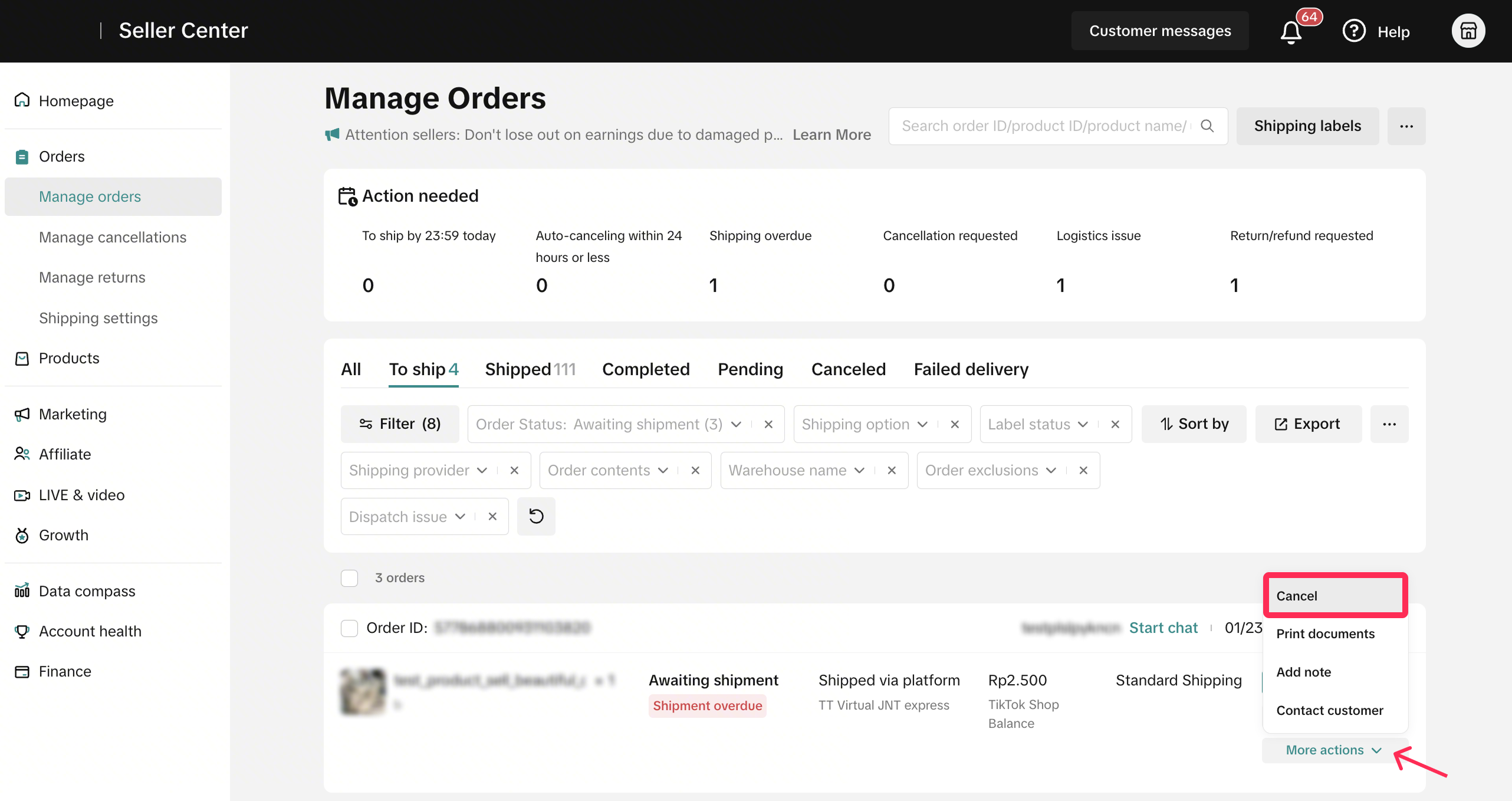
- On the Manage Orders page, select the order you want to cancel. Then, choose More Actions > Cancel. Next, select the cancellation reason and confirm.
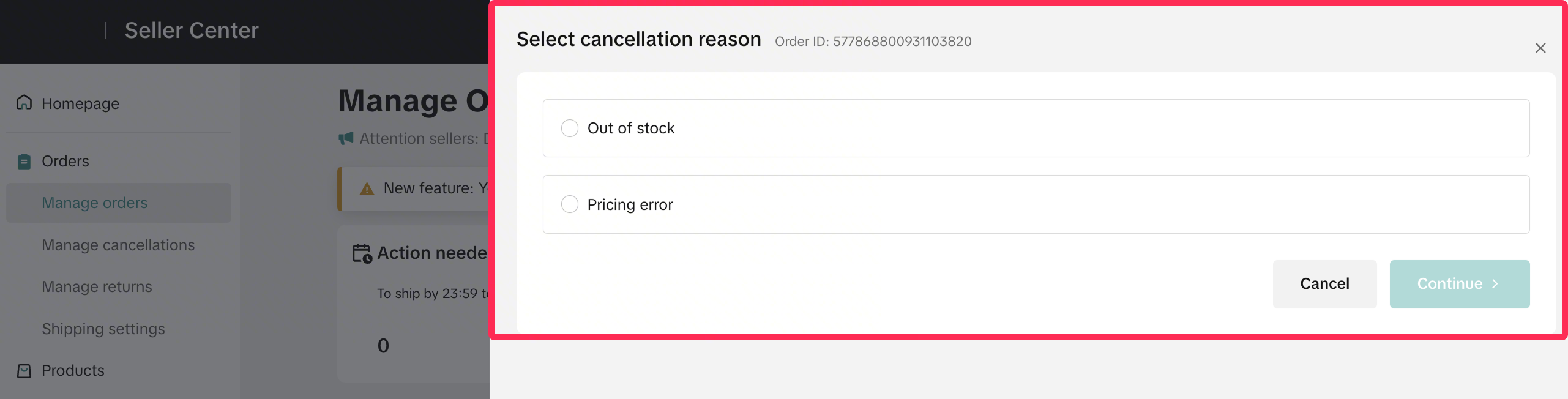
❗️Please note that if you initiate the cancellation due to a seller’s fault, such as no stock or incorrect pricing, your cancellation will be classified as a seller-fault cancellation and will be included in the SFCR.
Learn more about the cancellation policy and SFCR.
FAQ
- Can I ask the online support team to help cancel the orders for me?
No. Unfortunately, our online support team cannot cancel orders on a seller’s behalf. However, sellers can cancel orders themselves on the Manage Orders page, but please note that this may impact the SFCR score.