


Product registration across multiple sub-campaigns under a parent campaign is repetitive and time-consuming. To save time and maximize campaign participation, sellers can now utilize CampaignOne-Click Registration. This feature is a smarter, faster way to register for all eligible sub-campaigns within a parent campaign.
Background
Parent campaigns usually include several sub-campaigns, each with different structures and benefits.
With One-Click Registration, you can instantly register all eligible products into eligible product sub-campaign under the parent campaign to reduce time, effort, and missed opportunities!
How it Works
Choose Parent Campaign
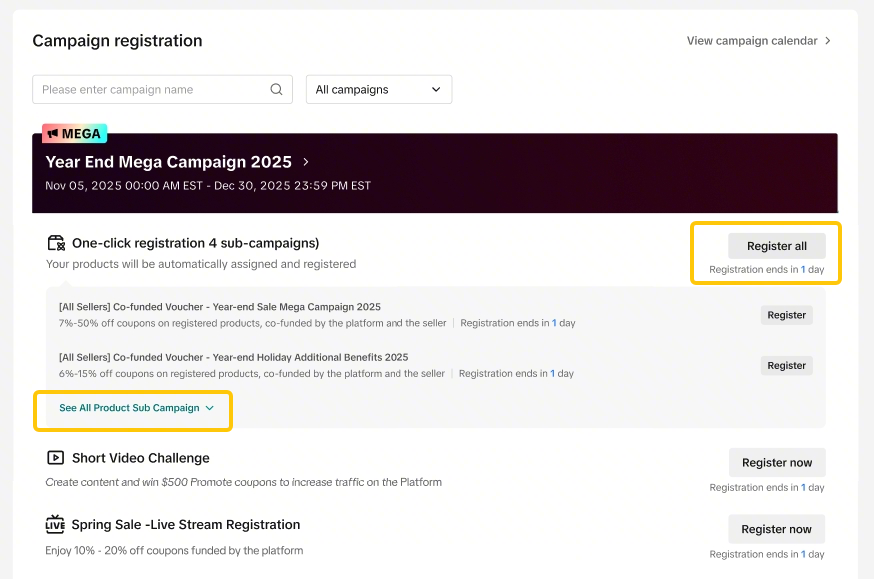
Go to Campaign Registration page and find the Parent Campaign you wish to register for
The One-Click Registration is only available for Product Campaigns
You can view the available campaigns that are available for One-Click Registration
Click: “Register all”
Select Sub-campaign to Register
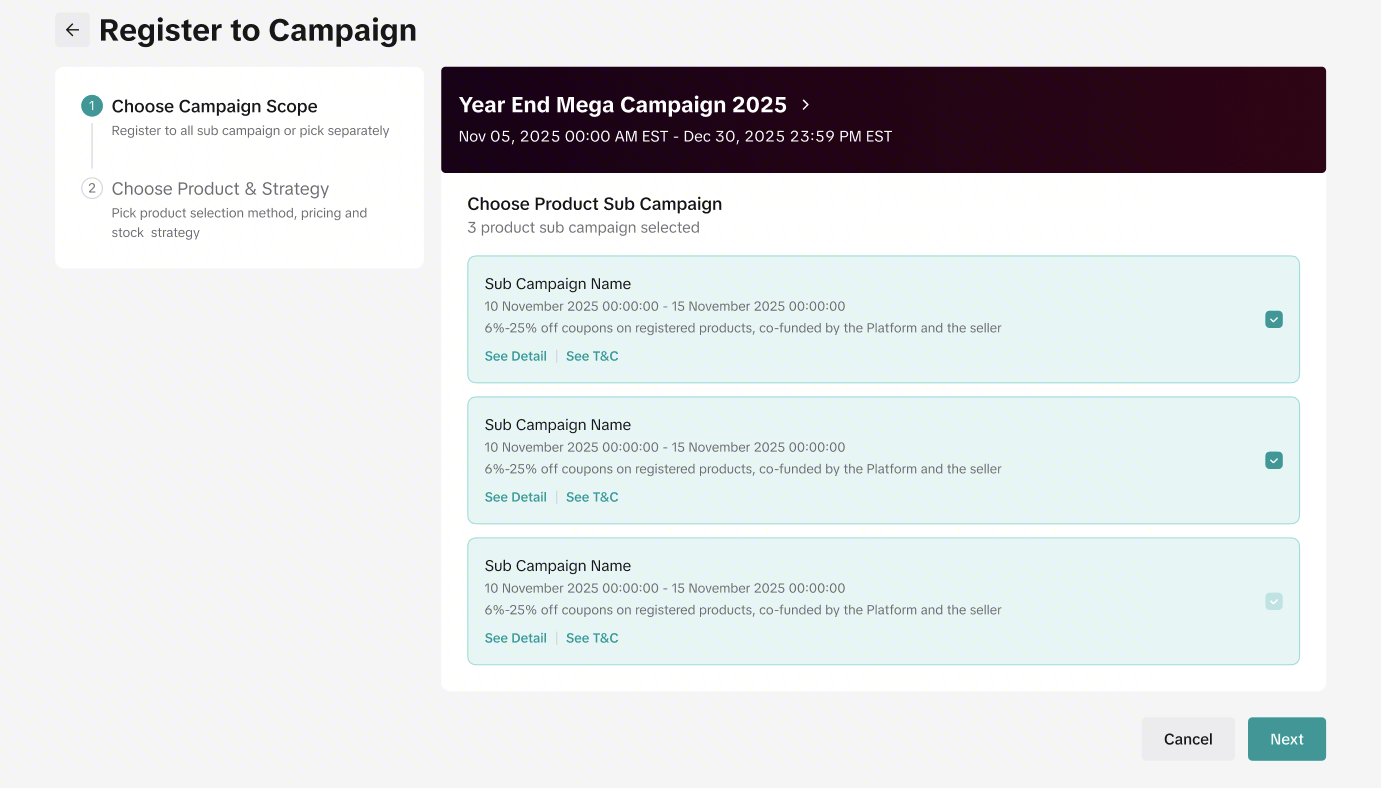
Select the sub-campaigns you wish to register for
All available sub-campaigns will be pre-selected by default
You can de-select them if you do not wish to be registered for a specific sub-campaign
Some campaigns are mandatory and will be automatically included when using One-Click Registration.
Select Product Registration Strategy
You can choose between 3 different types of Product Registration Strategy
You can click “View Products” to view the list of products that will be auto-registered into each sub-campaign
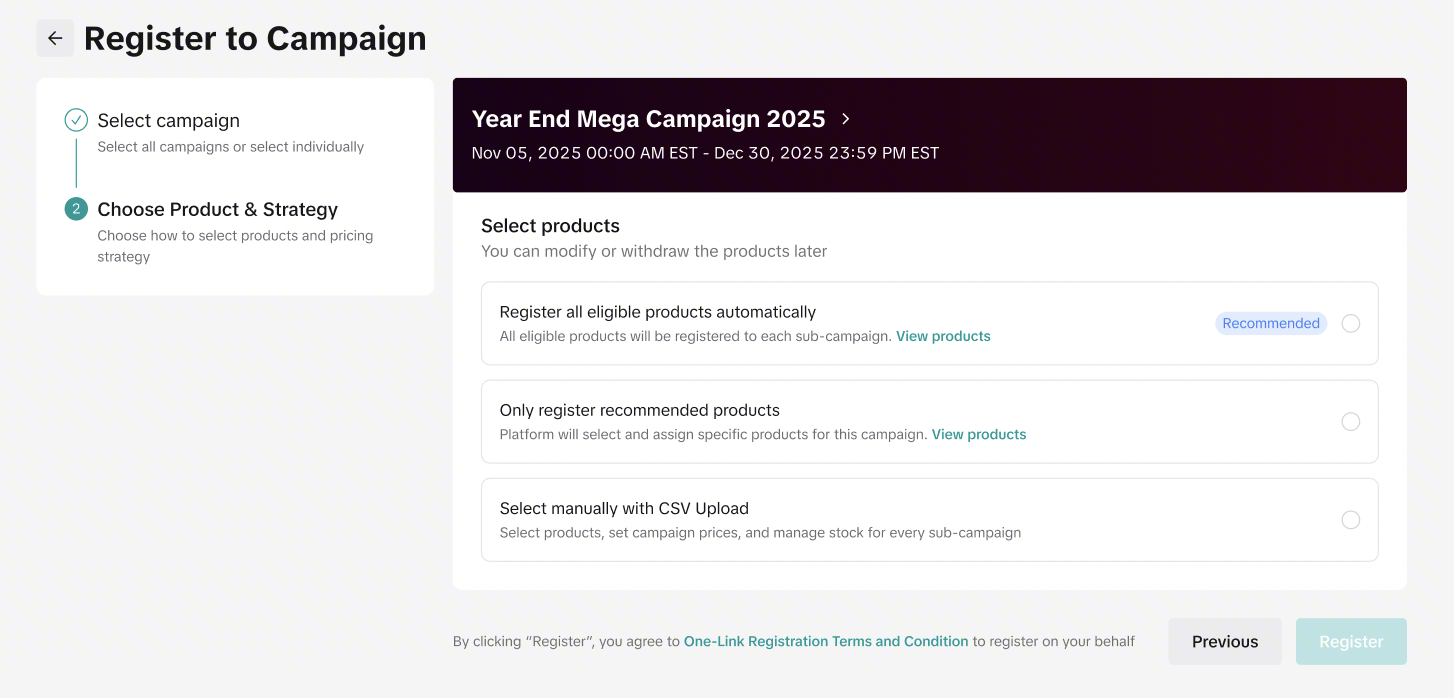
| Register all eligible products automatically | All products that are eligible for each sub-campaign will be registered. The products that are registered may vary depending on each sub-campaign registration criteria. |
| Only register recommended products | Only recommended products for each sub-campaign will be registered. Recommended products are determined by the platform based on past product performance or other criteria. You can click “View Products” to view the list of recommended products identified by the platform. |
| Select manually with CSV Upload | Seller can manually upload a product list (Inclusive of campaign price and stock) Please generate and download the template provided. 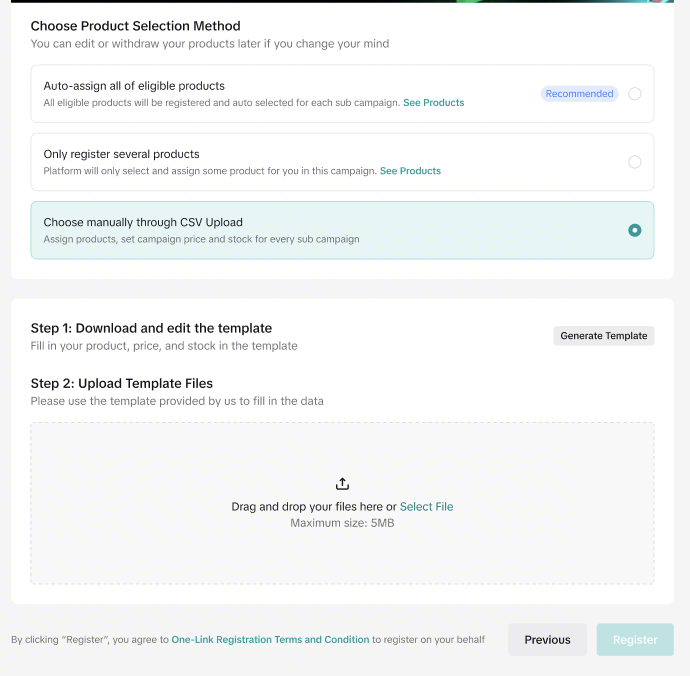 – If you use the “Manual Upload” method, please check the generated product list and campaign prices. – Campaign price will follow “Optimal Price”. Learn more about Optimal Price below. – You can adjust the campaign price directly in the excel document. – If you do not wish to register for a particular campaign, simply delete the campaign price cell block. 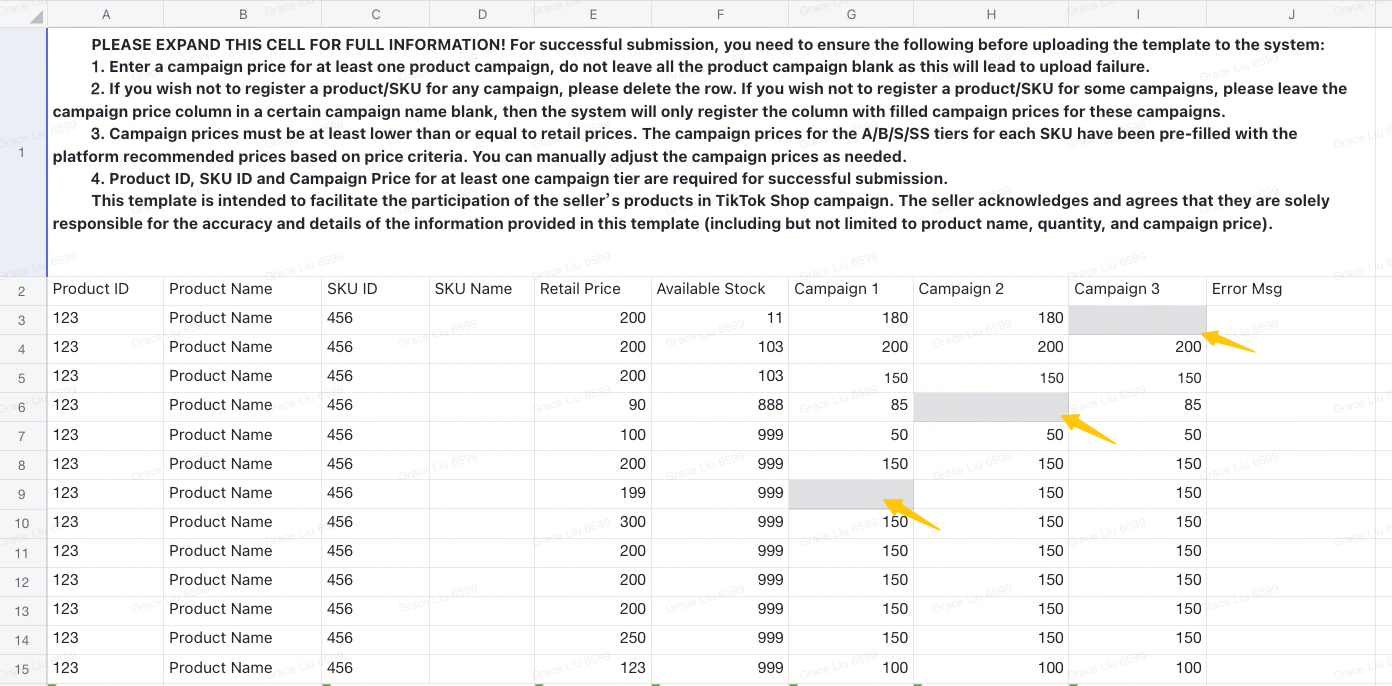 |
Select Campaign Pricing Strategy
If you select “Select manually with CSV Upload”, you do not need to select a pricing strategy. Please adjust your campaign prices directly in the template.
- You can choose between 2 different types of Campaign Price Strategy:
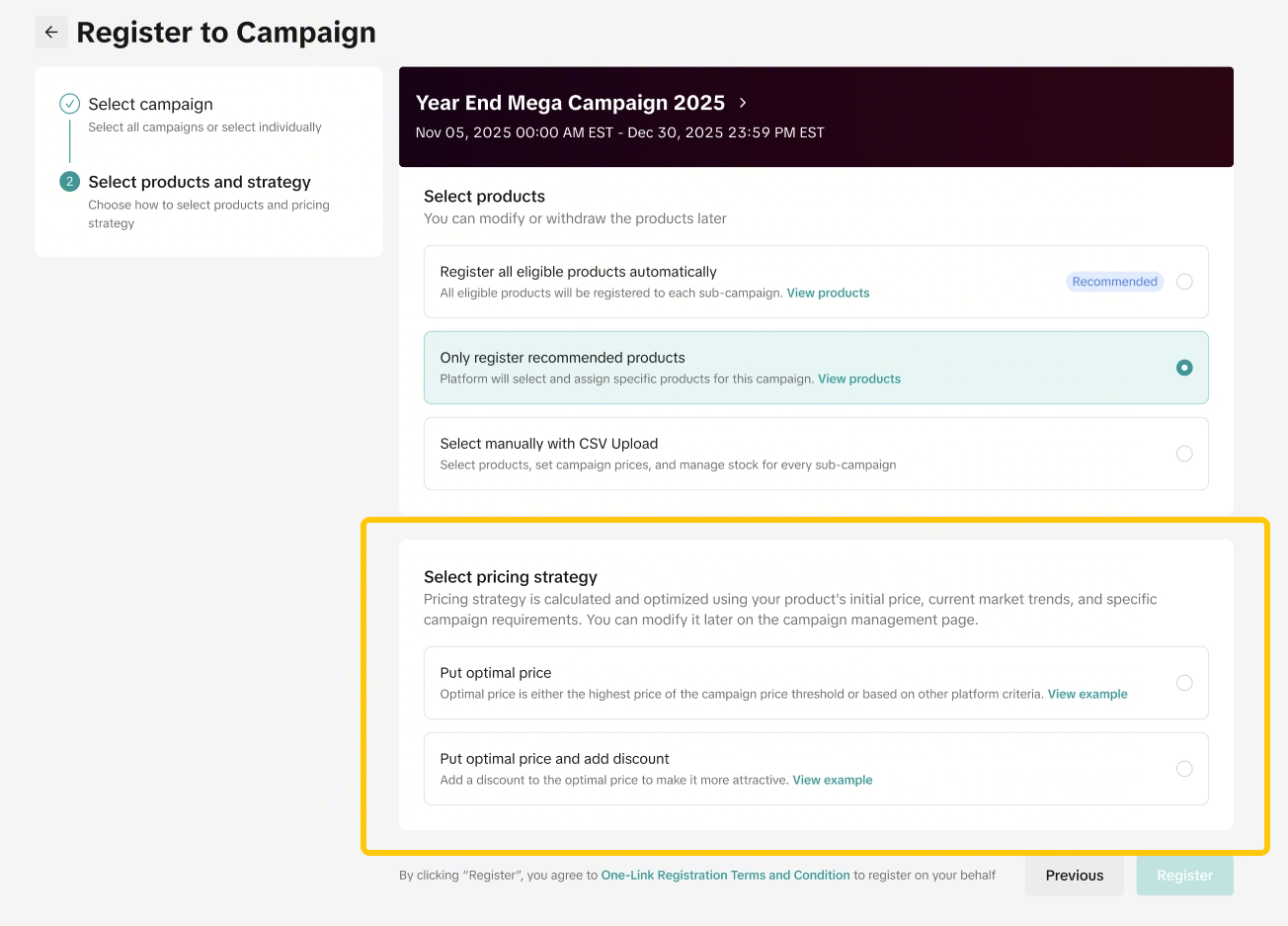
| Put Optimal Price Optimal Price calculation is based on either the highest price of the campaign price threshold or based on other platform pre-fill rules. | 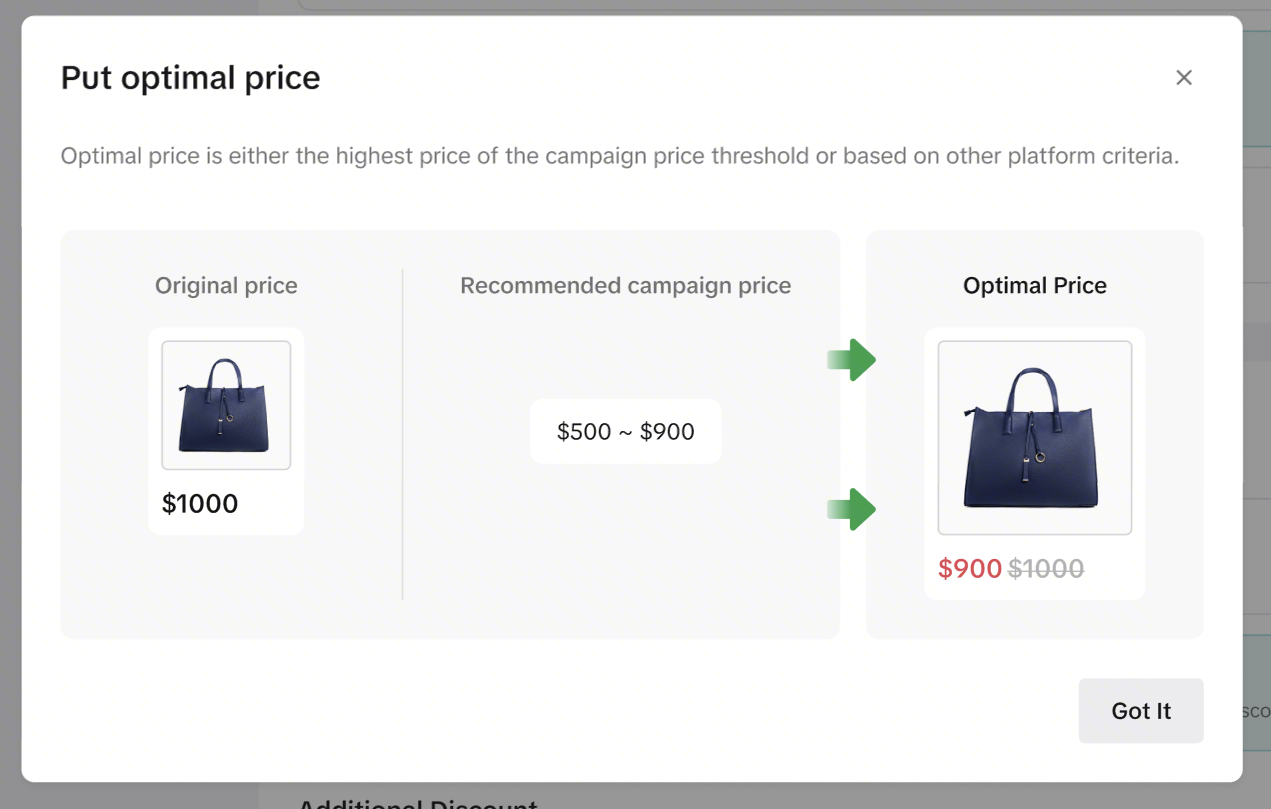 |
| Put Optimal Price + Additional Discounts | 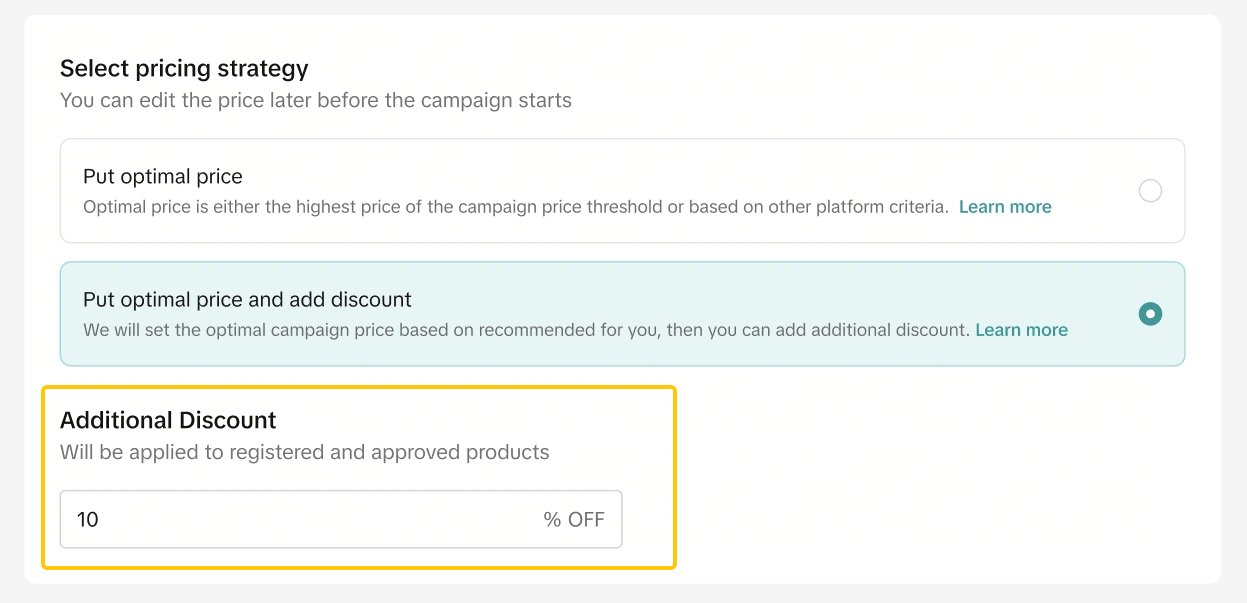 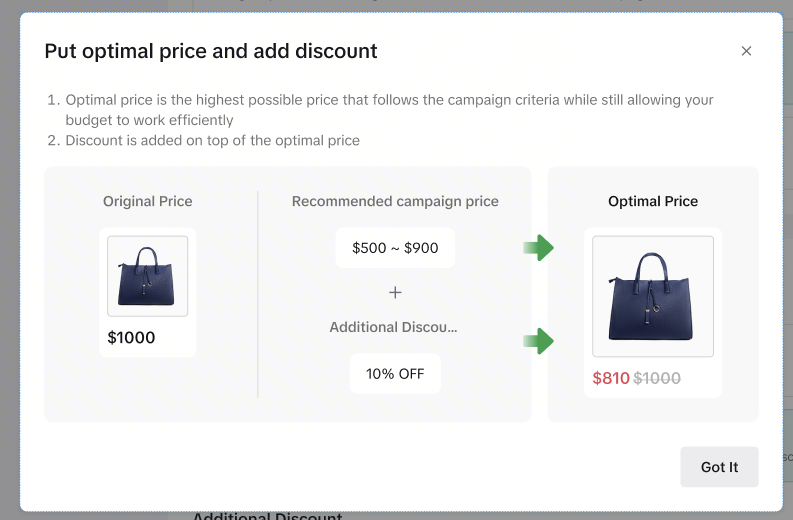 |
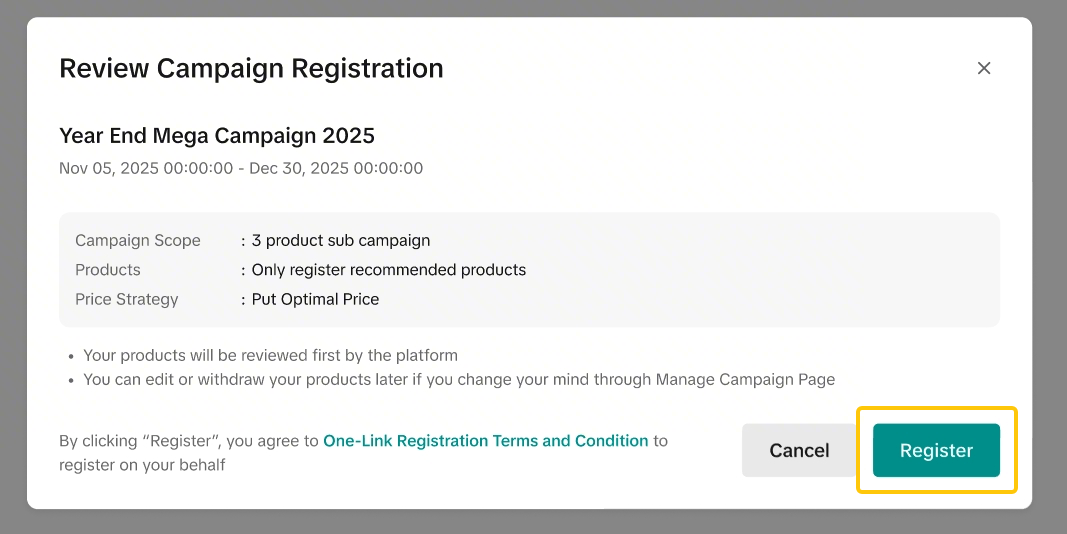
Review and Confirm
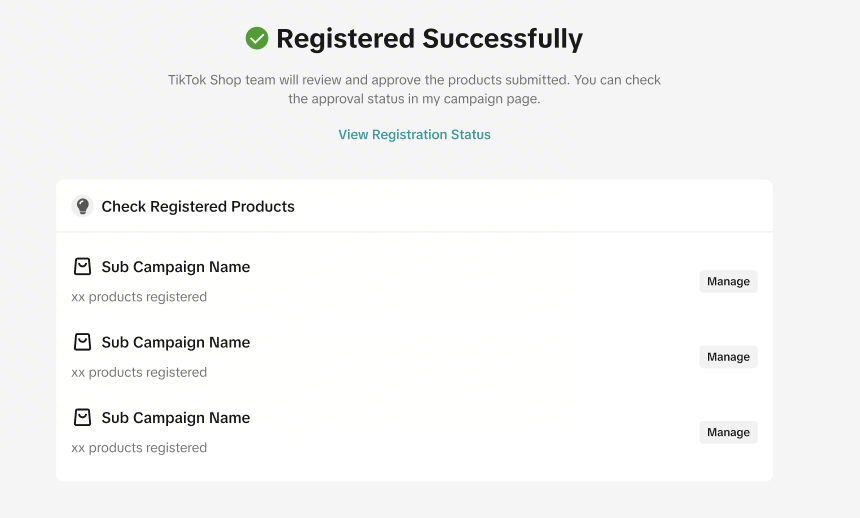
After selecting the sub-campaign, product strategy, and price strategy, sellers can review the selection and confirm the registration scope
If the product’s Optimal Price is more than 80% off the retail price, the product will not be registered.
If the product’s Optimal Price is lower than Rp100, the product will not be registered.
Managing your Campaign
For more information on how to manage your products in campaigns, please refer to the Product Campaigns Feature Guide.