


Note: Ads commission rate setting is currently available only to invited TikTok Shop sellers.
This article will guide you on how to set up your Video Shopping Ads in Affiliate Open Collaboration. This guide will focus on the affiliate side, which entails setting up your Shop Ads Commission Rate.
Shop Ads Commission Rate is an optional feature that allows you to set a different commission rate when you use the Creator’s short videos for your Video Shopping Ads. In this article, we will differentiate the Standard Commission Rate and Shop Ads Commission Rate.
To learn more about Video Shopping Ads, we recommend reading this guide: LINK

Setting the Shop Ads Commission Rate in Open Collaboration
Adding a Shop Ads Commission Rate for your products in Open Collaboration can be done in both the Added products section and the Not added section. For this portion, we will do it from the Not added section. You can go straight to Open Collaboration using this: LINK
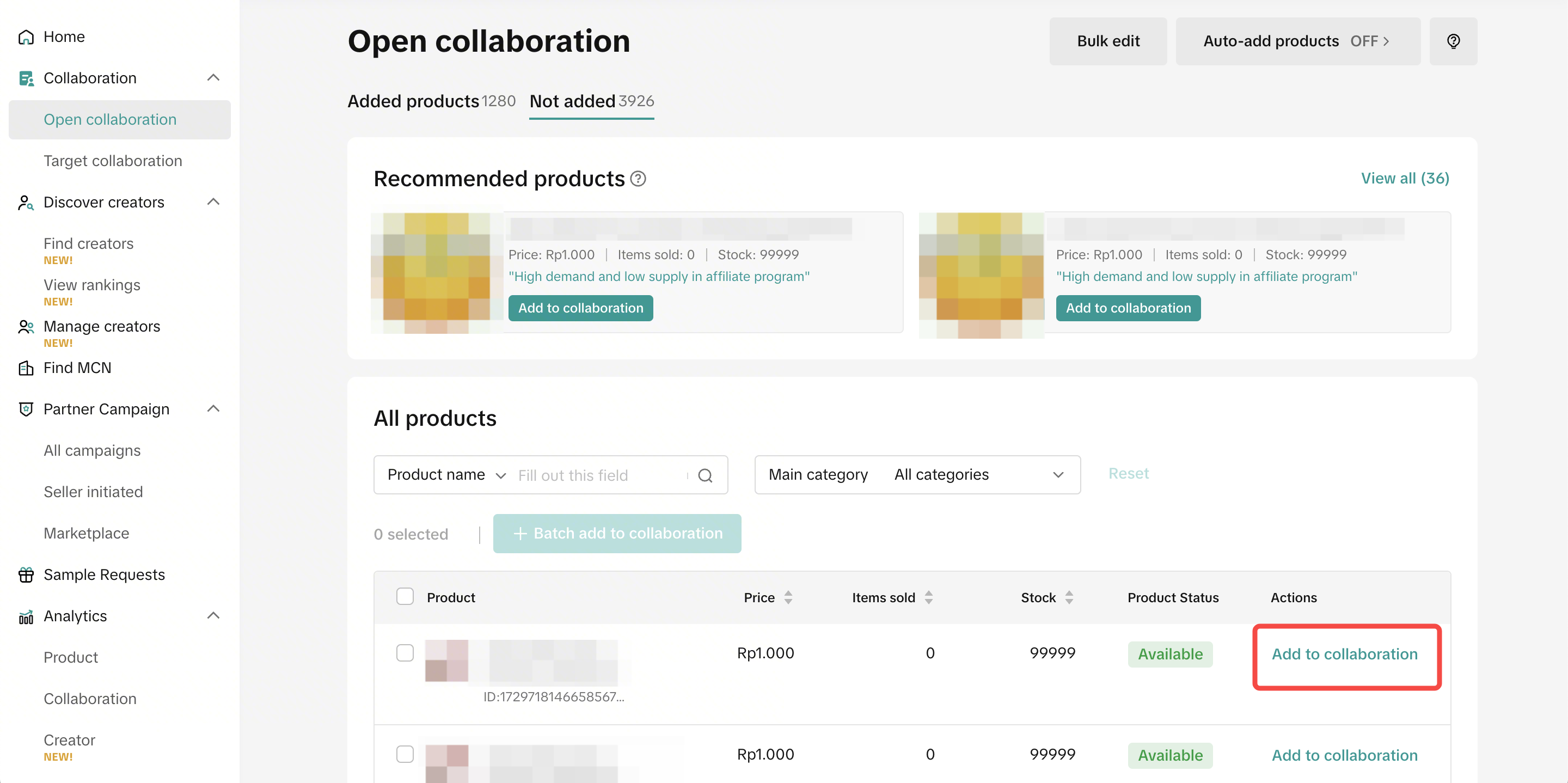
On Open Collaboration’s Not Added page, go to Add to collaboration at the right-hand side of the screen as highlighted below.
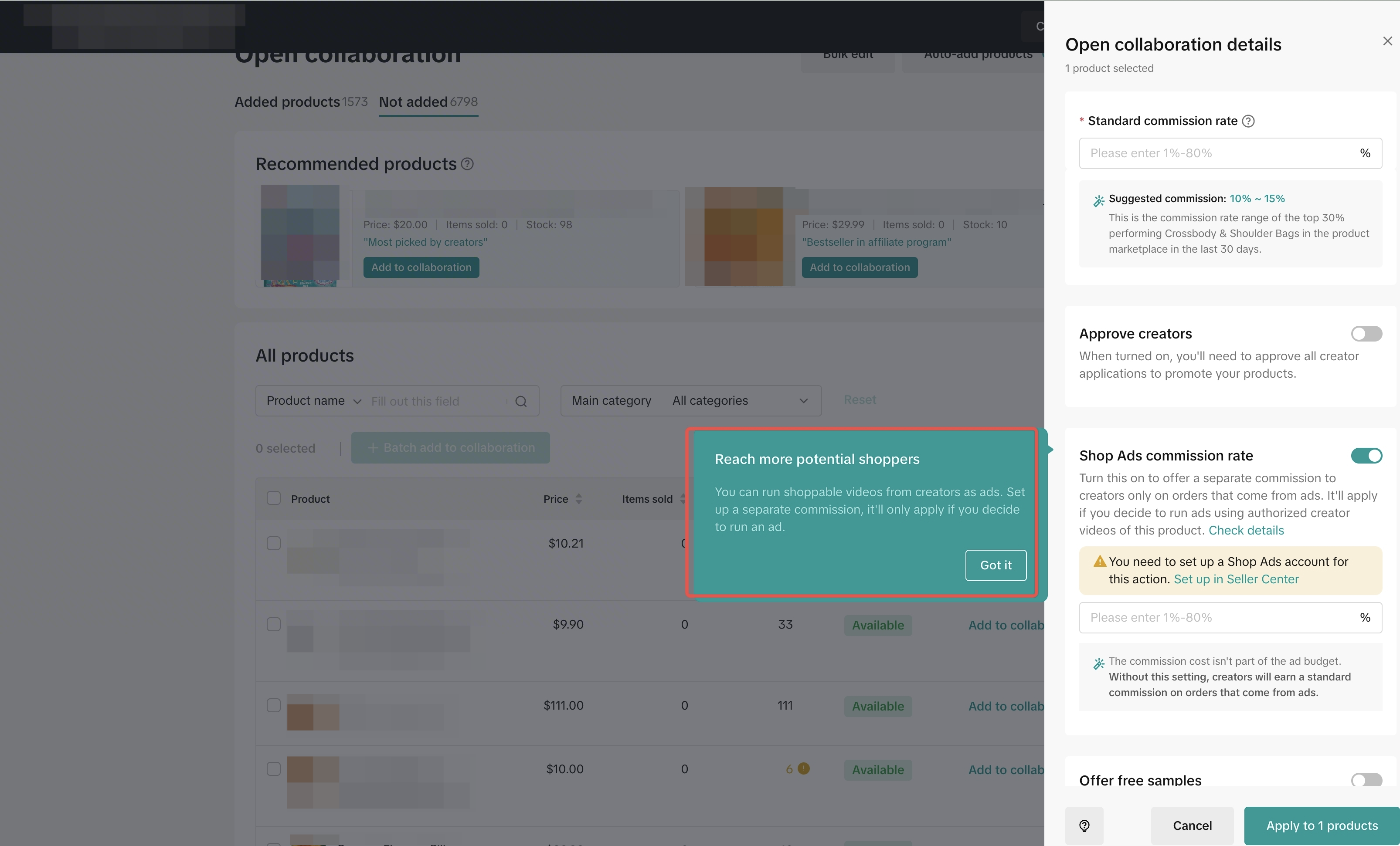
The Open Collaboration details page will open with the Shop Ads Commission Rate section. This section will still pop up even if you haven’t set up your Shop Ads account. You can do so by clicking the Set up in Seller Center redirect.
As mentioned in the section, the commission cost is not covered under your ad budget. The commission you will provide to Creators from your Video Shopping Ads will be under the Affiliate program.
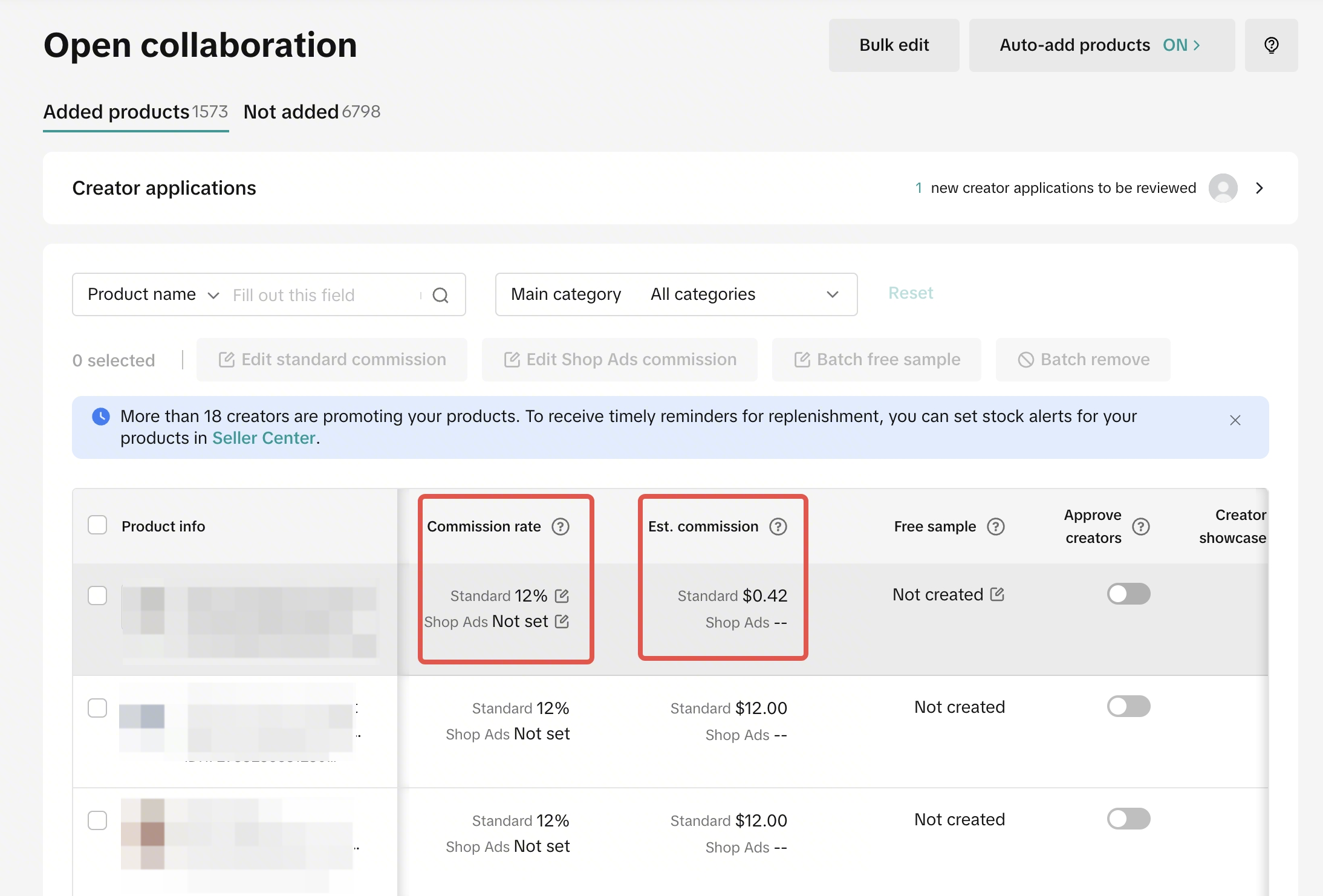
Once you have set your Shop Ads Commission Rate for your products, it will reflect under the Commission Rate and Est. Commission columns shown below.
Important: You can still use Creator Videos for boosting even without setting a Shop Ads Commission Rate. If you boost a video without it, the Creator will still receive the Standard Commission Rate.
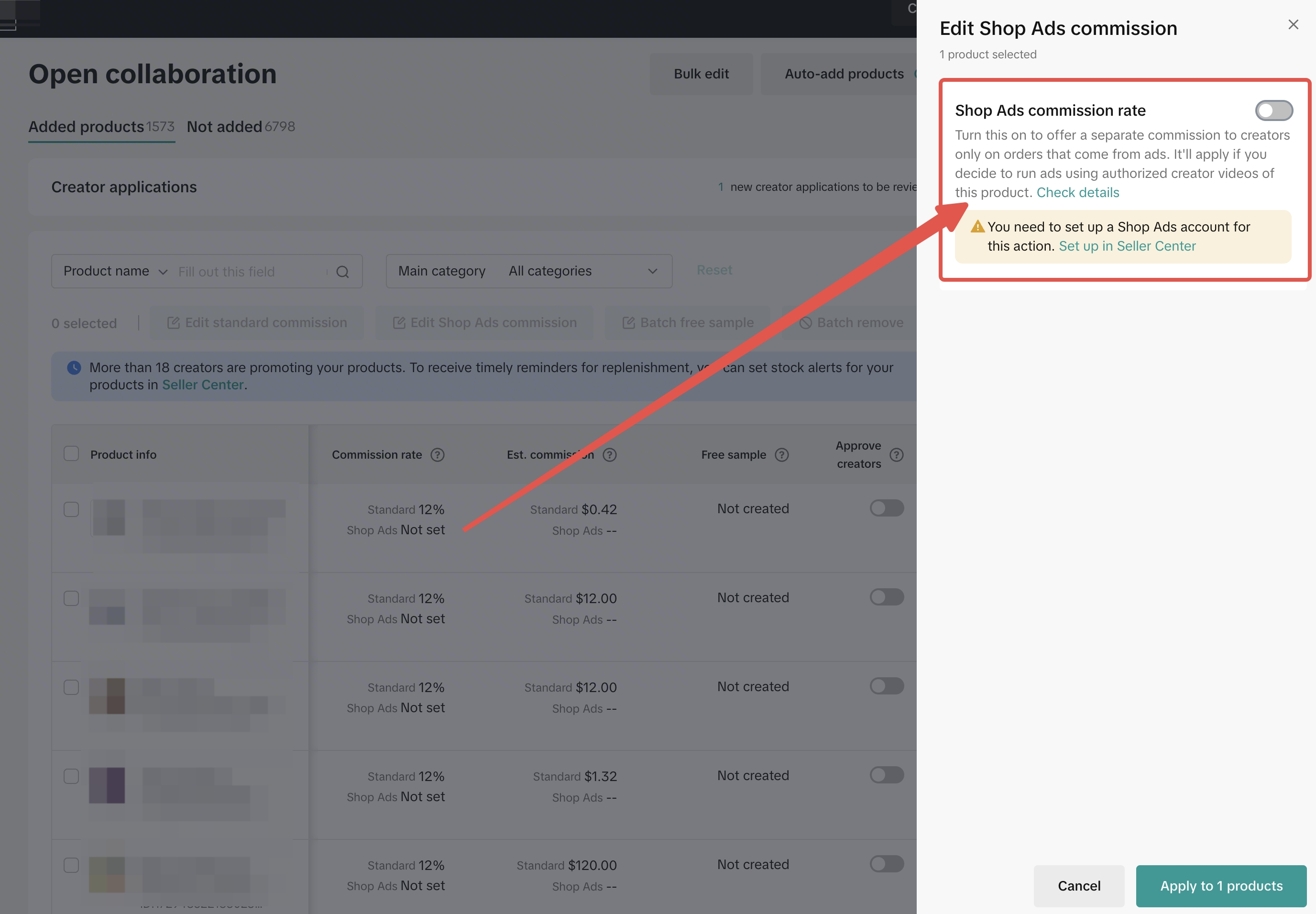
The product’s Shop Ads Commission Rate can be edited by clicking on the Shop Ads button, prompting the edit window.
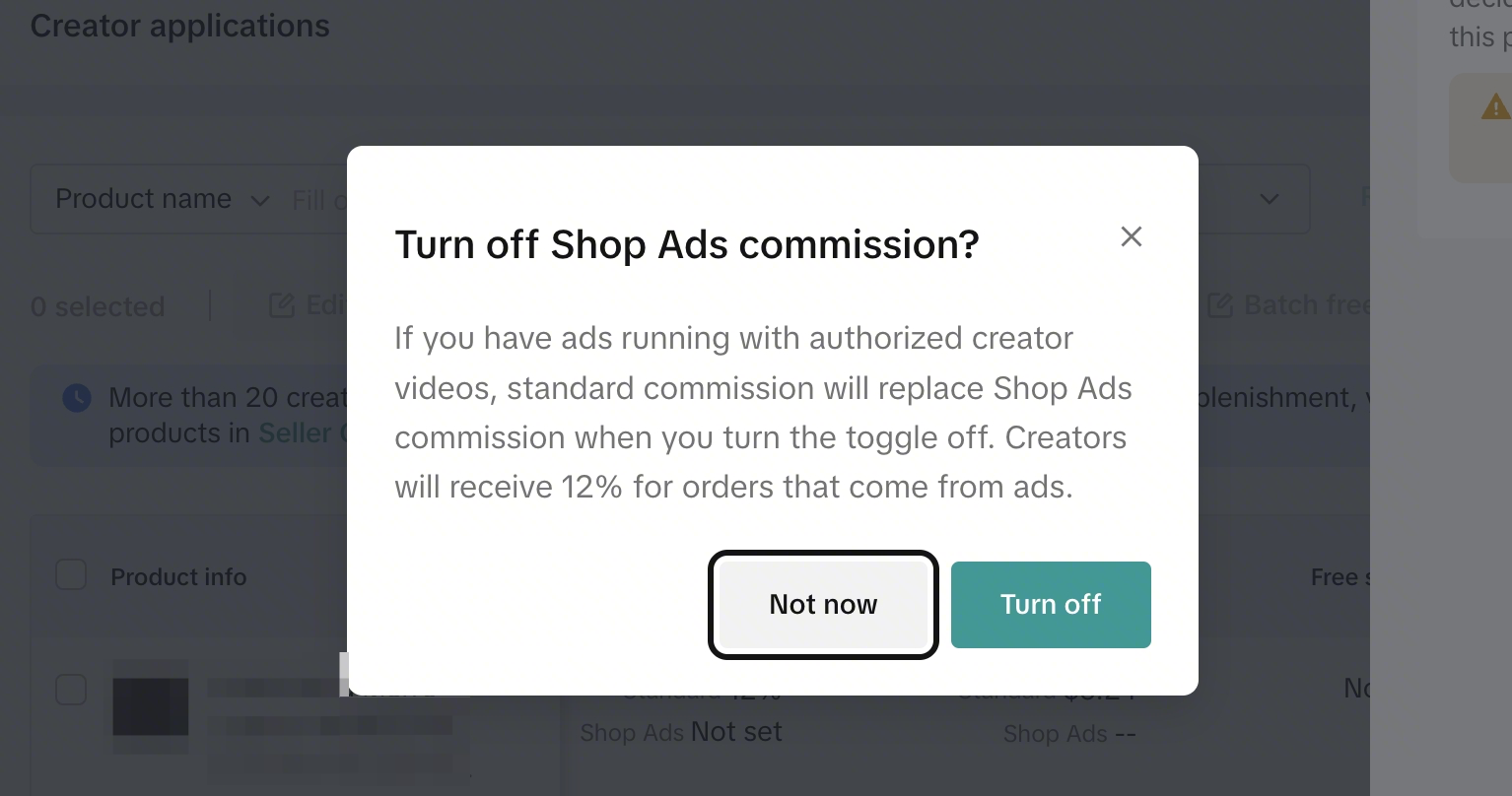
Important:
Turning off Shop Ads Commission Rate does NOT mean you are turning off the Video Shopping Ad for the Creator’s content.
To turn off the Video Shopping Ad, you will need to go to the TikTok Ads Manager (LINK).

Checking Authorized Videos for Shop Ads
Creators will need to authorize Sellers to use their Short Videos in-app. Once they turn on the authorization, you will have access to the Creator’s videos that are currently promoting your product.
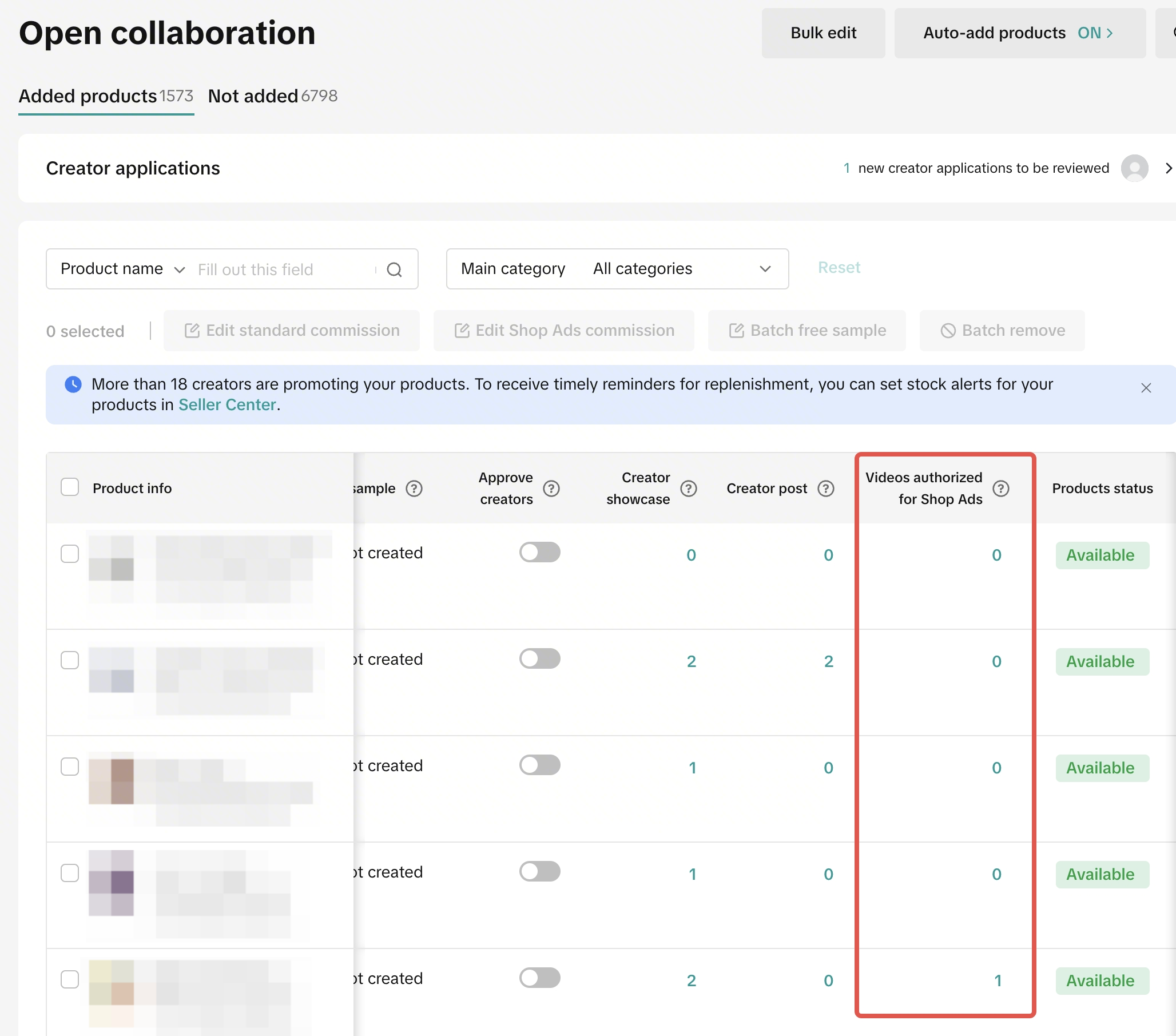
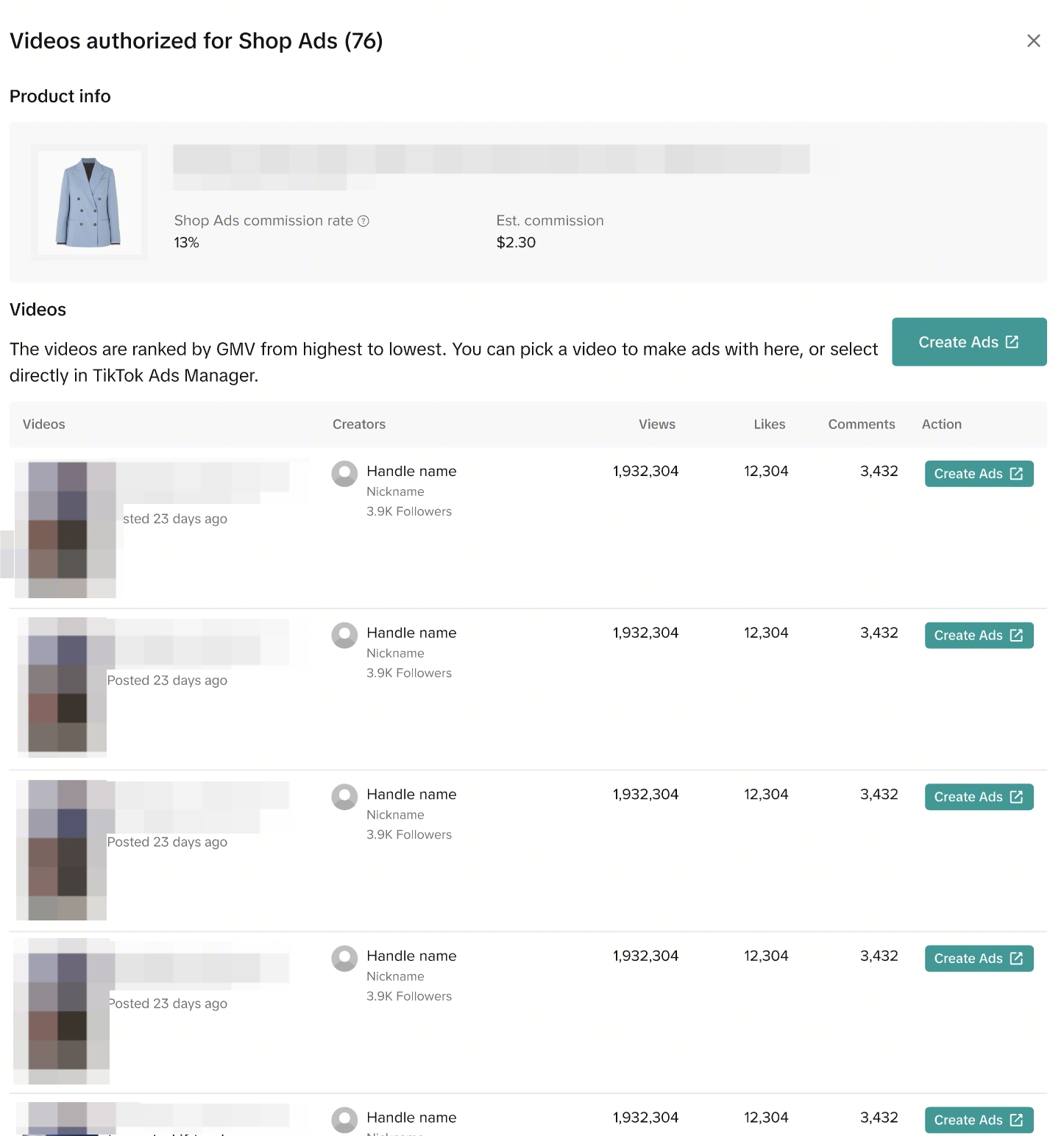
Clicking on the number below the Videos authorized for Shop Ads column will prompt a pop-up that shows the videos you can use for your Shop Ads. Clicking on the Create Ads button will redirect you to the Ads Manager for your boosting purposes.
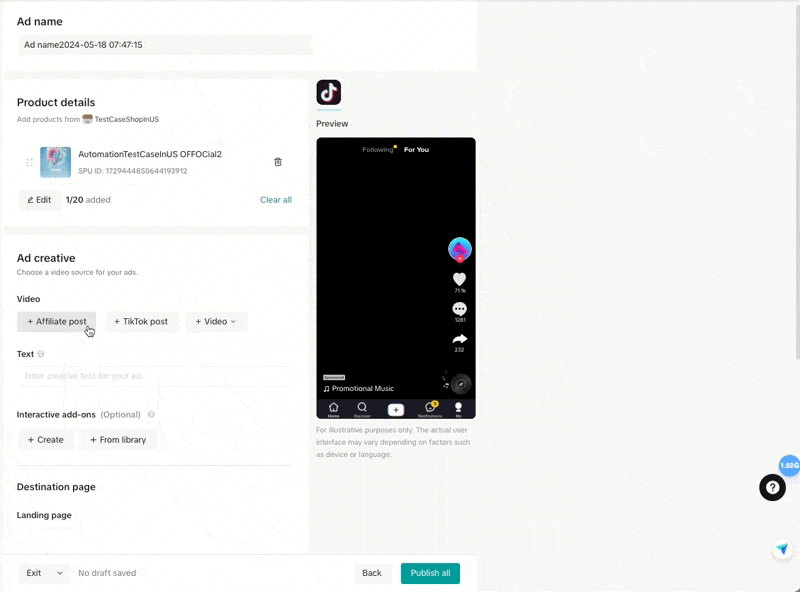
In Ads Manager, create Video Shopping Ads as usual with Affiliate Post video source and you’ll be able to see all authorized videos.
Standard Commission Rate vs Shop Ads Commission Rate
We prepared different scenarios for your reference if you choose to use a Creator’s content for your Video Shopping Ads.
https://about:blank/
| Commission Scenarios | Standard Commission Rate | Shop Ads Commission Rate | What will the Creator receive? |
| 1. Seller has Shop Ads Commission Rate set for a Creator’s video and Buyer adds the product from the Ad found in their FYP | 15% | 12% | 12% – Shop Ads |
| 2. Seller has Shop Ads Commission Rate set for a Creator’s video and Buyer adds the product from the Creator’s organic video in FYP | | | 15% – Standard |
| 3. Seller has Shop Ads Commission Rate set for a Creator’s video and Buyer adds the product from the Creator’s video found in the Creator’s account | | | 15% – Standard |
| 4. Seller boosts the Creator’s video with no Shop Ads Commission Rate set | | | 15% – Standard |
Tracking Affiliate Ads GMV and Commission
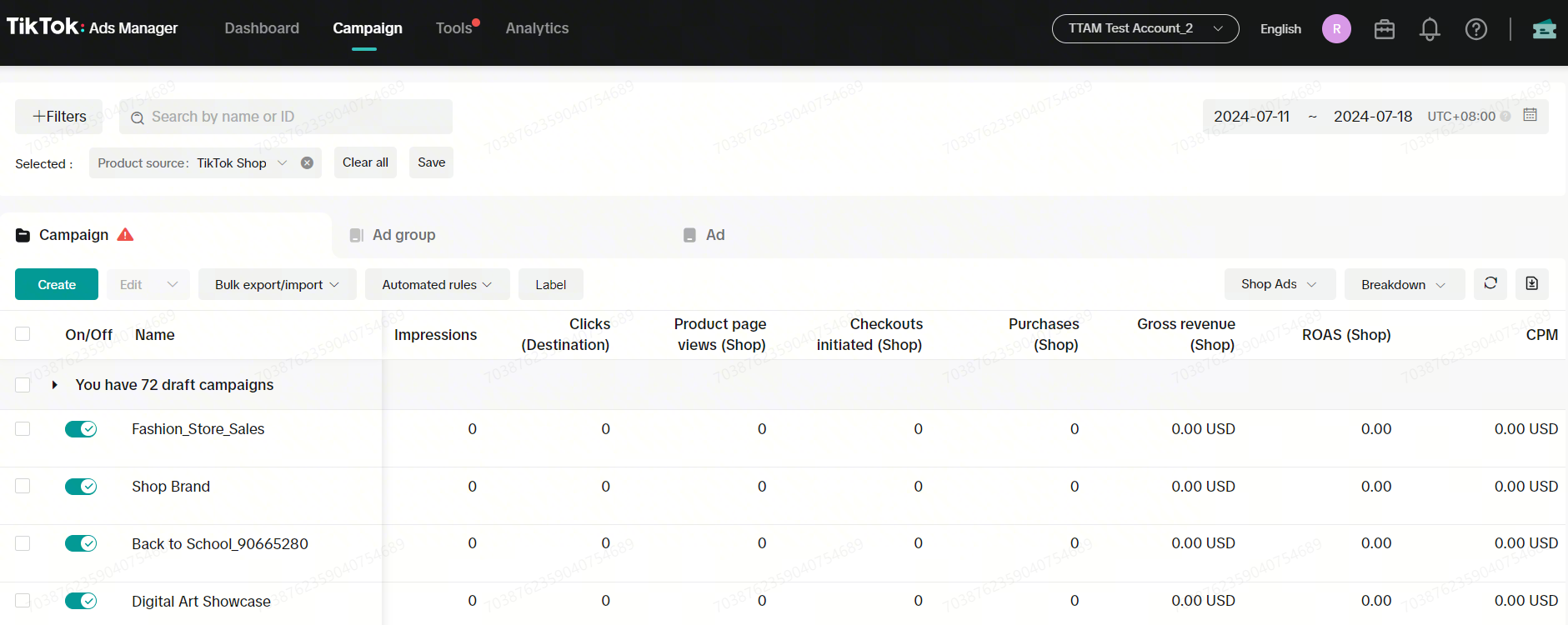
In Ads Manager, there will be ads performance metrics including ROAS, Revenue, Purchases, Clicks, Cost.
In Affiliate Center, under Affiliate Orders there will be commission metrics including the Shop Ads commission rate applied, estimated Shop Ads commission payment, actual Shop Ads commission payment.
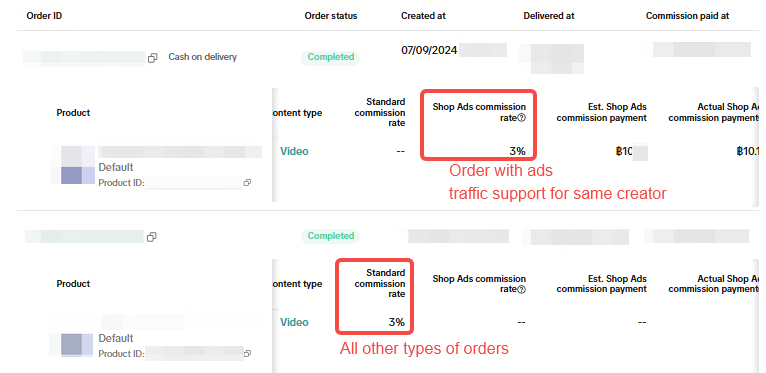
If Shop Ads commission rate has not been set, the Standard commission rate will be used to calculate ad commission amount for ad orders, and this ad commission amount will be reported under Shop Ads commission payment.
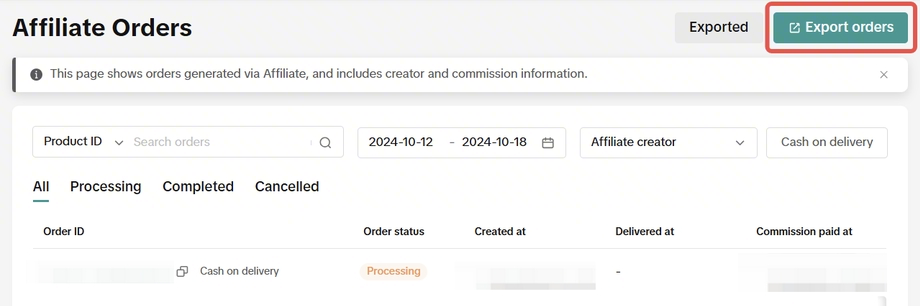
Sellers can also analyse the breakdown of Shop Ads Commission payout versus Standard Commission payout by clicking Export Orders and downloading an Excel file that will include:
The estimate and actual Standard Commission payment
The estimate and actual Shop Ads Commission payment

FAQ
- If I don’t set a Shop Ads Commission Rate for a video I want to boost, what commission rate will the Creator receive?
- If the product does not have a Shop Ads Commission Rate, the Creator will receive the Standard Commission from your Shop Ads.
- If I adjust the Shop Ads commission rate, when will it take effect?
Decreasing or increasing shop ads commission rate will take effect immediately.
- Is shop ads commission applicable for products that were added to Target Collaboration or TAP campaign?
Shop Ads commission rate can only be set on Open Collaboration.
If the same product is in multiple Open Collaboration, Target Collaboration, or TAP Campaign, the commission rate will be applied as follows:
When linking the product to the video, if the creator linked the product through TAP Campaign, then TAP Campaign commission rate will be applied.
When linking the product to the video, if the creator linked the product through Target/Open Collaboration, then:
If Shop Ads commission rate has been set under Open Collaboration, this Shop Ads commission rate will be used.
If Shop Ads commission rate has not been set under Open Collaboration, the Target Collaboration commission rate will be used.
- How will order cancellation affect the reported GMV and commission?
The reported ads GMV will continue to include cancelled orders.
However, cancelled orders may not have affiliate commissions; this will continue to depend on each country’s affiliate order cancellation policy.